
SharePoint form validation rules that actually hold
Every SharePoint form ships with a validation story somebody thought was finished. Then a manager imports forty rows from a spreadsheet, a flow writes an item with an empty required field, and somebody types "ASAP" into a date box. The rules were real — they were just all in one layer.
There are three layers, and each catches mistakes the others cannot. Build all three and the list stays clean regardless of how items arrive.
Layer 1 — Field rules in the form
These run while the respondent is still on the page, which makes them the only layer that can actually teach someone the right answer. In Smart Forms each question carries its own rules: required, minimum and maximum for numbers, character limits for text, and format checks on email, phone and URL questions.
- Set numeric bounds on anything that has a real-world range — hours, quantities, percentages.
- Use the typed question rather than a text box: a date question, a currency question, a person picker.
- Keep the message specific. "Enter a whole number of hours between 1 and 40" beats "Invalid value".
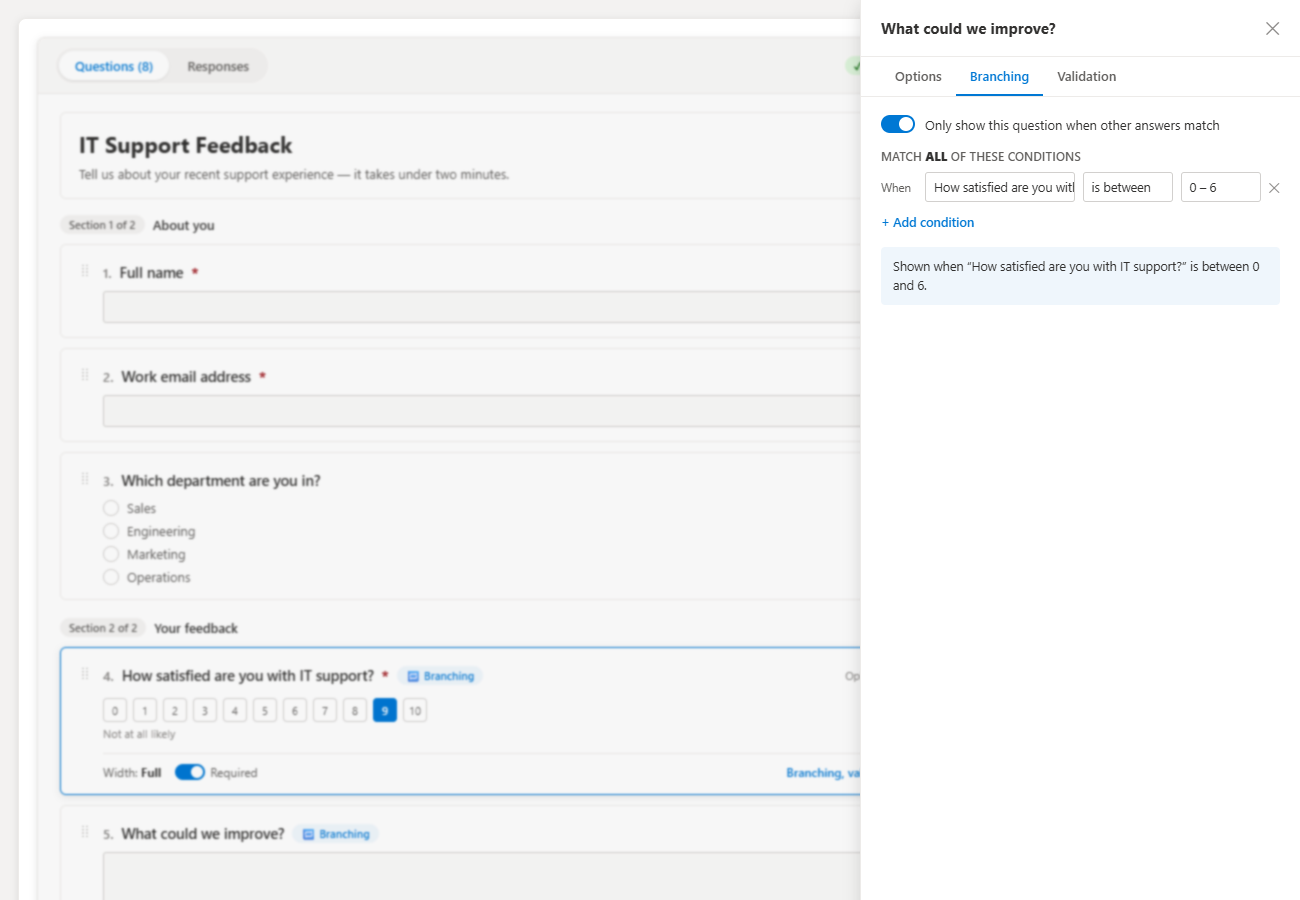
Layer 2 — Branching, so bad answers are impossible
The cheapest validation is the question you never ask. Instead of adding an "N/A" choice to a question that only applies to contractors, put the question behind a rule: show when Employment type is Contractor. The data comes back with no N/A rows to filter out, and the form gets shorter for everyone else.
Branching also solves conditional required, which the built-in list form cannot do at all. Mark the question required and hide it behind a rule — it is enforced only on the path where it is asked. See branching logic in a SharePoint form for the rule syntax.
Layer 3 — Column validation on the list
This is the layer people skip, and it is the only one that holds when the write does not come from the form. In List settings:
- Column validation for single-column rules, on the column itself. It can only reference its own column.
- List validation for cross-column rules, under List settings → Validation settings. This is where
=[End Date]>=[Start Date]belongs.
Both apply to every write path: the form, an Excel import, Power Automate, the REST API, and someone editing in grid view. Write the user message on the validation settings page — SharePoint shows it verbatim.
The rules worth setting on every form
- Dates that describe a period get a list validation formula ensuring the end is not before the start.
- Any "other, please specify" text box is required only when Other is selected.
- Free-text fields that feed a report get a character limit, so the column stays readable in a view.
- Money and quantity fields are typed as number or currency, never text, and carry a maximum.
- Anything identifying a person is a person picker, so it resolves against Entra ID instead of spelling.
Test it with three bad submissions
Before you share the link, submit the form three times deliberately wrong: completely empty, wrong types in every box, and a submission where every individual field is valid but the combination is not. The third one is the test that finds the missing list validation formula.
Then run the pre-flight check in the designer. It flags unreachable questions, required fields hidden by branching rules, and rules that contradict each other — the three failures that only appear after the form is live.
Related
Frequently asked questions
Can a SharePoint field be required only in some cases?
Not in the built-in list form — required is a column setting that applies to every item. Conditional required is a form-layer feature: put the question behind a branching rule and mark it required in the form so it is only asked, and only enforced, when the rule matches.
What is the difference between column validation and form validation?
Form validation runs in the browser while someone fills the form and gives immediate feedback. Column validation runs at the list on every write, including imports, Power Automate and API calls, so it is the layer that actually guarantees the data.
How do I validate one field against another?
Use a list-level validation formula in List settings — for example =[End Date]>=[Start Date] — because column-level formulas can only see their own column. Mirror the same rule in the form so the respondent sees it before they submit.
Why does my validation formula reject valid values?
Almost always a type or locale mismatch: comparing a number column to a text value, or a date entered in a different format. Check the column's internal type first, then test the formula on an item you know is valid.
Does branching count as validation?
Indirectly, and it is the most reliable kind. A question that is never shown cannot be answered wrongly, so removing irrelevant questions eliminates more bad data than any error message.
The SharePoint forms guides
Pick the right form approach, build it against a SharePoint list, then compare it with the paid tools.
Understand
Every way to collect data into a SharePoint list, and what each approach costs you.
Microsoft Forms, list forms, Power Apps and SPFx compared by job.
Where responses land, who can edit them, and why that decides the choice.
Build
Free SPFx form that writes straight to a SharePoint list — no Power Automate, no premium license.
Skip the connector chain: submit directly into the list item.
Show and hide questions based on earlier answers.
Attach photos and documents to the created list item.
Was this page helpful?
One click. No form, no email address.
Missing something in SharePoint Smart Permissions? Feature requests and bug reports go straight to the developer on GitHub — no account needed to read, free account to post.
Request a featureRelated tool
SharePoint Smart Permissions
Visual permissions audit + Excel export. No PowerShell. Free, MIT licensed, no sign-up.
Keep reading
Routing SharePoint form responses to Teams and email
One flow, triggered on the list rather than the form, routes every submission to the right channel or mailbox — and keeps working if you rebuild the form.
Build a multi-page SharePoint form (wizard) for free
Thirty fields on one page is a completion-rate problem. Splitting the same thirty fields into five short steps is not.
How to add a file upload to a SharePoint form (free)
Attachments are where most free SharePoint form options fall over. Here's how to collect files with the response and land both in the same list item.
About the author
Sean Regan
SharePoint & Microsoft 365 consultant with 20+ years of hands-on experience building SPFx web parts, migration tooling and tenant-grade automation. Maintainer of the open-source SharePoint Smart Solutions suite.