
Build SharePoint forms that write straight into a SharePoint list — no Power Automate.
A free, open-source SPFx web part with a Microsoft Forms-style designer, 24 question types, AND/OR branching, and a built-in results dashboard. Every submission lands as a real list item with real columns — visible to views, search, Power BI and Power Automate from the second it's saved.
- Responses land in a SharePoint list, not a separate service
- 24 question types incl. person, lookup, signature, Likert
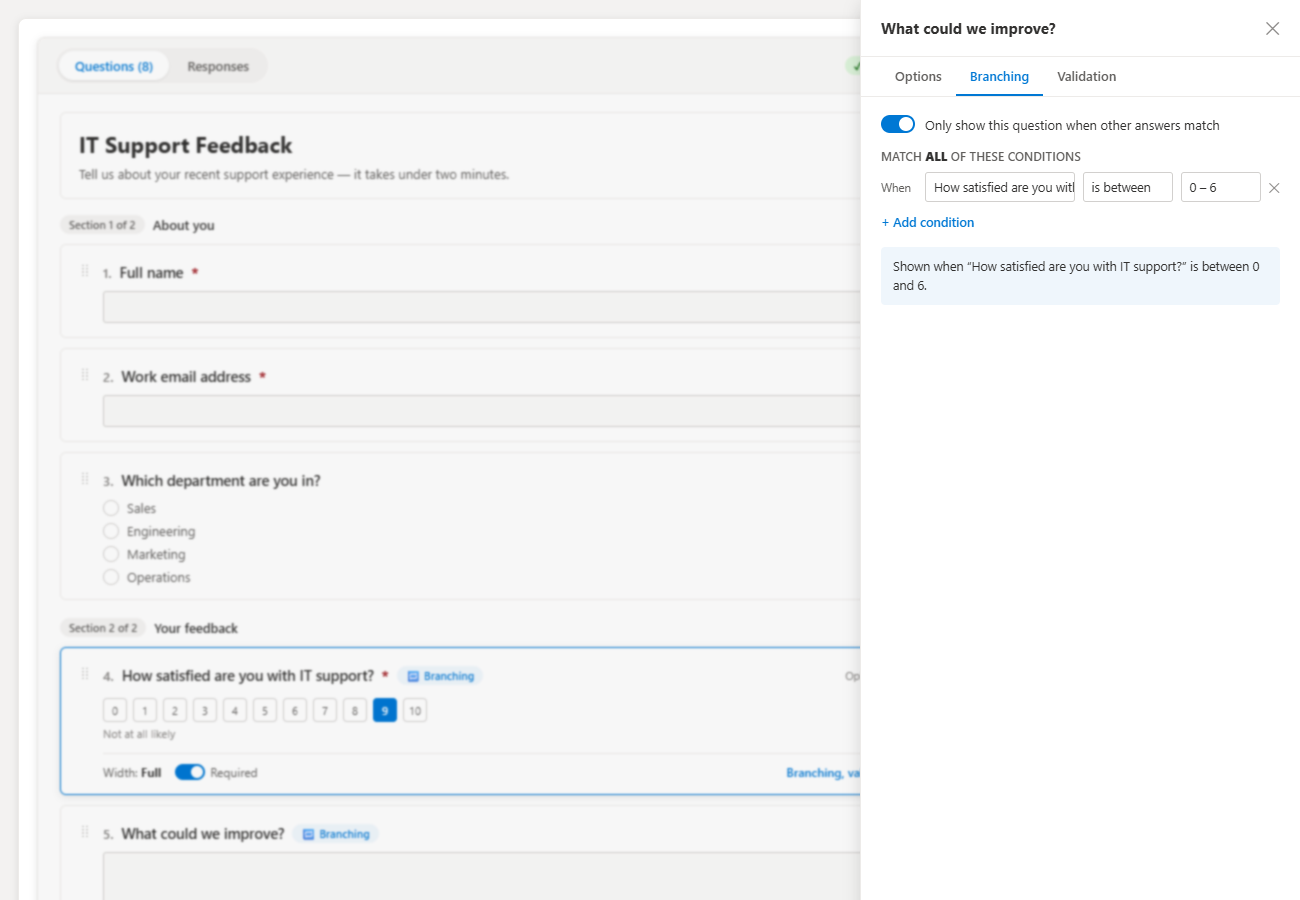
- Branching and validation with a plain-English rule preview
- Dashboard, segmentable summary and CSV export built in
- 30-language interface selected automatically
SharePoint Online web part (SPFx) · Deploys to your tenant App Catalog · MIT licensed
Quick answer
What is SharePoint Smart Forms?
SharePoint Smart Forms is a free, open-source SPFx web part that puts a Microsoft Forms-style form designer inside SharePoint Online. You build the form visually with 24 question types, AND/OR branching and validation, share one link, and every submission is written straight into a SharePoint list as a list item with real columns — no Power Automate flow and no premium connector. Results come with a built-in dashboard, a segmentable summary, a sortable response table and CSV export.
Cost: $0. MIT-licensed open source — no trial, no sign-up, no per-user license.
Three parts, one web part
Design it, share it, analyze it — all inside SharePoint
Smart Forms adds the design, distribution and analysis layer on top of a list you already own. The data is never locked inside a form tool.
Designer
The canvas is the form
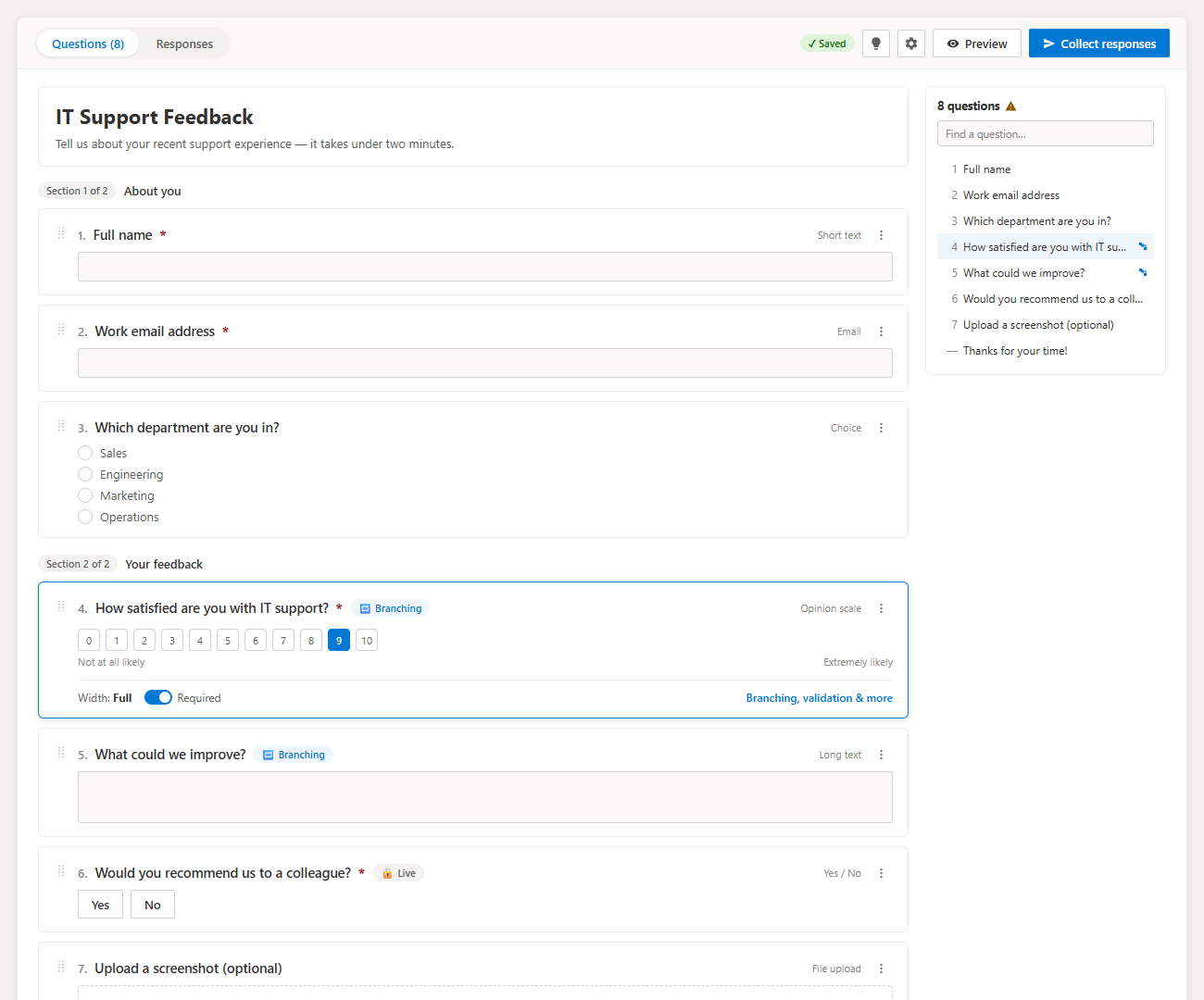
Click any question card and edit it in place — label, options, required toggle. Drag to reorder across sections, insert a question anywhere, and use the outline rail to navigate long forms.
- 24 question types across eight categories
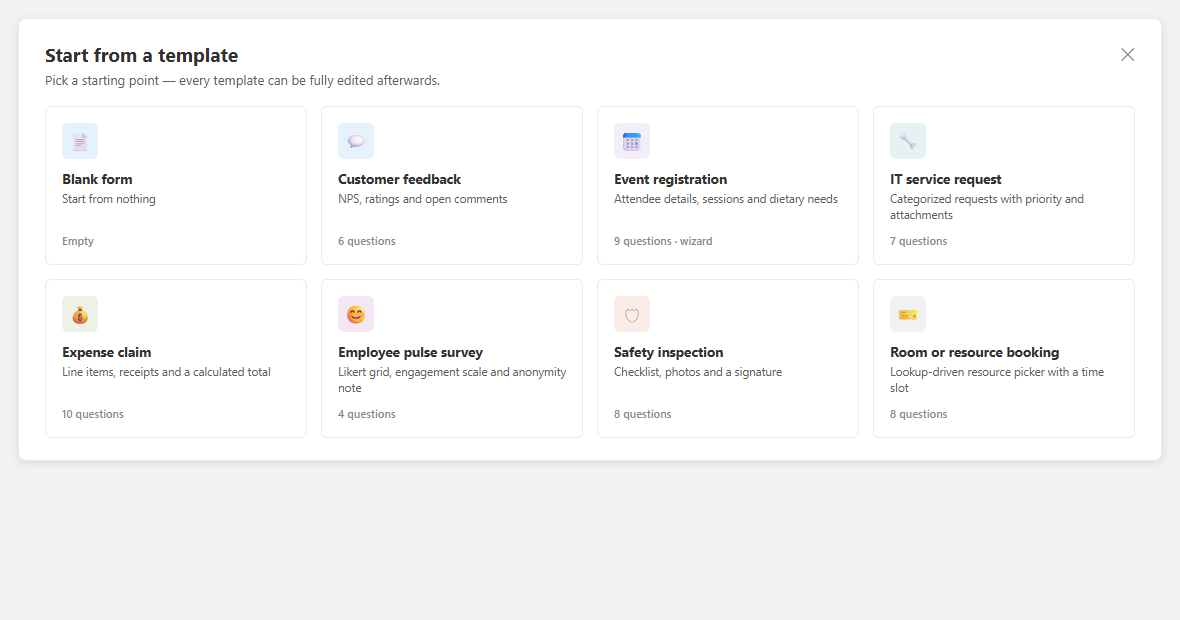
- Eight complete starter templates
- Pre-flight check before you collect responses
- Accent color and header icon, themed to the site
Filler experience
Single page or wizard
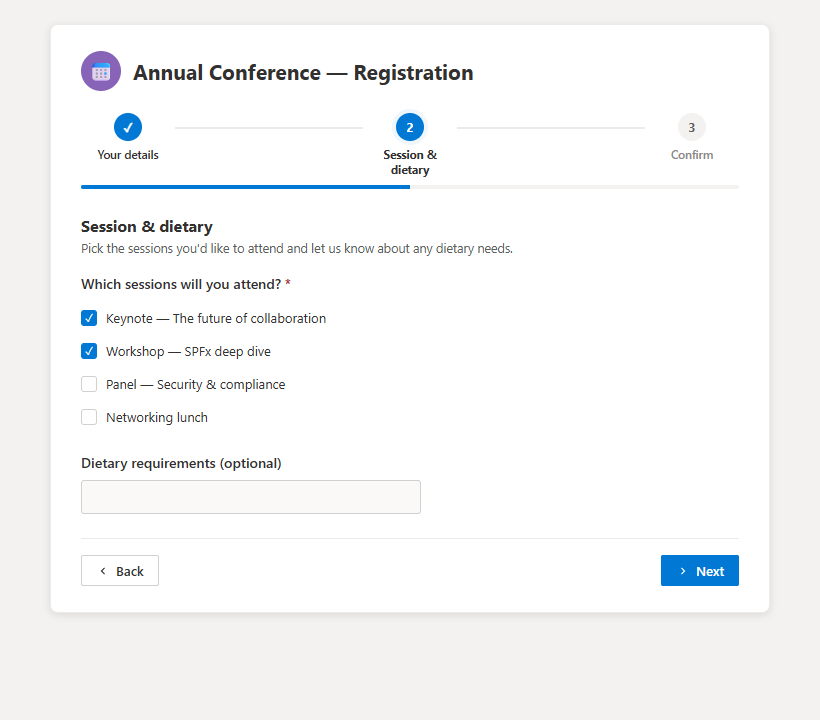
Respondents get a clean, accessible, mobile-friendly form — either all on one page or as a stepped wizard with a progress bar. Share one link; owners see the designer, everyone else sees just the form.
- URL prefill with &ColumnName=value
- Save and resume on single-page forms
- Open/close dates, response caps, one per person
- Custom thank-you screen and submit-another option
Results
Dashboard, summary, table, detail
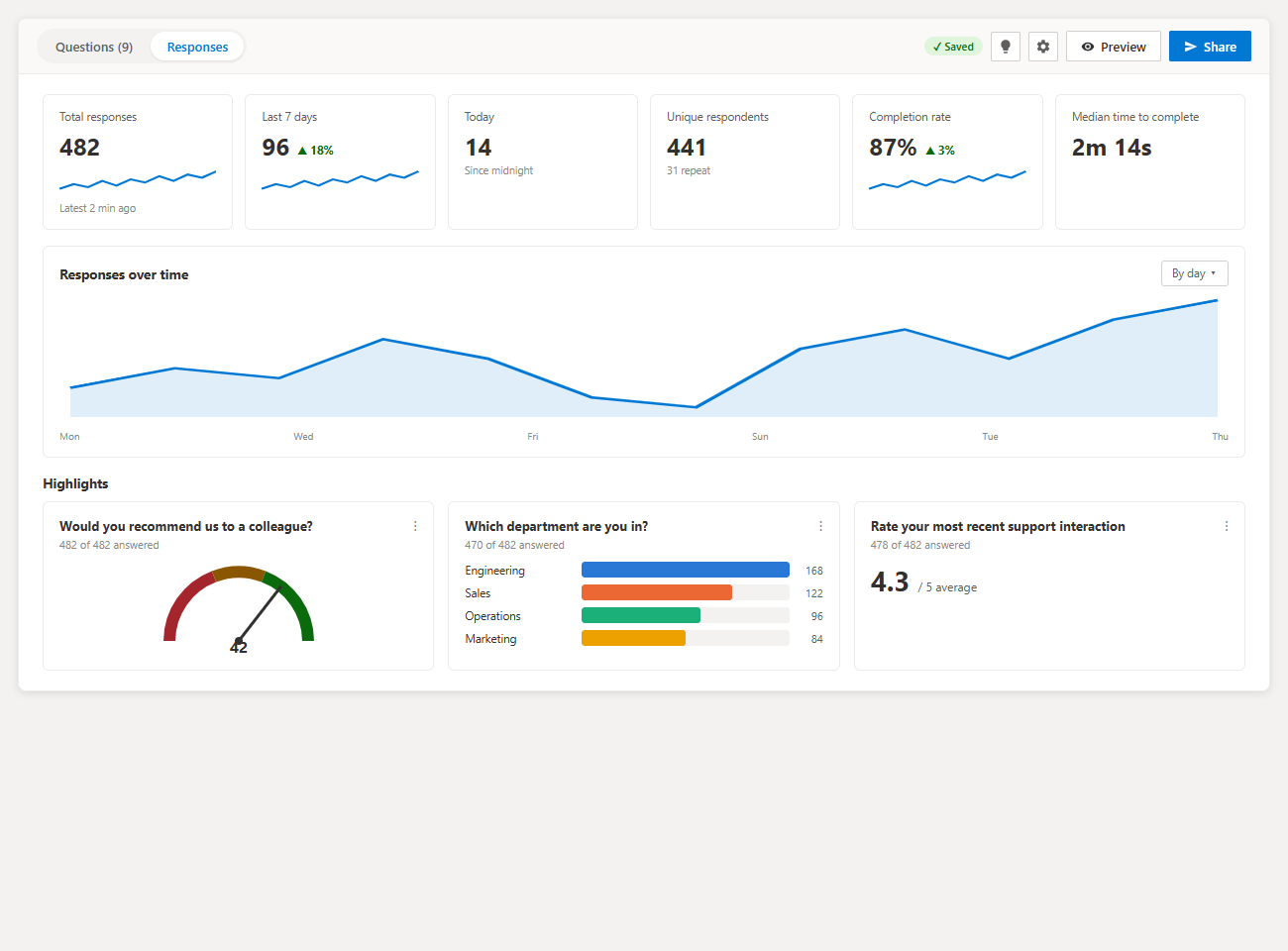
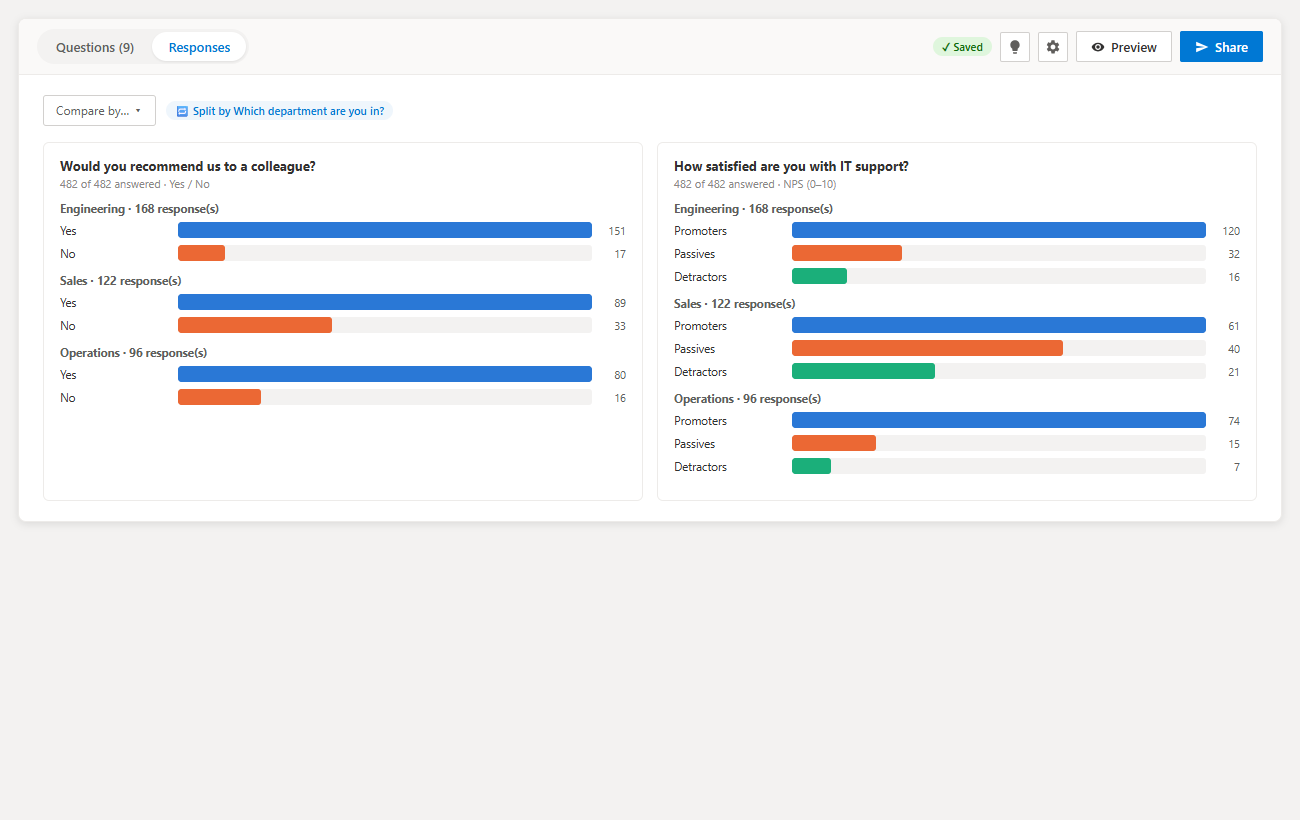
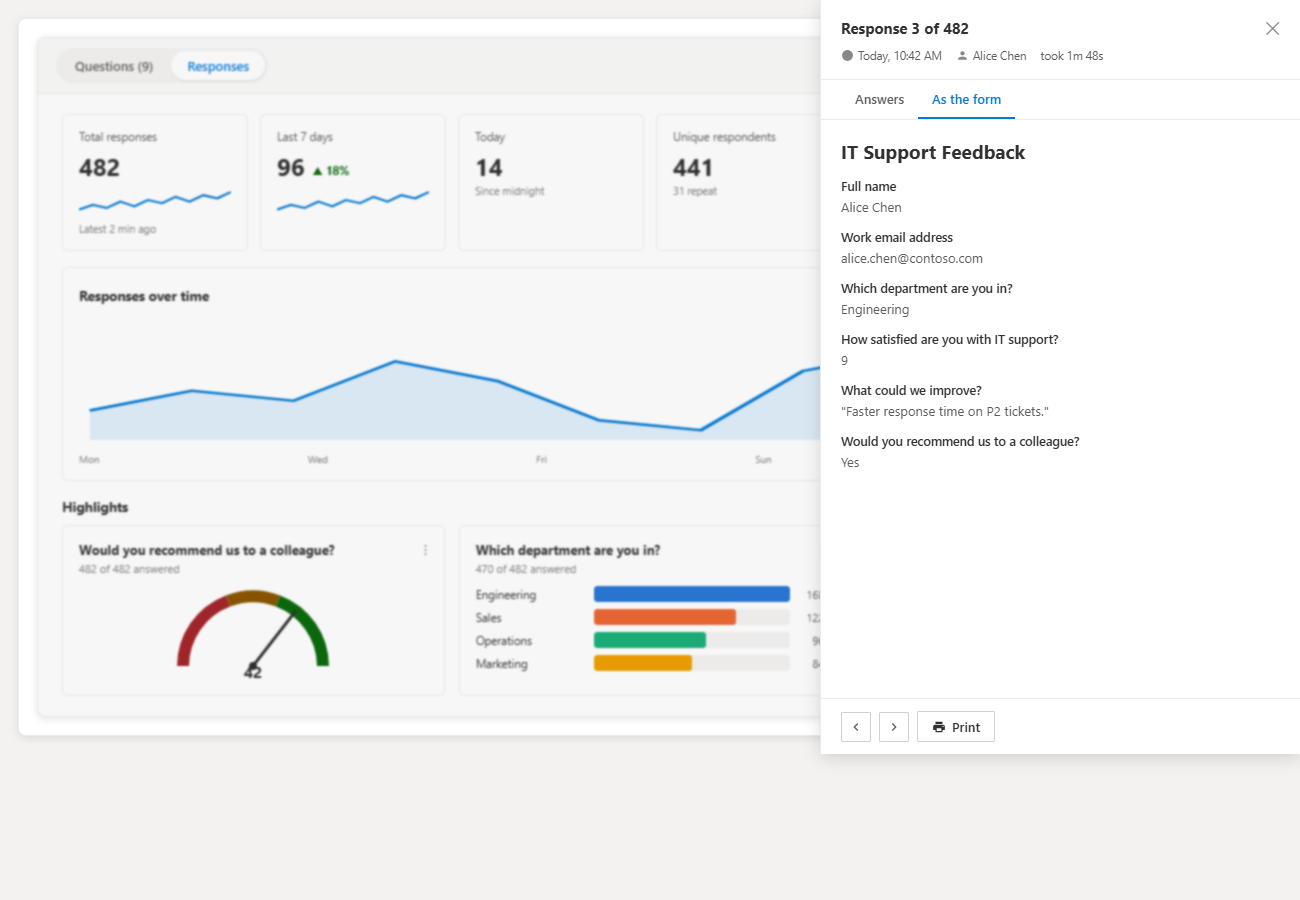
KPIs, a responses-over-time chart, per-question highlights, a summary you can split by any question, a sortable virtualized response table, and per-response detail rendered as the form itself.
- Segment ("compare by") any question
- Shared filters across all three views
- CSV export of the current filtered set
- Email notifications without Power Automate
Screenshots
What it looks like in SharePoint
Where the data goes
A real list, with real columns, from the first submission
When you click Collect responses, Smart Forms provisions a SharePoint column for each question on the list you picked. Every response is an ordinary list item after that — so views, versioning, retention labels, search, Power BI and Power Automate all work without any extra plumbing.
- No Power Automate flow needed to land data in a list
- No premium connectors, no Power Platform licensing
- Site permissions govern who can read the responses
- Delete a question and its column and data stay put
24 question types
Including several Microsoft Forms doesn't have
Person pickers, live lookups from another SharePoint list, calculated totals, signatures and Likert grids — the things a standalone form tool structurally can't do inside your tenant.
Text
Short text, long text, formatted (rich) text, email, phone, address, link
Number
Number (plain, currency, percentage), calculated
Choice
Choice, image choice, lookup from another list, yes/no, consent
Scales
Rating, opinion scale, slider, Likert grid, ranking
Date & time
Date (with optional time), time
People
Person picker
Advanced
File upload, signature
Layout
Text block
Filling it in
One link. Single page or stepped wizard.
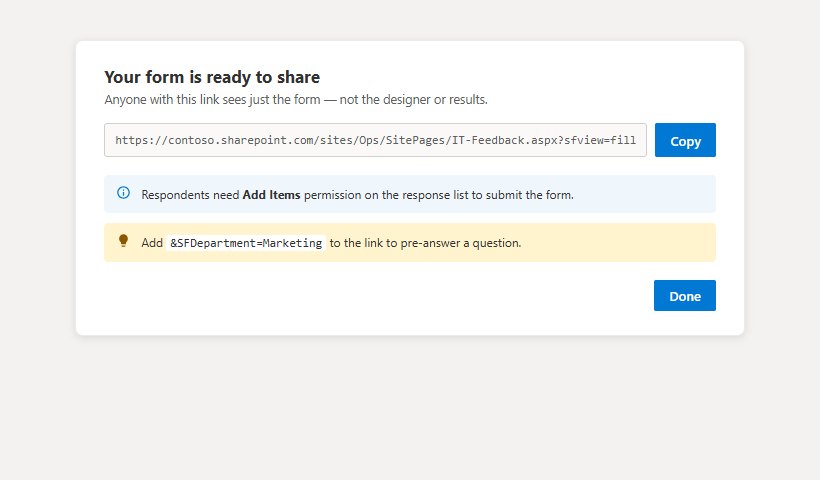
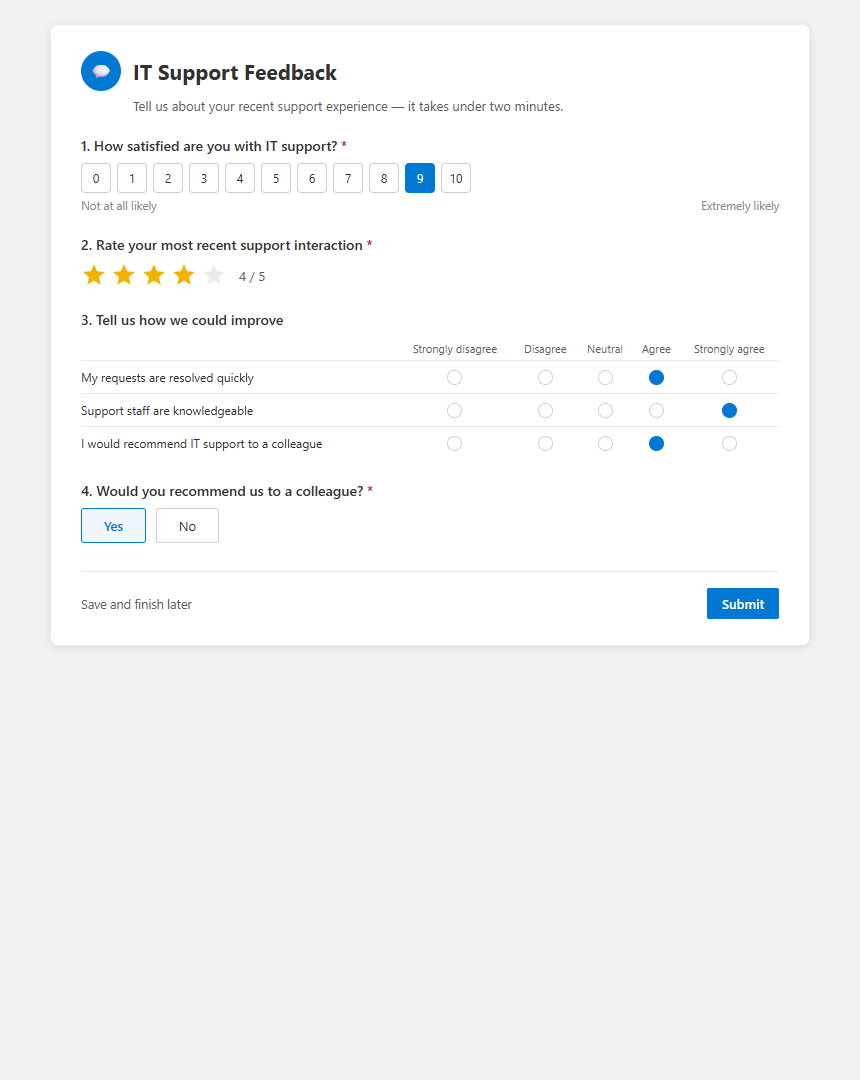
Collect responses gives you a link that shows only the form — even to owners — so you can test exactly what a respondent sees. Add &ColumnName=value to pre-answer a question, and pair it with a read-only field for department- or campaign-specific variants of the same form.
- Accessible, keyboard-navigable, mobile-friendly
- Validation enforced before submit, with custom messages
- Save and finish later on single-page forms
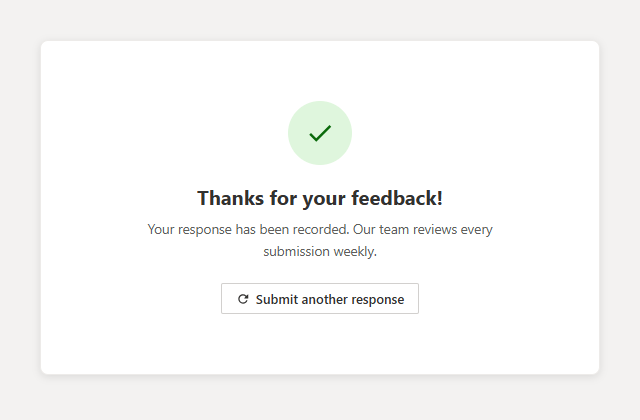
- Custom thank-you title, message and submit-another button
Results
Analyze responses without exporting to Excel first
The Responses tab opens on a dashboard: total responses, last seven days, today, unique respondents, completion rate and median time to complete, plus a responses-over-time chart and per-question highlights. Switch to Summary to split any question by another — NPS by department, for example.
- Compare-by segmentation on any question
- Sortable, virtualized response table with a column picker
- Per-response detail rendered as the form itself, print-friendly
- CSV export of the current filtered set (UTF-8, Excel-ready)
Form settings
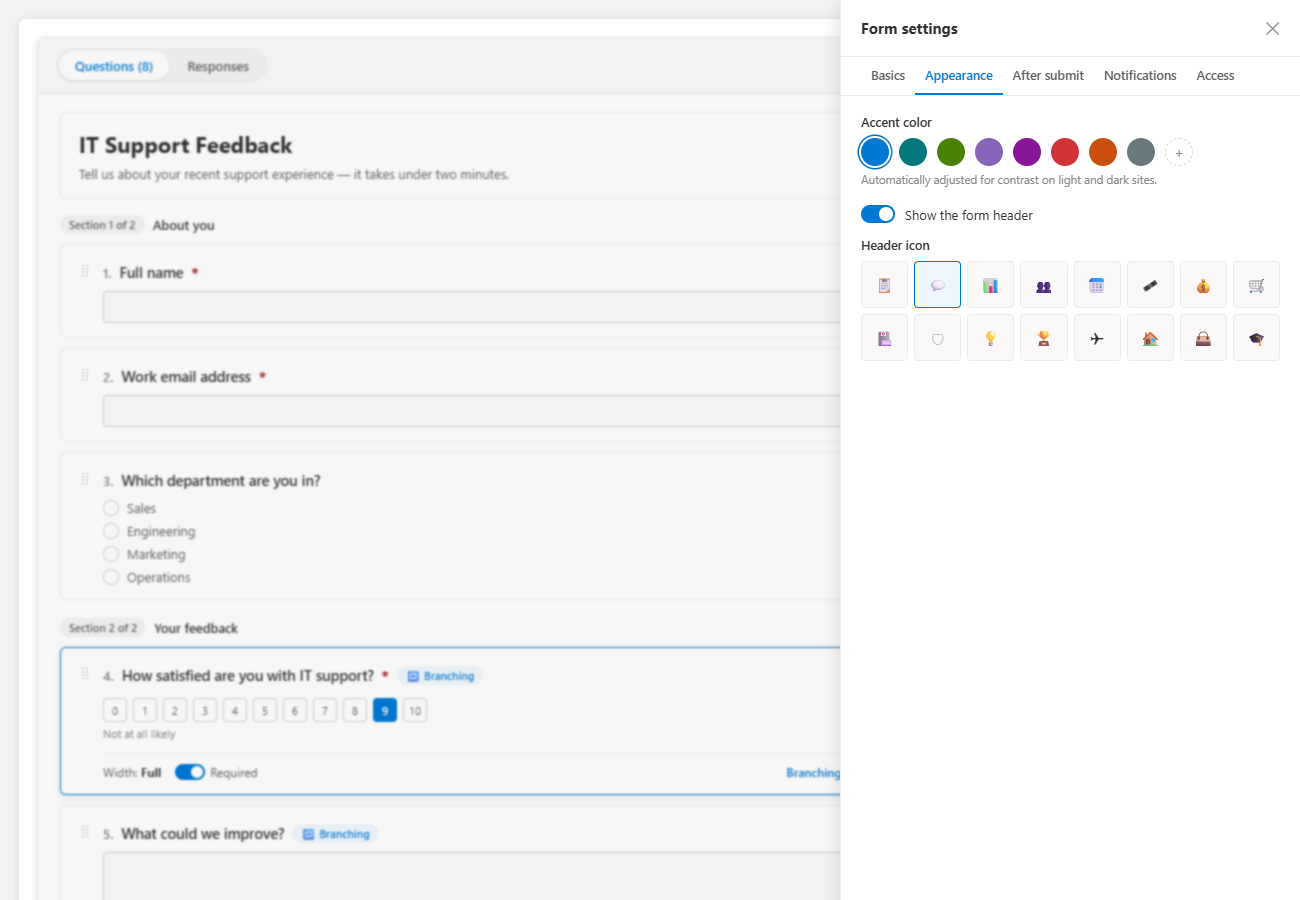
Five tabs, no code
Basics
Title, description, single-page or wizard layout, question numbering, question shuffling.
Appearance
Accent color (eight presets plus a custom picker) and an optional header icon — every other color derives from the site theme.
After submit
Submit button text, thank-you title and message, and whether to offer a Submit another response button.
Notifications
Who gets emailed on each response, and whether respondents get a copy of their own answers.
Access
Open/close dates, a response cap, one response per person, save-and-resume, and the closed-form message.
Notification emails use SharePoint's own send-email API, so recipients must be users inside your Microsoft 365 organization — external addresses aren't delivered.
Security
Your tenant, your list, your permissions
Runs as the signed-in user
Every read and write uses the current user's own SharePoint permissions. The web part has no elevated access of its own.
Designer and results are gated
Only users with Manage Lists on the response list see the Questions and Responses tabs. Everyone else sees just the form.
Submissions need Add Items
Respondents need Add Items on the response list. This is the single most common cause of "the form doesn't work for my colleagues".
Data never leaves the tenant
Responses are stored only in the SharePoint list you choose. There is no external server, and the web part sends no usage data to us.
30-language interface
The web part follows each signed-in user's Microsoft 365 display language or the site's default, with English fallback. Questions and responses are not translated.
Note: access rules (open/close dates, response caps, one-per-person) are enforced by the form, not by SharePoint — anyone with direct Add Items permission on the list could still add an item without going through them.
Who it's for
Built for teams that live in SharePoint
Form owners
Anyone building an internal survey, request form, or registration page who wants a Forms-like build experience without leaving SharePoint.
Site owners
Teams that want response data in a list they already control, under the site's own permissions and retention.
Analysts
People who need a dashboard and segment-by-question breakdowns before anyone touches Excel.
Intranet teams
IT service requests, safety inspections, expense claims, room bookings — starter templates for each.
How this compares to Microsoft Forms and Power Apps
Microsoft Forms stores responses in its own service; Microsoft's own guidance is to use a Power Automate flow if you want each response copied into a SharePoint list. That flow is an extra artifact to build, own and troubleshoot, and it introduces a lag between submission and the row appearing in the list.
Smart Forms skips the middle step: it provisions a column per question on the list you pick and writes each response as a list item directly, so views, search, retention labels, Power BI and any list-triggered flow see the data immediately.
Power Apps customized forms can also write to a list, but they are apps someone has to maintain, and the moment a premium connector is involved there is per-user licensing. Smart Forms is an SPFx web part with no Power Platform dependency at all.
Sources
FAQ
Frequently asked questions
Compare
Smart Forms vs Microsoft Forms vs Power Apps
Three ways to collect structured input in Microsoft 365 — and where each one puts the data.
| Smart Forms | Microsoft Forms | SharePoint list form | Power Apps custom form | |
|---|---|---|---|---|
| Price | Free (MIT open source) | Included in M365 | Included in M365 | Premium connectors billed per user |
| Responses land in a SharePoint list | Needs a Power Automate flow | |||
| Standalone shareable fill link | Partial | |||
| Question types | 24 | ~10 | List columns only | Whatever you build |
| Person picker / lookup from another list | ||||
| Signature capture | Custom build | |||
| Likert grid | Custom build | |||
| Calculated live totals | Calculated column (after save) | |||
| Branching with AND/OR | Single-condition branching | Conditional formulas | ||
| Built-in results dashboard | ||||
| Segment results by another question | ||||
| Wizard (multi-step) layout | Sections only | |||
| Runs inside your tenant only | Forms service | |||
| Maintenance burden | Web part on a page | Form + flow | None | An app to own |
Support: every Smart Solutions tool comes with free community and GitHub support, and we also offer paid support plans for hands-on help.
Get your first result in about 10 minutes
Download SharePoint Smart Forms, follow the step-by-step install guide, and run it against a real site the same afternoon. Nothing to license, nothing to renew.
- Download the .sppkg package from the latest release.
- Upload it to your tenant App Catalog.
- Add the web part to a SharePoint page.
Email me when a new release ships
No marketing spam. One short email when a new release ships. You can unsubscribe anytime.