Quick answer

What does SharePoint Smart Forms do?

Smart Forms is a free, open-source SPFx web part that gives SharePoint Online a Microsoft Forms-style form designer with 24 question types, AND/OR branching, validation and eight starter templates. Respondents fill a themed single-page or wizard form from one link, and every submission is written directly into the SharePoint list you choose as a list item with real columns — no Power Automate flow. Owners get a results dashboard, a summary that can be segmented by any question, a sortable response table and CSV export.

Designer

Edit questions in place on the canvas

The canvas is the form. Click a card to expand it and edit the label, help text, options and required toggle right where it sits — no side panel round-trips. Drag to reorder across sections, insert a question anywhere, duplicate one, or jump around a long form with the outline rail.

  • Sections with headers and descriptions
  • Outline rail for navigating long forms
  • Duplicate, move and delete from the card itself
  • Pre-flight check flags empty options and unreachable branches
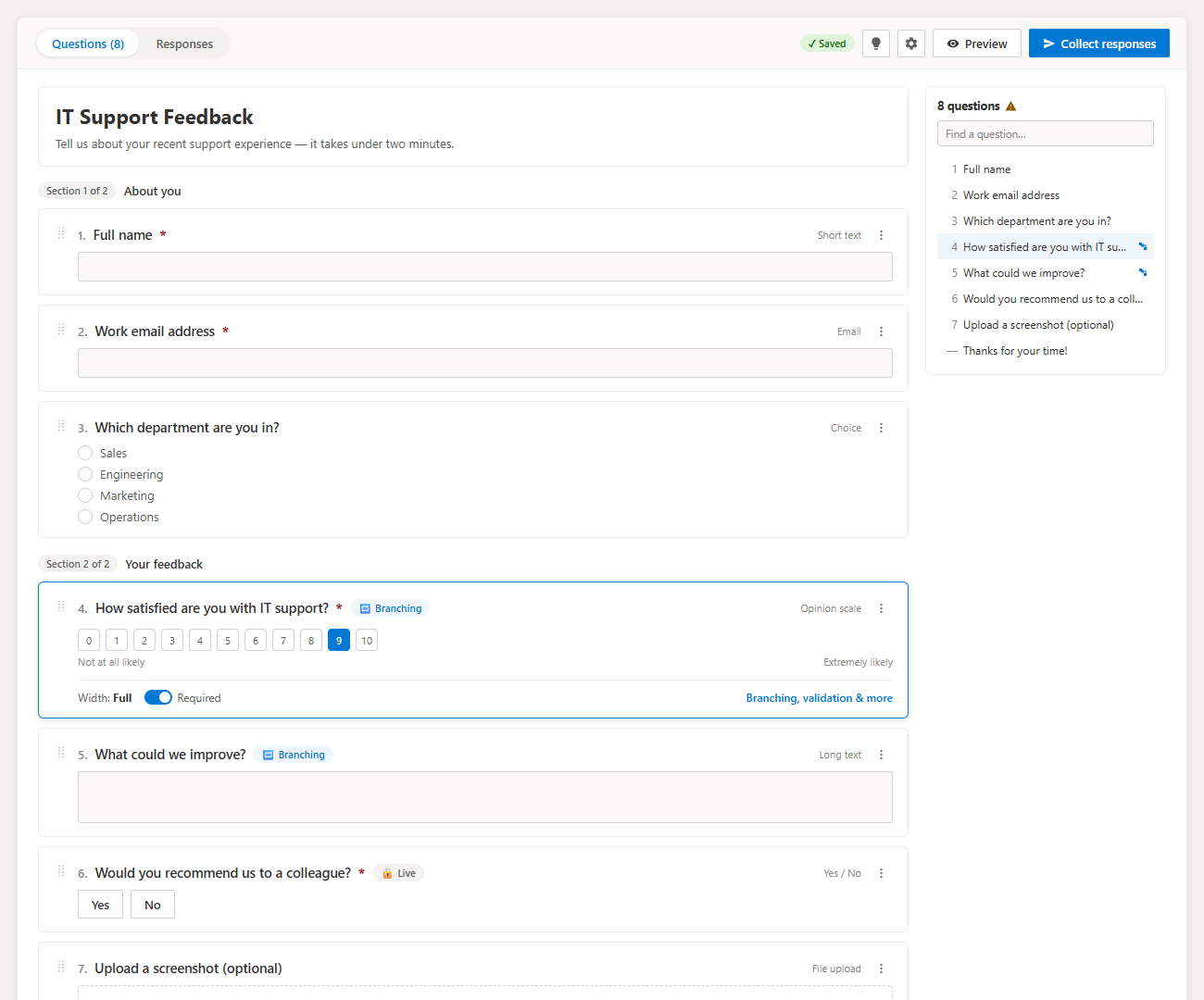
Smart Forms designer canvas showing question cards, section headers and the outline rail

Question types

24 types, including the SharePoint-only ones

Text, long text, rich text, email, phone, address, link, number, currency, percentage, calculated, choice, image choice, lookup, yes/no, consent, rating, opinion scale, slider, Likert grid, ranking, date, time, person picker, file upload, signature and text blocks. Lookup pulls live values from another SharePoint list; calculated fields total other answers as the respondent types.

  • Person picker resolves against Entra ID
  • Lookup reads a live column from another list
  • Signature capture and file upload with type/size limits
  • Likert grid and ranking for real survey work
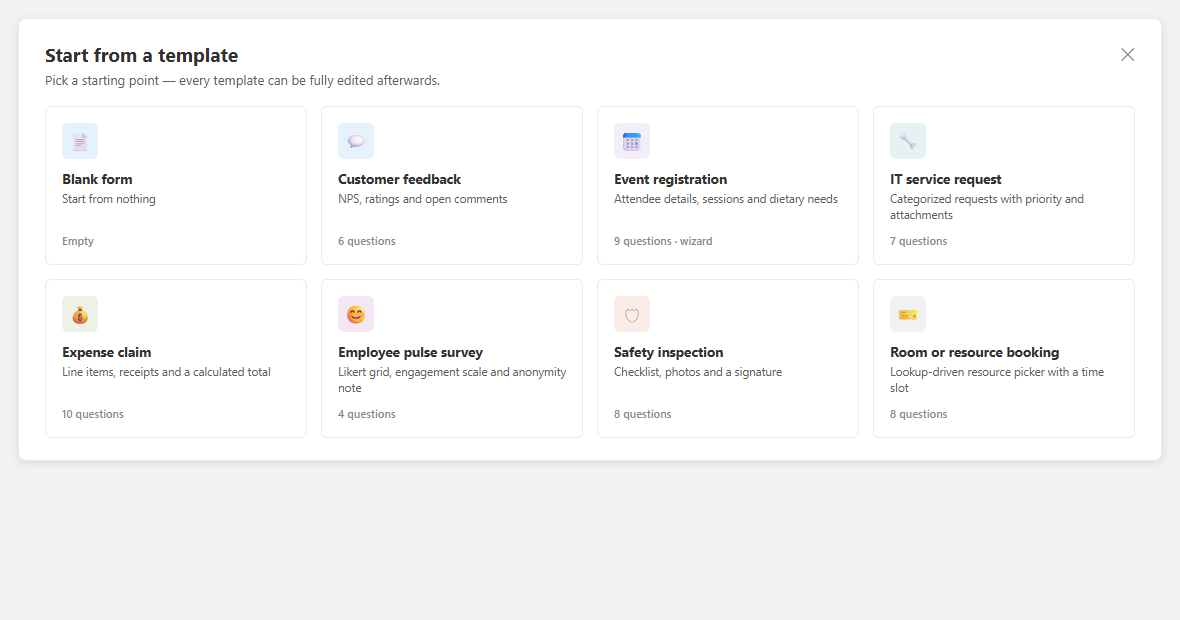
Smart Forms template gallery with eight ready-to-edit starting points
Eight templates — customer feedback, event registration, IT service request, safety inspection and more.

Logic

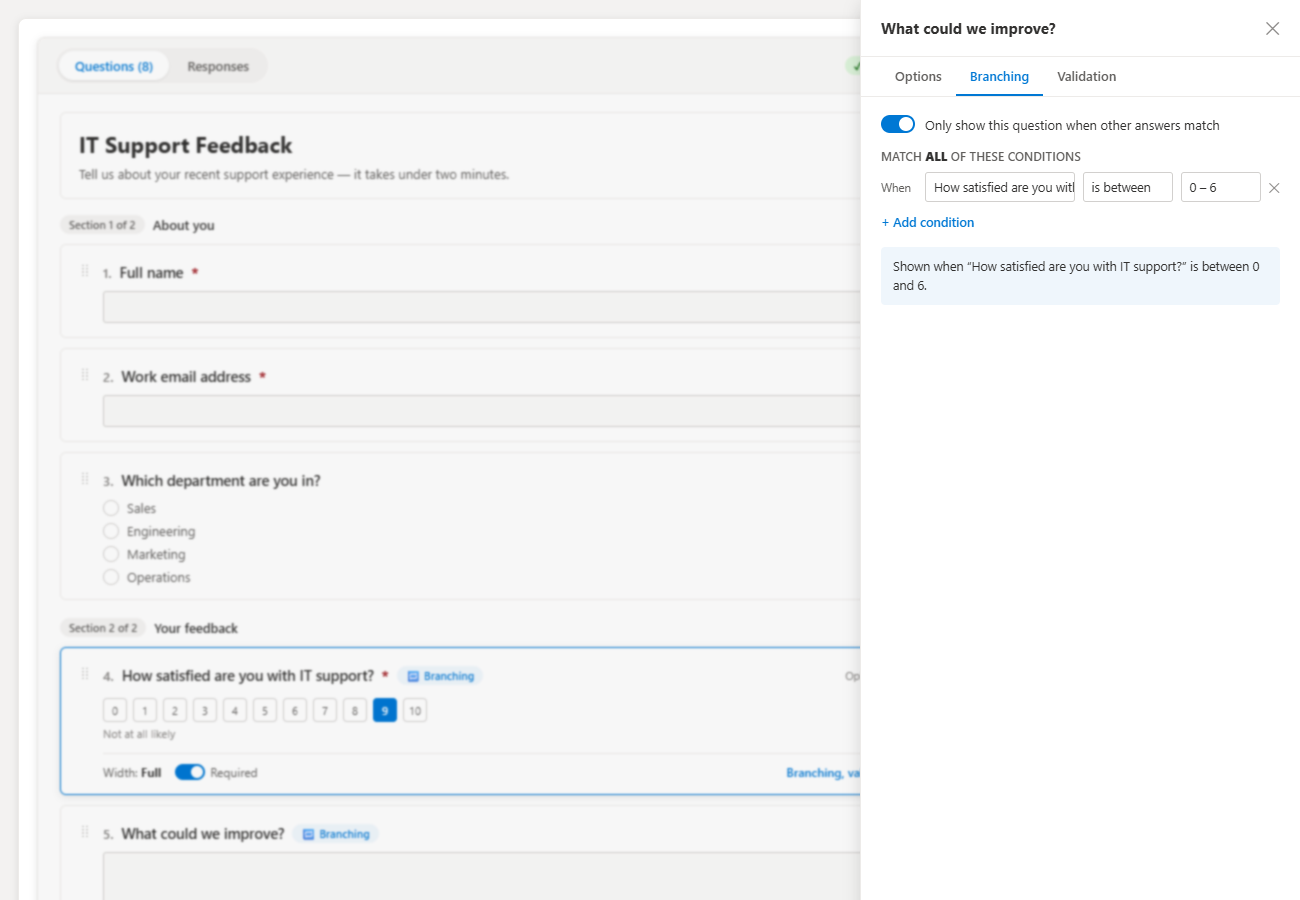
Branching with AND/OR and a plain-English preview

Show or hide any question based on answers given earlier. Build condition groups with AND or OR, and read the rule back in plain English before you save it — so the logic is reviewable by whoever owns the form, not just whoever built it.

  • Multiple conditions per rule, grouped with AND/OR
  • Plain-English rule preview
  • Hidden questions are skipped by validation
  • Pre-flight check warns about unreachable questions
Branching tab of the field editor with an AND condition group and a plain-English rule preview

Settings

Appearance, notifications and access rules

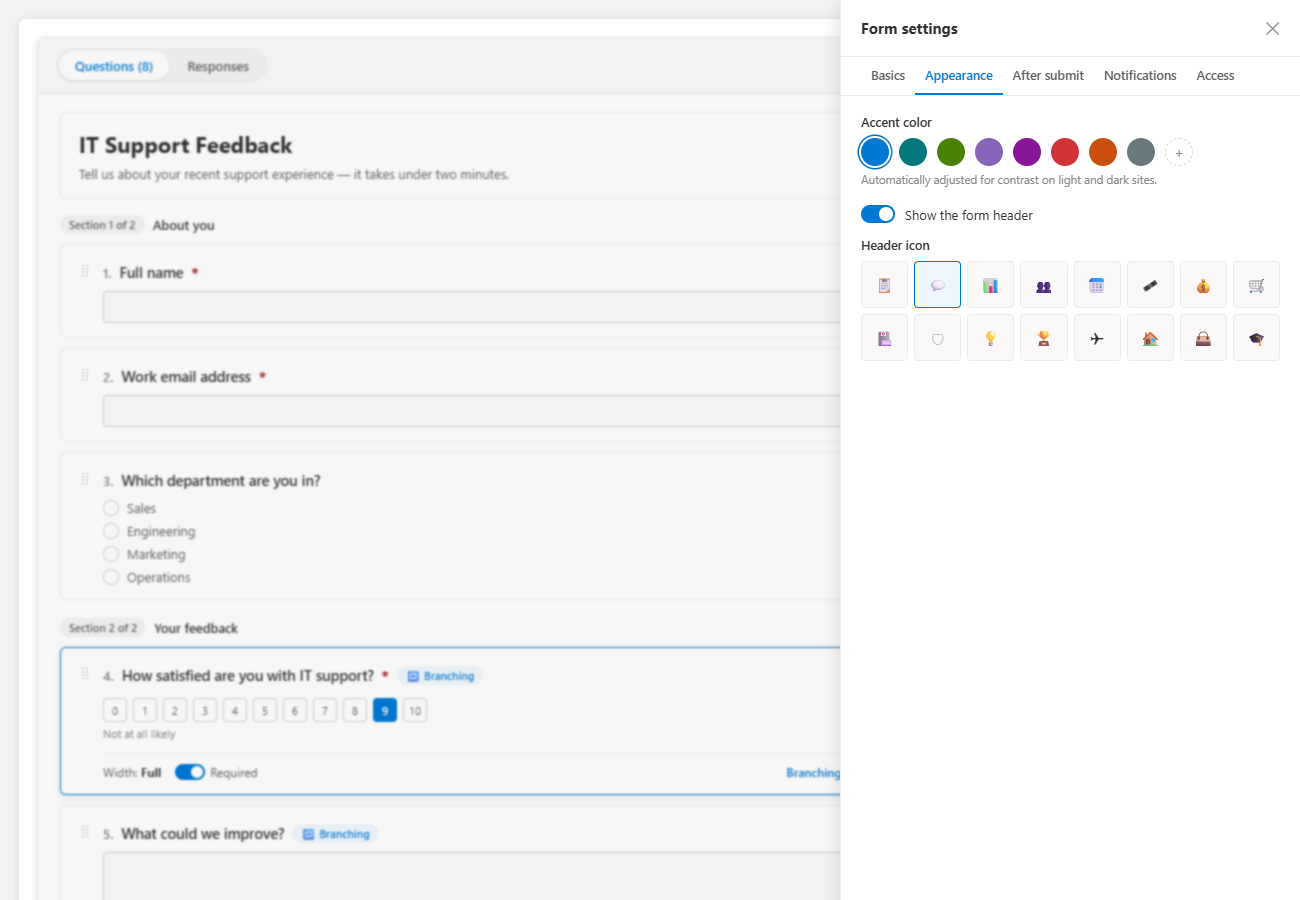
Five tabs cover everything: basics and layout, accent color and header icon, the thank-you screen, per-response email notifications, and access rules like open/close dates, a response cap, one response per person and save-and-resume.

  • Eight accent presets plus a custom color picker
  • Question numbering and question shuffling
  • Email owners on each response, and optionally the respondent
  • Custom message shown when the form is closed
Form settings panel on the Appearance tab with accent color swatches and header icon options

Collect responses

One link, with optional URL prefill

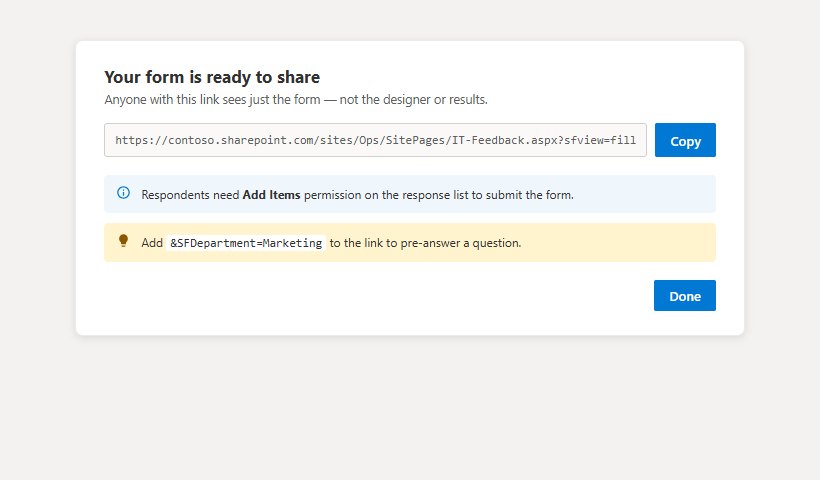
Collect responses provisions a column per question on your chosen list and hands you a fill link that shows only the form — even to owners — so you can test the respondent experience exactly. Append &ColumnName=value to pre-answer a question and reuse one form across departments or campaigns.

  • Columns created on the list you pick
  • Link shows the form only, never the designer
  • URL prefill for per-audience variants
  • Respondents need Add Items permission on the list
Collect responses dialog showing the copyable fill link and URL prefill guidance

Filler

Single page or stepped wizard

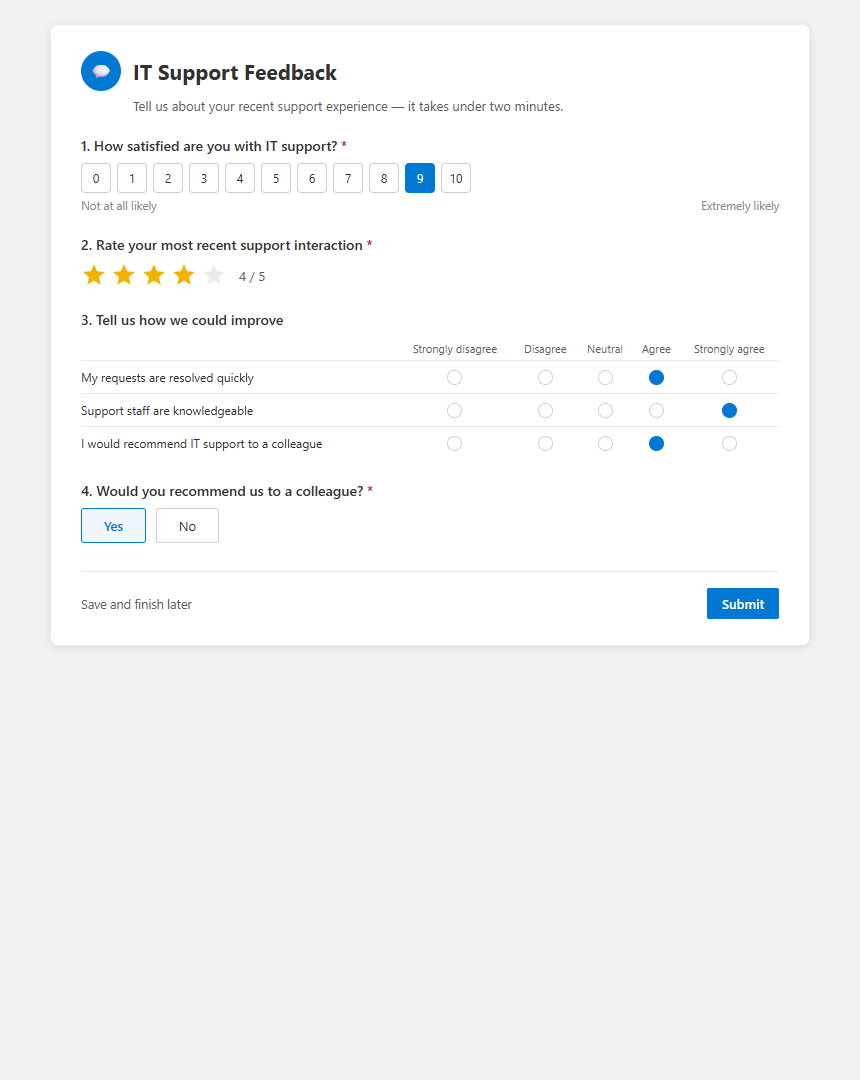
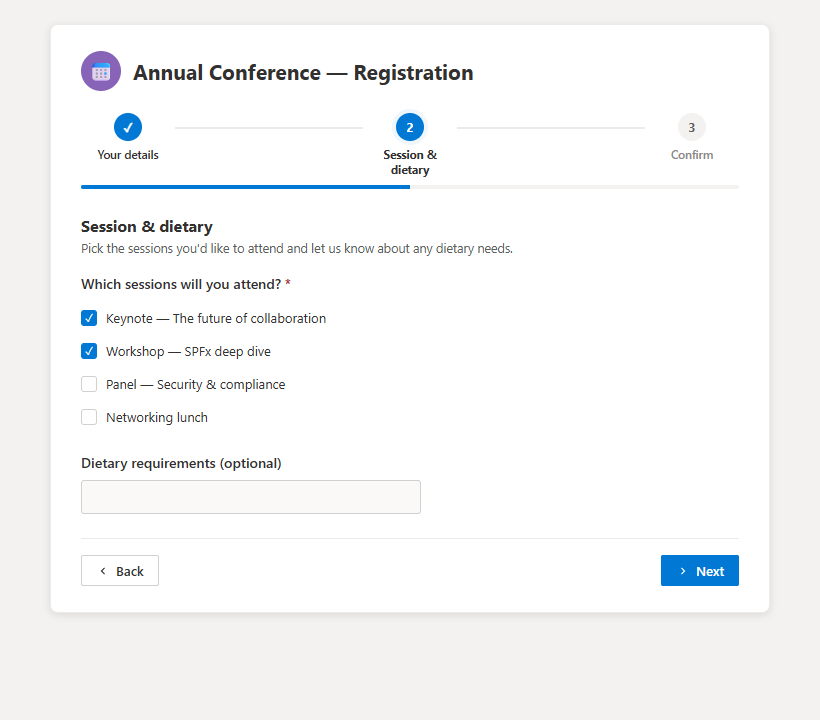
Respondents get an accessible, mobile-friendly form themed to your accent color. Choose a single scrolling page with optional save-and-resume, or a wizard that splits sections into steps with a progress indicator and per-step validation.

Single-page respondent view with an NPS scale, star rating and Likert grid

Filler

Wizard layout with progress and validation per step

Long forms feel shorter as a wizard. Each section becomes a step, the progress bar shows where the respondent is, and validation runs before Next so nobody reaches the end and gets thrown back to a missed field.

Wizard-layout conference registration form with a three-step progress indicator

After submit

Your own thank-you screen

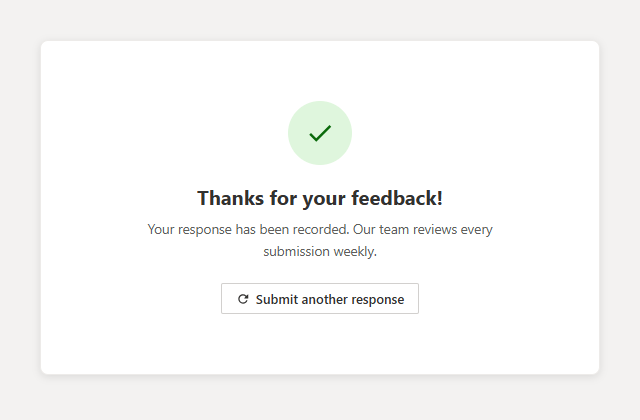
Set the submit button text, the thank-you title and message, and whether to offer a Submit another response button — useful for kiosk-style forms like inspections or sign-ins.

Custom thank-you confirmation screen after a form submission

Results

A dashboard, not just a list of rows

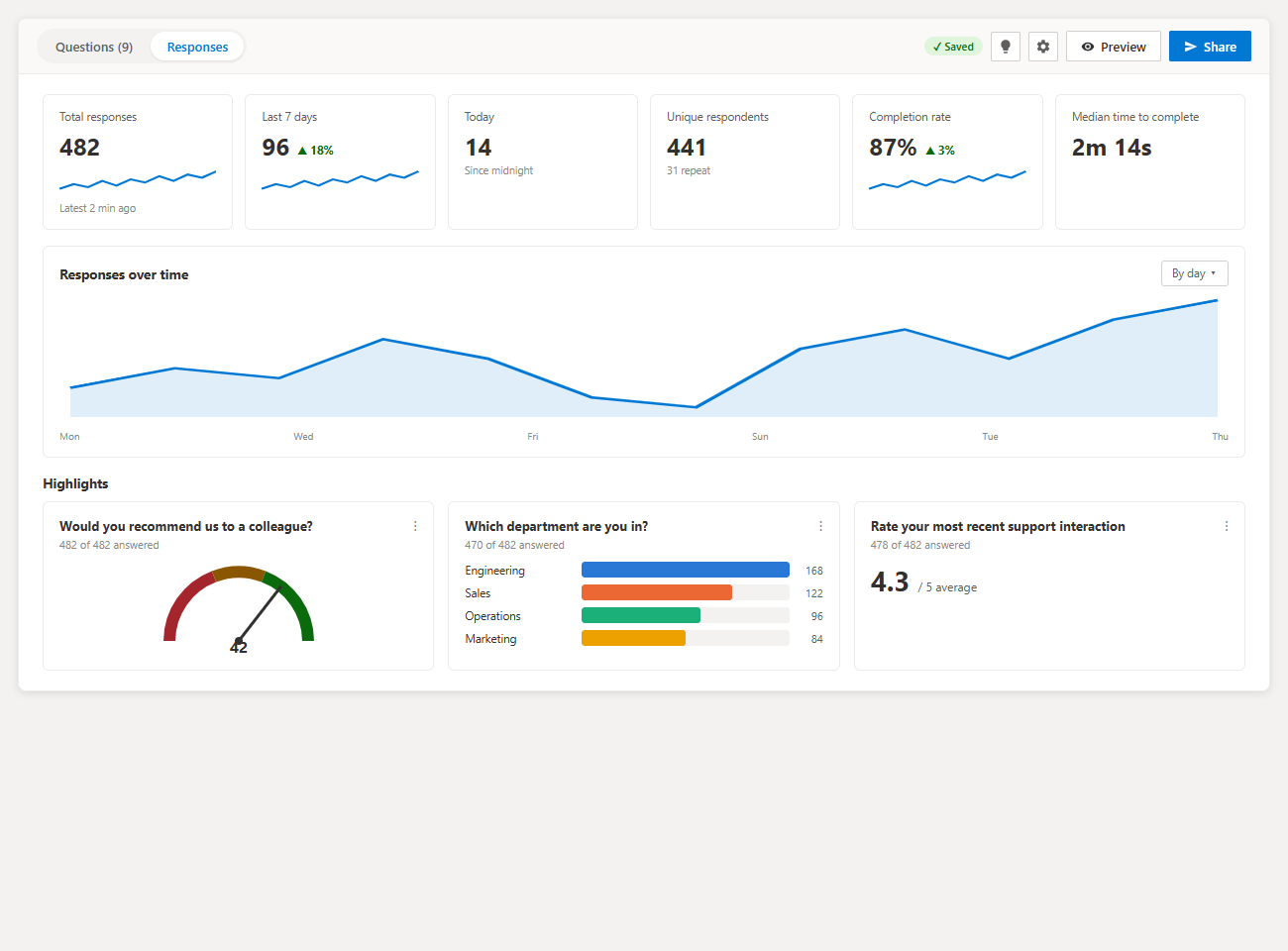
The Responses tab opens on KPIs — total responses, last seven days, today, unique respondents, completion rate and median time to complete — plus a responses-over-time chart and highlight charts for the most informative questions.

  • Responses-over-time trend chart
  • Per-question highlight charts
  • Filters shared across dashboard, summary and table
  • Handles response sets up to 20,000 items
Smart Forms results dashboard with KPI tiles, a trend chart and per-question highlights

Results

Segment any question by any other question

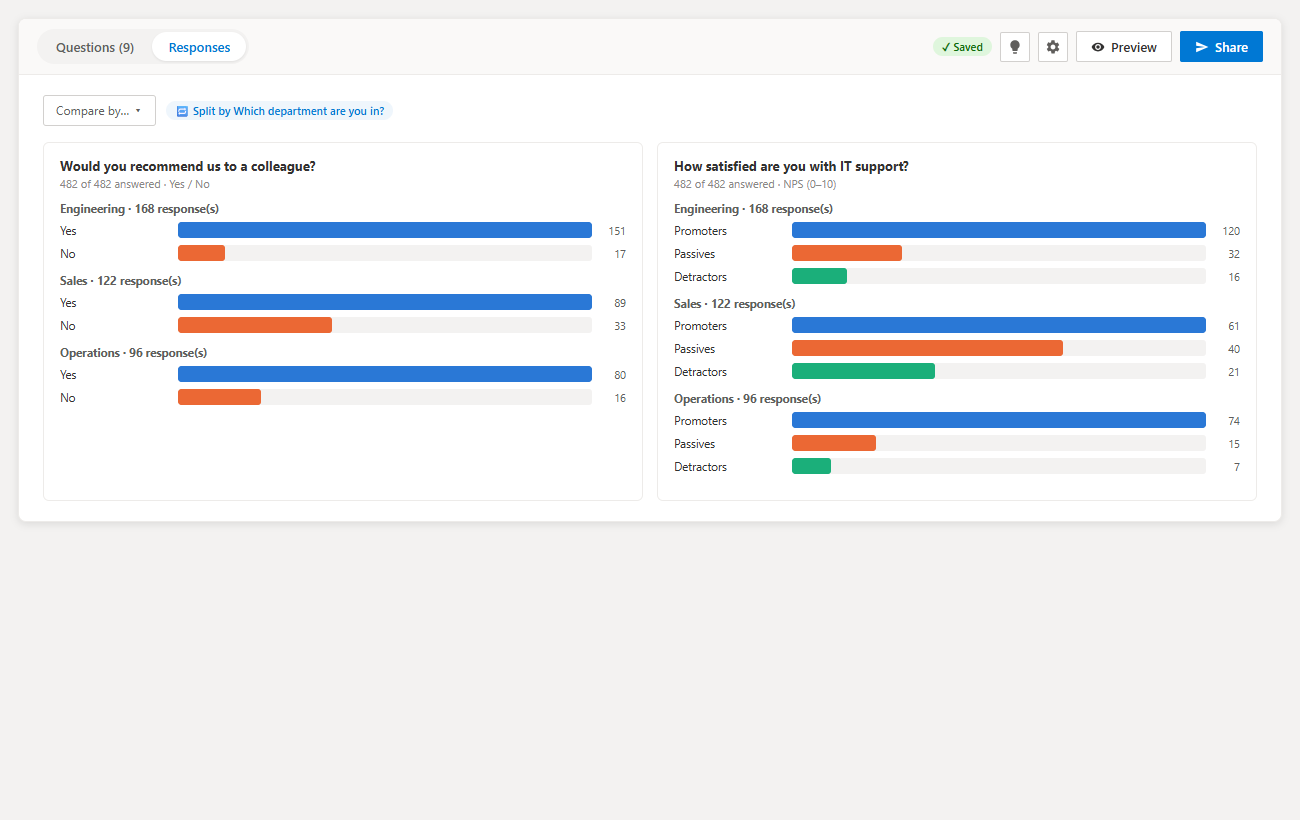
The Summary view charts every question, and the compare-by control splits any of them by another answer — NPS by department, satisfaction by site, pass rate by inspector. This is the analysis step most teams currently do by exporting to Excel and building a pivot table.

Summary view comparing NPS and recommendation answers split by department

Results

Sortable response table with CSV export

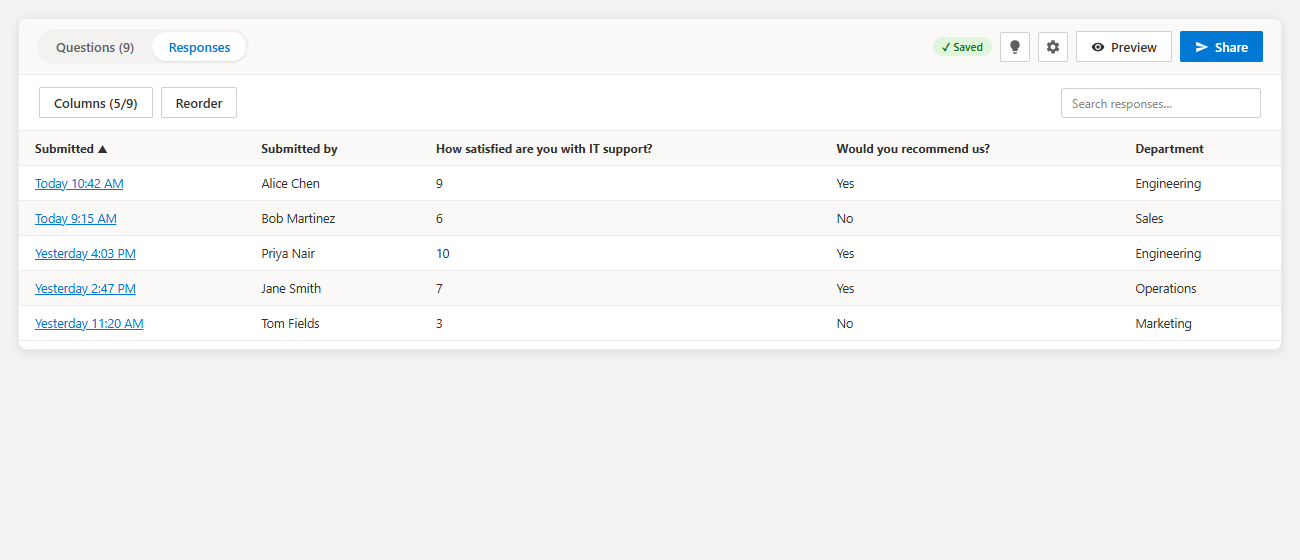
A virtualized table of every response with a column picker, sortable headers and search. Export the current filtered set to CSV — UTF-8 with a byte-order mark and formula-injection guarding, so it opens cleanly and safely in Excel.

Response table with column picker, sortable headers and a search box

Results

Read one response as the form itself

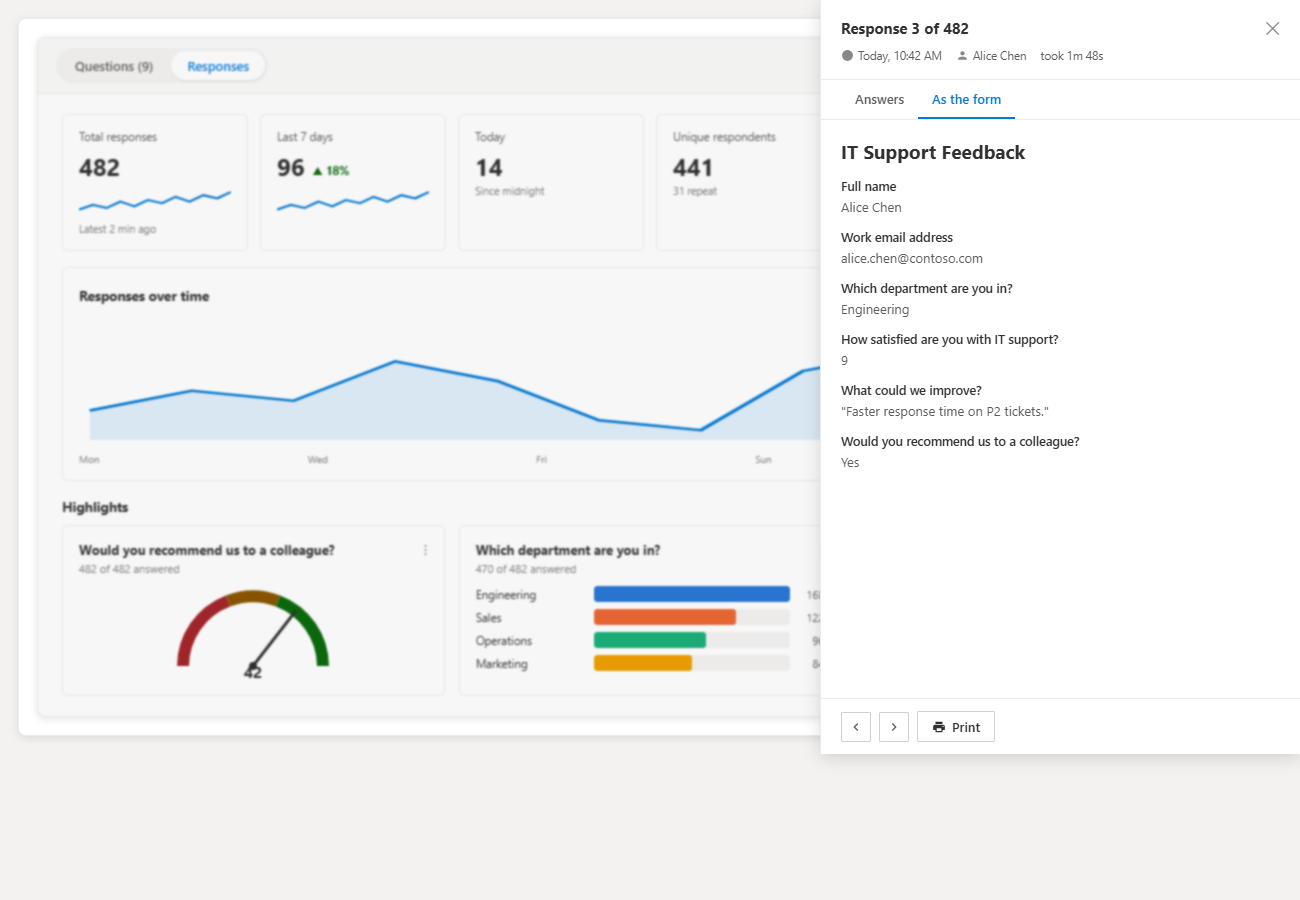
Open any row to see that submission rendered in the shape of the original form — questions in order, hidden branches omitted, attachments linked. Print-friendly, which matters for inspections and approvals that need a paper trail.

Individual response detail panel rendering one submission as the original form

Localization

30 languages, selected automatically

The entire interface — labels, buttons, tooltips, error messages, and the property pane — follows each signed-in user's Microsoft 365 display language, or the site's default. It does not use the operating system language. Unsupported languages fall back to English, while form titles, questions, choices, and responses remain exactly as entered.

Screenshot coming soon

Ready to try SharePoint Smart Forms?

See the full product page for pricing, setup instructions, and security details.

Frequently asked questions

Does Smart Forms need Power Automate to save responses to a list?
No. Smart Forms writes each response directly into the SharePoint list you choose, as a list item with one column per question. No flow, no premium connector.
How many question types does Smart Forms have?
24, spanning text, number, choice, scales, date and time, people, advanced (file upload, signature) and layout categories.
Can I split results by department or another answer?
Yes. The Summary view has a compare-by control that segments any question's chart by any other question in the form.
Who can see the Questions and Responses tabs?
Only users with Manage Lists permission on the response list. Everyone else — including anyone with the share link — sees only the form.
Can I export responses?
Yes, to CSV, with the current filters applied. The response list itself can also be opened directly in Excel or Power BI because the data lives in SharePoint.
How is the Smart Forms interface language selected?
Smart Forms supports 30 interface languages and follows the signed-in user's Microsoft 365 display-language setting, or the site's default. It does not depend on the operating system language; unsupported languages fall back to English, and form content and responses are not translated.

Building out your intranet?

Let our team design and build your SharePoint intranet

Intranet design, integrations, Power Automate workflows, and Microsoft 365 strategy, plus paid support packages for the tools on this site.