SharePoint permissions report and audit tool — free, no PowerShell.
Smart Permissions is a free SharePoint Online permissions reporting tool that runs as a web part inside your own tenant. Run a folder-level permission audit, find external sharing and guest access, see inherited vs unique permissions, look up exactly what one user can see, and export the whole report to Excel. No PowerShell, no third-party service, no data leaves your tenant.
Folder & file-level permissions
External access audit
Per-user access lookup
Inherited vs unique
Export permissions to Excel
30-language interface
1. Pick the scope
Choose the site and whether to include subsites, libraries, folders and files.
2. Run the report
Every object is listed as Inherited or Unique, with groups expanded to people and guests flagged.
3. Export to Excel
Filter, sort and share the full permissions report. Nothing is changed — it is read-only.
SharePoint Smart Permissions is a free, open-source SPFx web part that audits SharePoint Online permissions tenant-wide. It exports color-coded Excel reports of every unique permission, runs per-user access lookups ("what can this person see?"), flags external guests, and helps you scope your tenant before turning on Microsoft 365 Copilot — all client-side, with no PowerShell and no data leaving your tenant.
Cost: $0. MIT-licensed open source — no trial, no sign-up, no per-seat or per-site fee.
How this compares
SharePoint Online's built-in permissions surface is Site Settings → Site permissions, plus the per-item "Manage access" panel. Microsoft's own documentation describes these as ways to view and change access on one object at a time; there is no native view that walks a site and lists every scope with broken inheritance, and no native export.
Group membership is the second gap. A SharePoint group can contain a Microsoft 365 group, which can contain a security group, and Microsoft Graph resolves that only if you call transitiveMembers yourself. Smart Permissions does exactly that server-free in the browser, so the report lists people rather than group names — which is what an access review, a leaver check, or a Copilot oversharing review actually needs.
SharePoint hides permission breaks deep in menus and offers no built-in way to ask what a specific user can access. Smart Permissions is a free SharePoint permission audit tool that fixes all three blind spots from one screen, and exports a SharePoint permission report to Excel.
Permissions Report
Full audit, exportable to Excel
Scan a site, library, folder tree, or the entire tenant and produce a color-coded Excel workbook of every unique permission assignment.
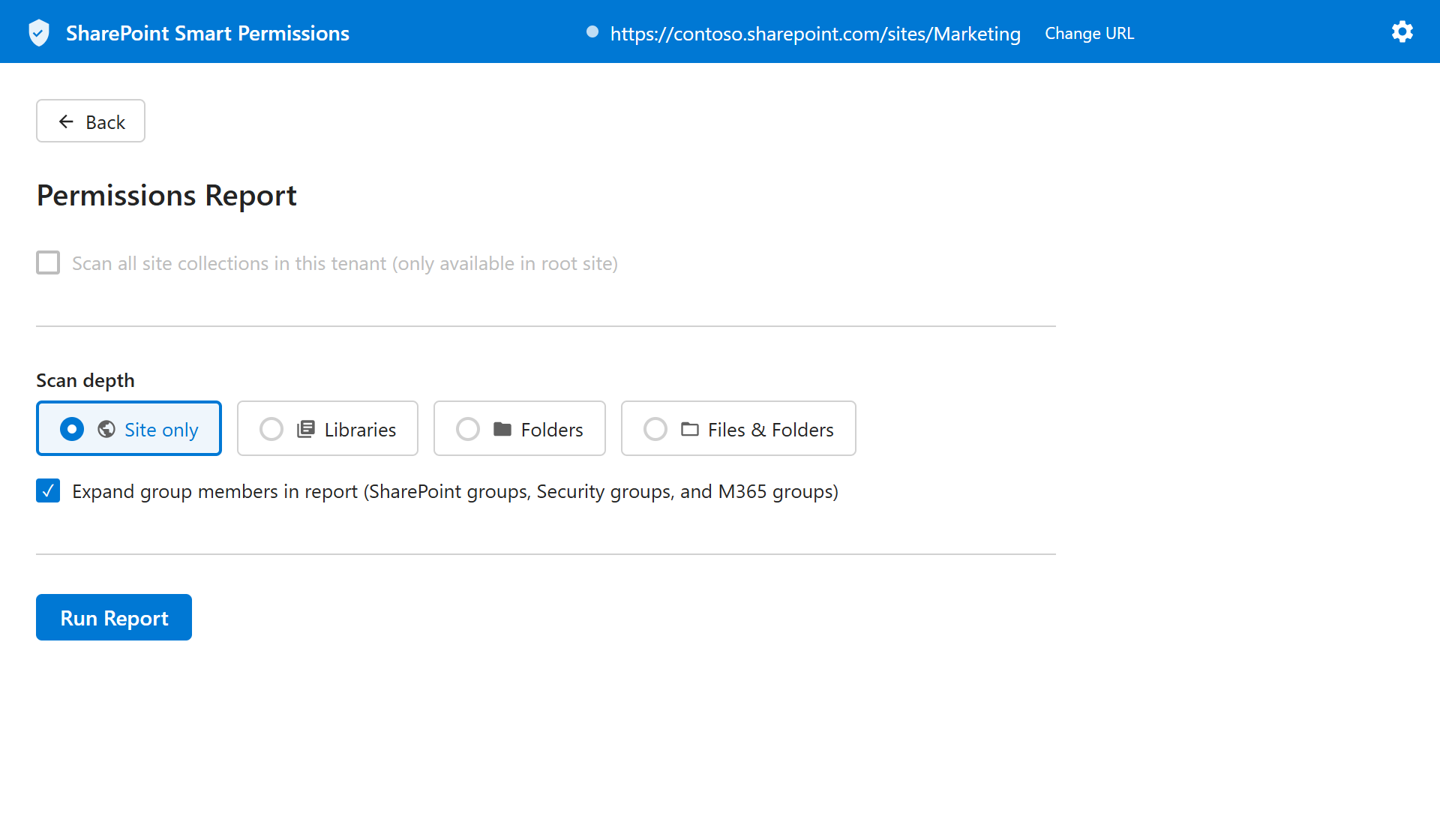
Scan depth: Site / Libraries / Folders / Files
Configurable folder depth (1–10 levels)
Tenant-wide scan across all site collections
Excel export with auto-filter and highlighting
Permissions Explorer
Interactive, live permission inspection
Browse a document library as a folder tree and inspect live permissions on any folder or file the moment you click it.
Expandable folder and file tree
Unique-permission badges and ↓ indicators
Expand SharePoint group members inline
Show parent permissions for inherited items
User Access
What can this person actually see?
Pick any user and scan every library, folder, and file to find every location they have explicit access — with their exact permission level at each one.
Type-ahead user search — scan starts on selection
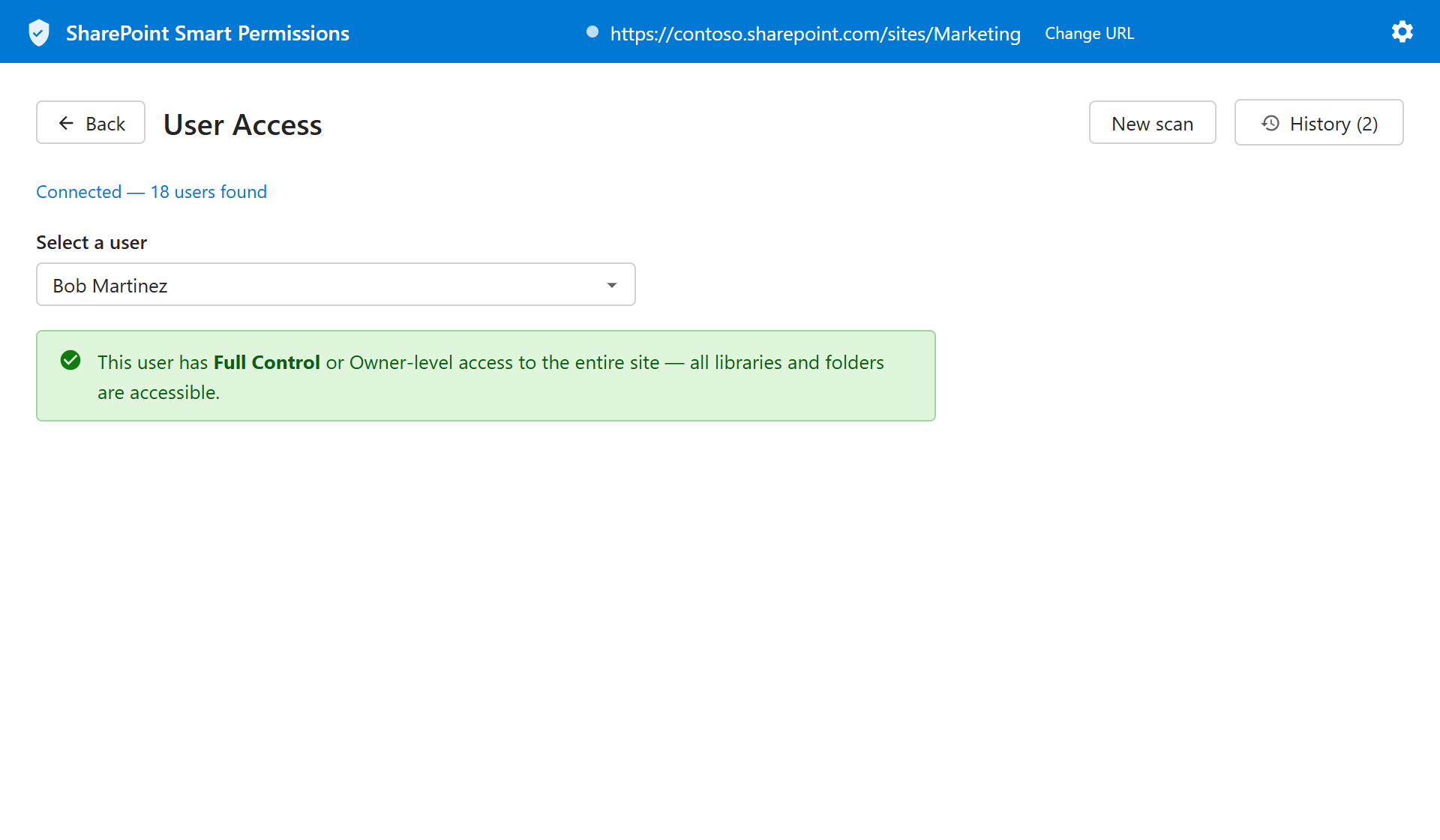
Full Site Access detection for site owners
Excel and CSV export of results
Local scan history — re-export without re-running
Screenshots
What it looks like in SharePoint
Scan options
Tune the scan to the question you're answering
Quick site-only sweep, deep folder audit, or the entire tenant — you control the scope.
Depth
What is scanned
Site only
Top-level site permissions only
Libraries
All document libraries on the site
Folders
Libraries and folders (1–10 levels deep)
Files & Folders
Everything — libraries, folders, and files
Tenant scan
All site collections in the tenant
Scan & export
Live progress, clear results, one-click Excel
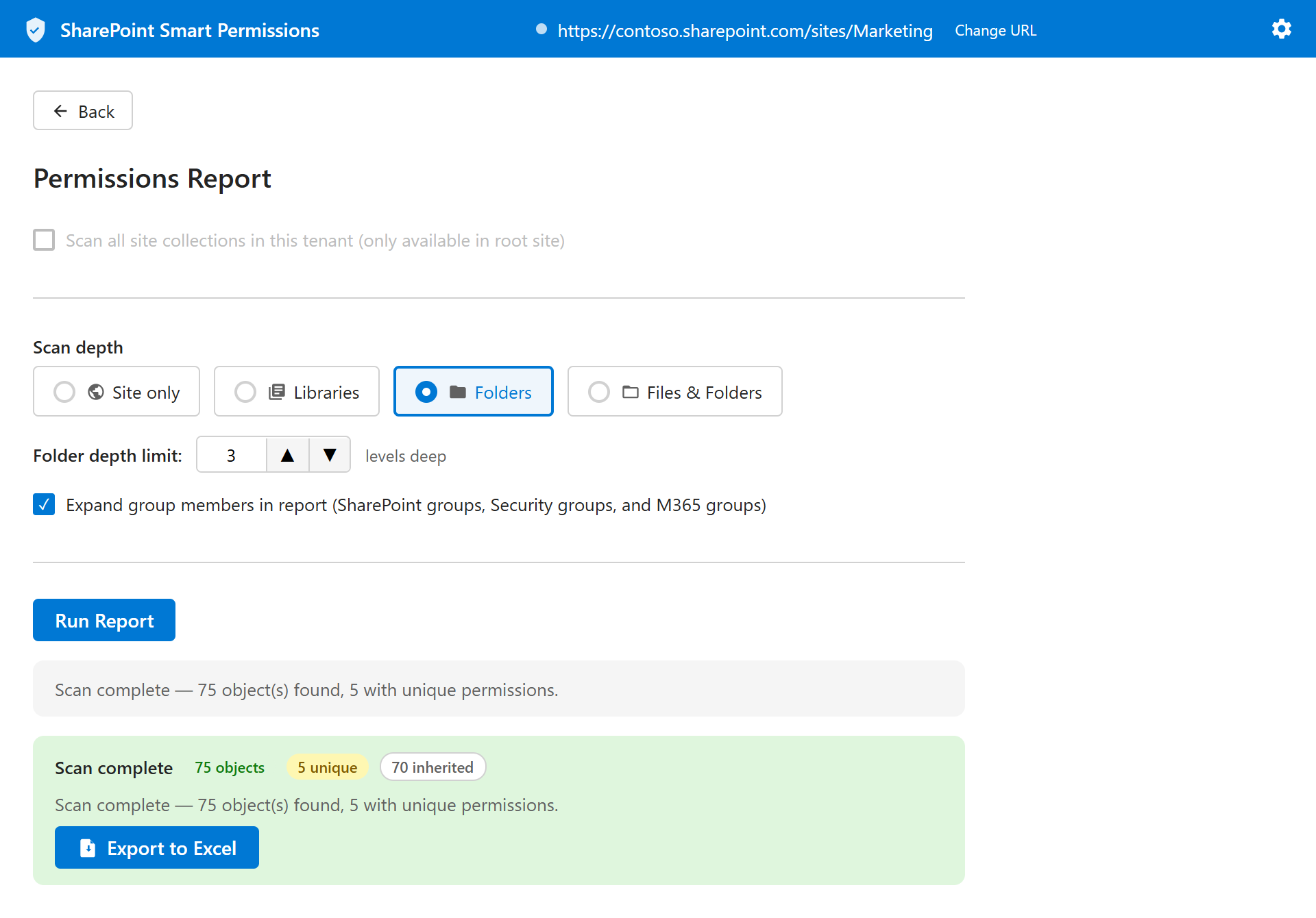
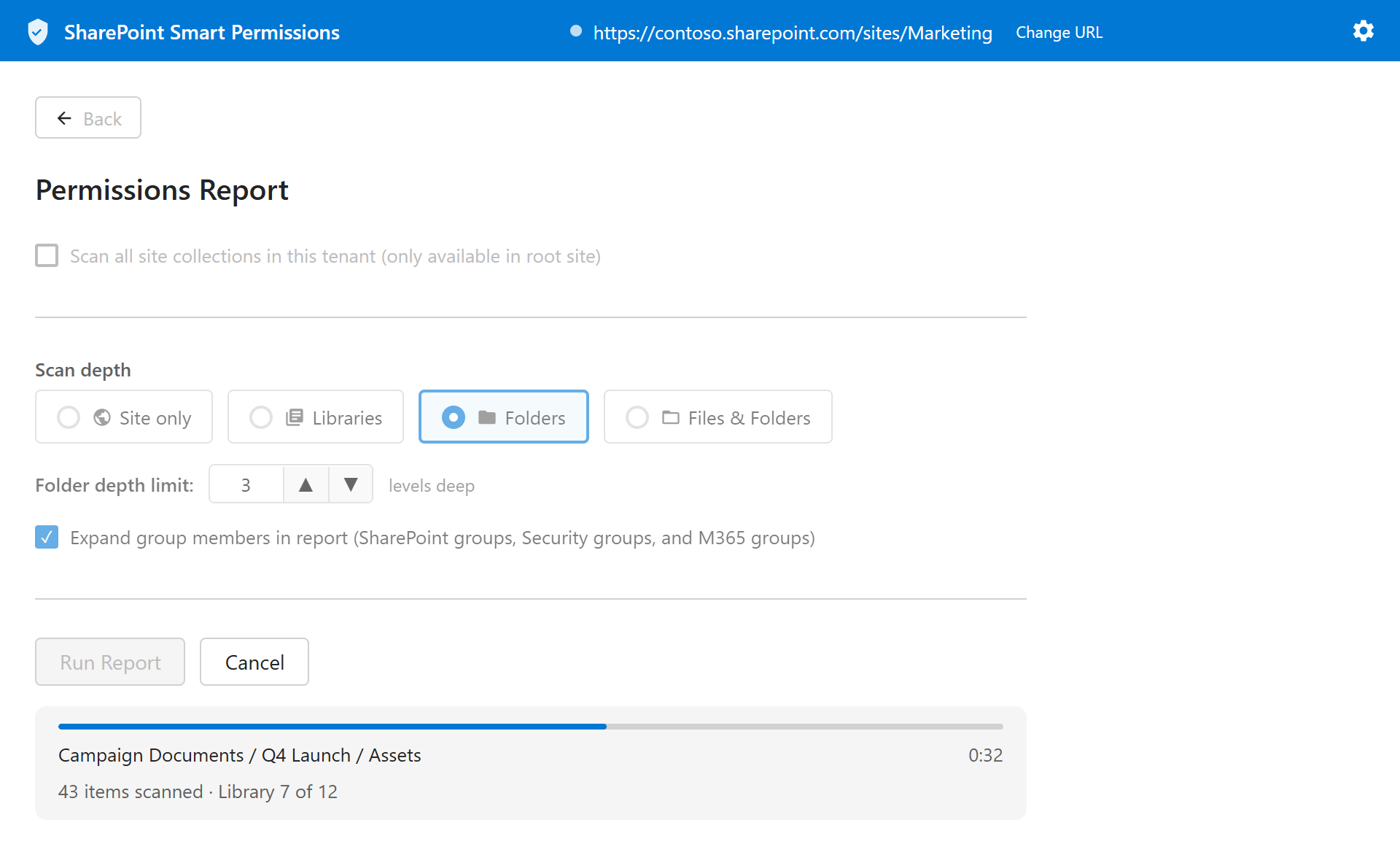
Watch the scan tick through libraries and folders in real time. When it finishes, you get a clean summary — total objects scanned, how many carry unique permissions, and how many simply inherit — plus a single Export to Excel button that produces a color-coded workbook with auto-filter on every column. The numbers in this screenshot come from a 75-object, folder-level sample; the step-by-step walkthrough further down uses a separate sample audit of 147 objects.
Progress bar, elapsed timer, and current item, updated live
Optional inline expansion of SharePoint, Security & M365 group members
Inside the report
What a SharePoint permission report actually contains
A Smart Permissions report lists every object it scanned — site, library, list, folder and file — and for each one records whether its permissions are Inherited or Unique, who has access, the expanded members behind every group, the permission level, whether the principal is external, and any sharing links. The whole thing exports to Excel in one click.
Object and type
The site, library, list, folder or file the row describes, with its full path — so a finding can be handed to a site owner without further lookup.
Inheritance
Either "Inherited" or "Unique". Unique means inheritance was broken at that object and its access no longer follows the parent. These are the rows an access review lives on.
Principal
Who has the access: a named user, a SharePoint group, a Microsoft 365 group or a security group.
Expanded members
The real people behind each group, resolved through nested group membership — so a row reading "Marketing Owners" also tells you the eleven people that means today.
Permission level
Full Control, Edit, Contribute, Read or a custom level, exactly as SharePoint records it.
External / guest flag
Whether the principal is outside your organization, which is the first column most security reviews sort on.
Sharing links
Anyone, People in your organization, and specific-people links attached to the object — the access route that never appears in Site permissions.
Common findings, and what to do about each one
Smart Permissions is read-only: it produces the evidence, and the changes are made in SharePoint. These are the five findings that come up in almost every first audit.
A library with unique permissions nobody remembers breaking
Ask the owner whether the exception is still needed. If not, re-inherit from the parent in SharePoint and the row disappears from the next report.
A former employee still listed directly on a site
Direct user grants survive group cleanup. Remove the user from the site, then re-run the report on that site to confirm the row is gone.
An "Anyone" sharing link on a folder of contracts
Treat as urgent. Delete the link, then review tenant and site-level sharing settings so the same link cannot be created again.
A group with Full Control that has forty expanded members
Full Control for a large group is usually historical. Move the group to Edit and keep Full Control for two or three named owners.
Guests with Edit on a site that is about to be indexed by Copilot
Resolve before the Copilot rollout — Copilot surfaces content through existing permissions, so overshared content becomes a search result.
Sample report, step by step
A real SharePoint permission audit, from first click to Excel
This is a complete walkthrough of one audit on a Marketing site: 147 objects scanned across 4 libraries in 38 seconds, 5 locations with unique permissions, 2 external guests found, and one user checked end to end. Every screenshot below is the actual web part running in SharePoint.
Step 1
Open the web part and pick a tool
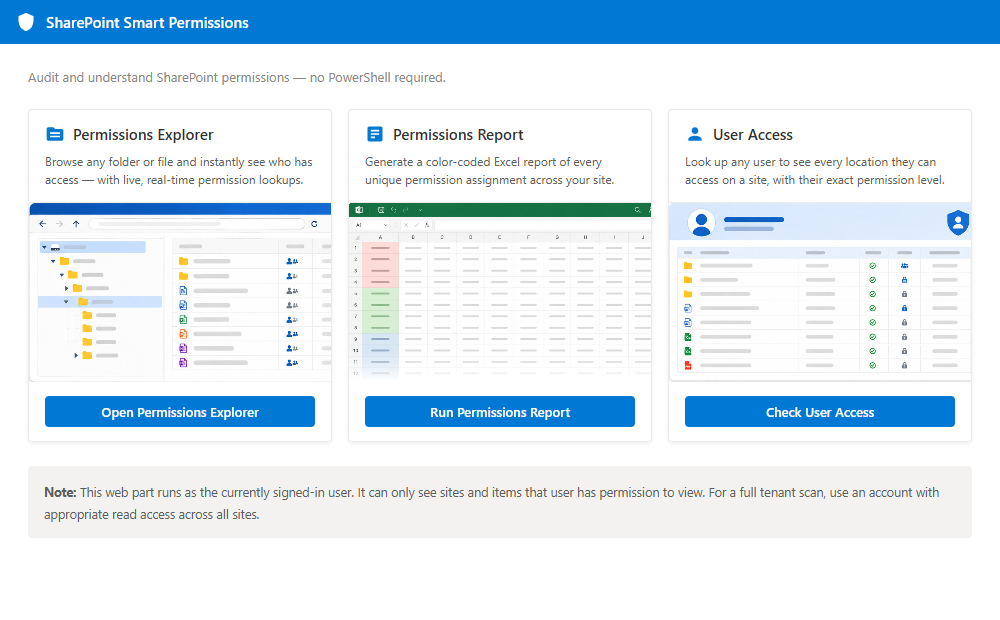
Smart Permissions lands on three cards — Permissions Explorer, Permissions Report, and User Access. It runs as the signed-in user, so it only ever sees what that person is allowed to see. It requires Site Owner access (the Manage Permissions right) on every site it reads, so for a tenant-wide scan sign in with an account that has Site Owner access or higher on every site in scope.
Step 2
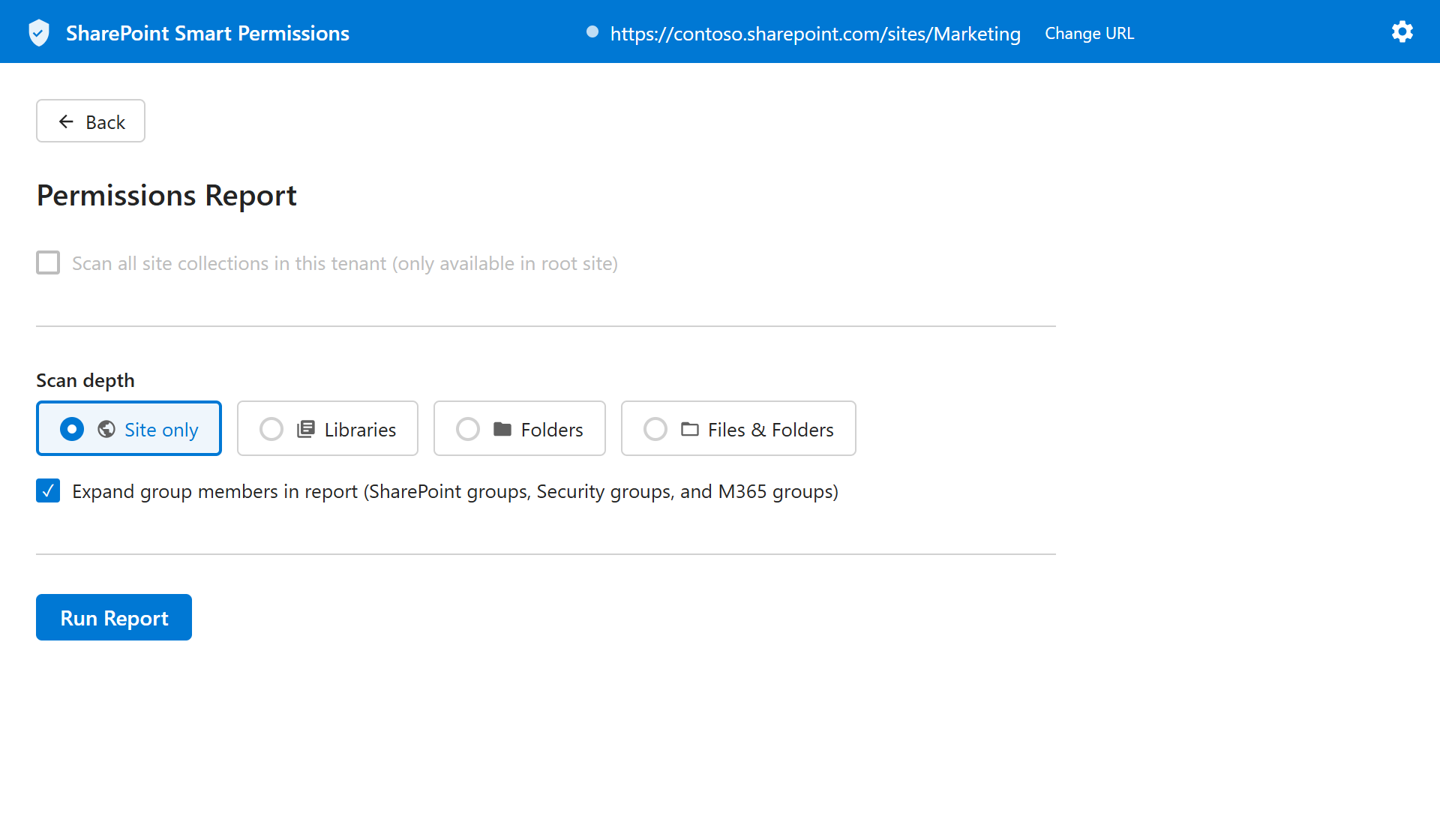
Choose the scan depth
Site only answers "who has access to this site?" in seconds. Libraries, Folders (with a depth limit of 1–10 levels) and Files & Folders go progressively deeper. Leave "Expand group members in report" ticked so the export lists people rather than group names. From a root site you can also scan every site collection in the tenant.
Step 3
Watch the scan and cancel if you need to
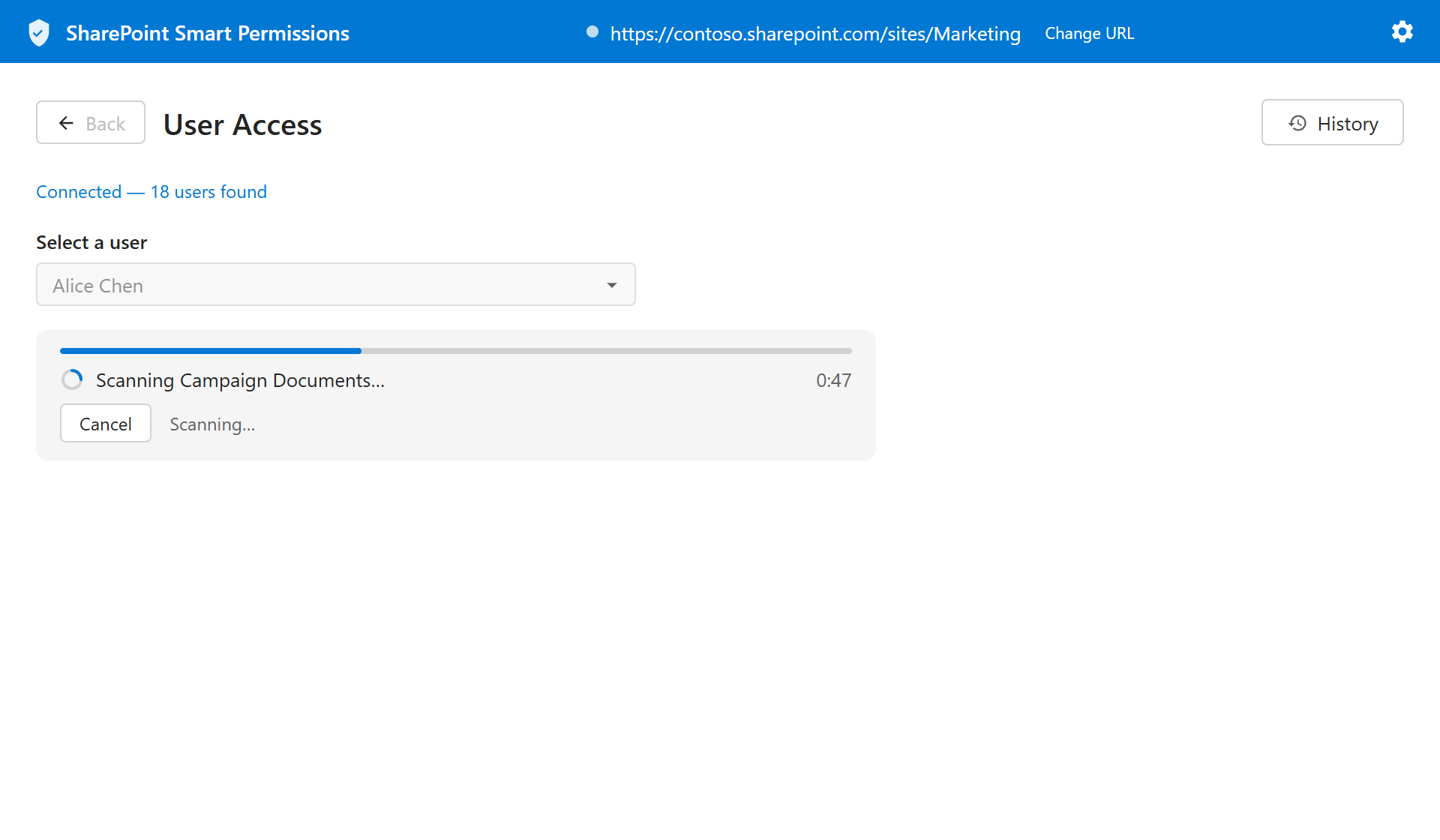
The progress bar names the item being read — here Campaign Documents / Q4 Launch / Assets — with an elapsed timer, an item count and the library position (7 of 12). Cancel at any point and the partial results stay browsable and exportable.
Step 4
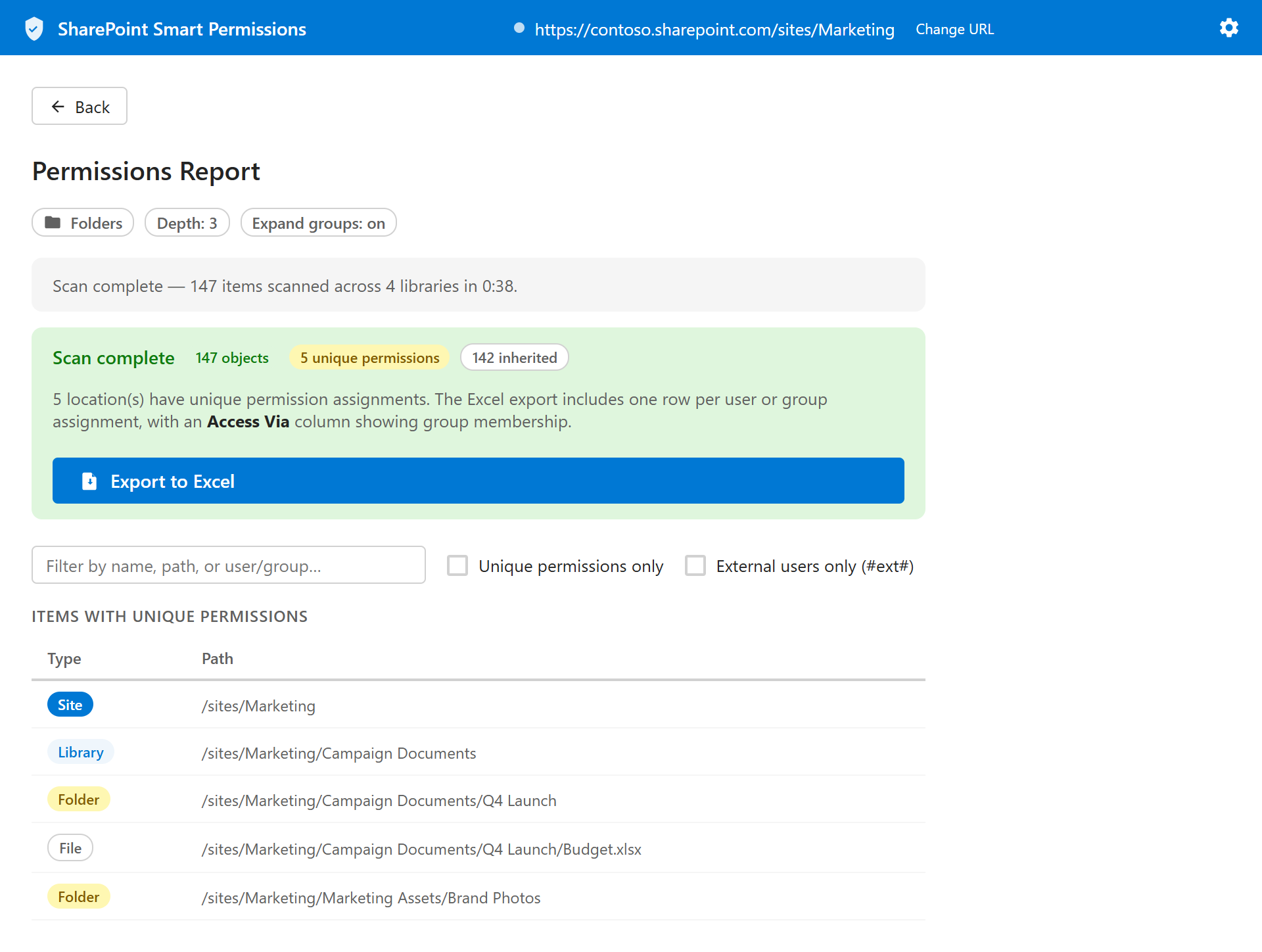
Read the result: 147 objects, 5 unique, 142 inherited
A finished scan summarizes as objects scanned, unique permissions and inherited. In this sample, 147 objects across 4 libraries took 38 seconds and 5 locations broke inheritance: the site itself, the Campaign Documents library, the Q4 Launch folder, one file (Budget.xlsx) inside it, and the Brand Photos folder. Those five rows are the whole audit — everything else simply inherits.
Step 5
Inspect a single location live
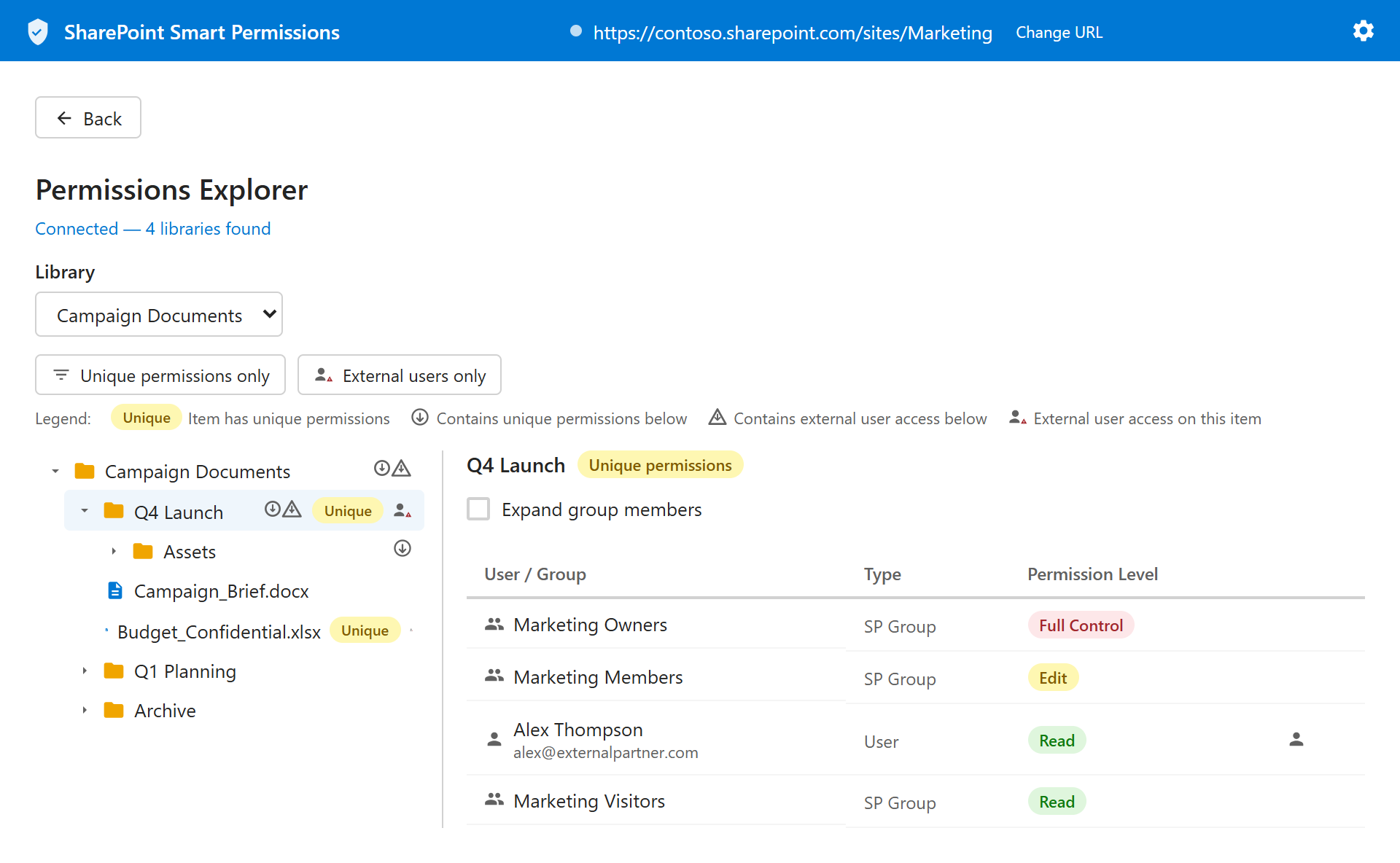
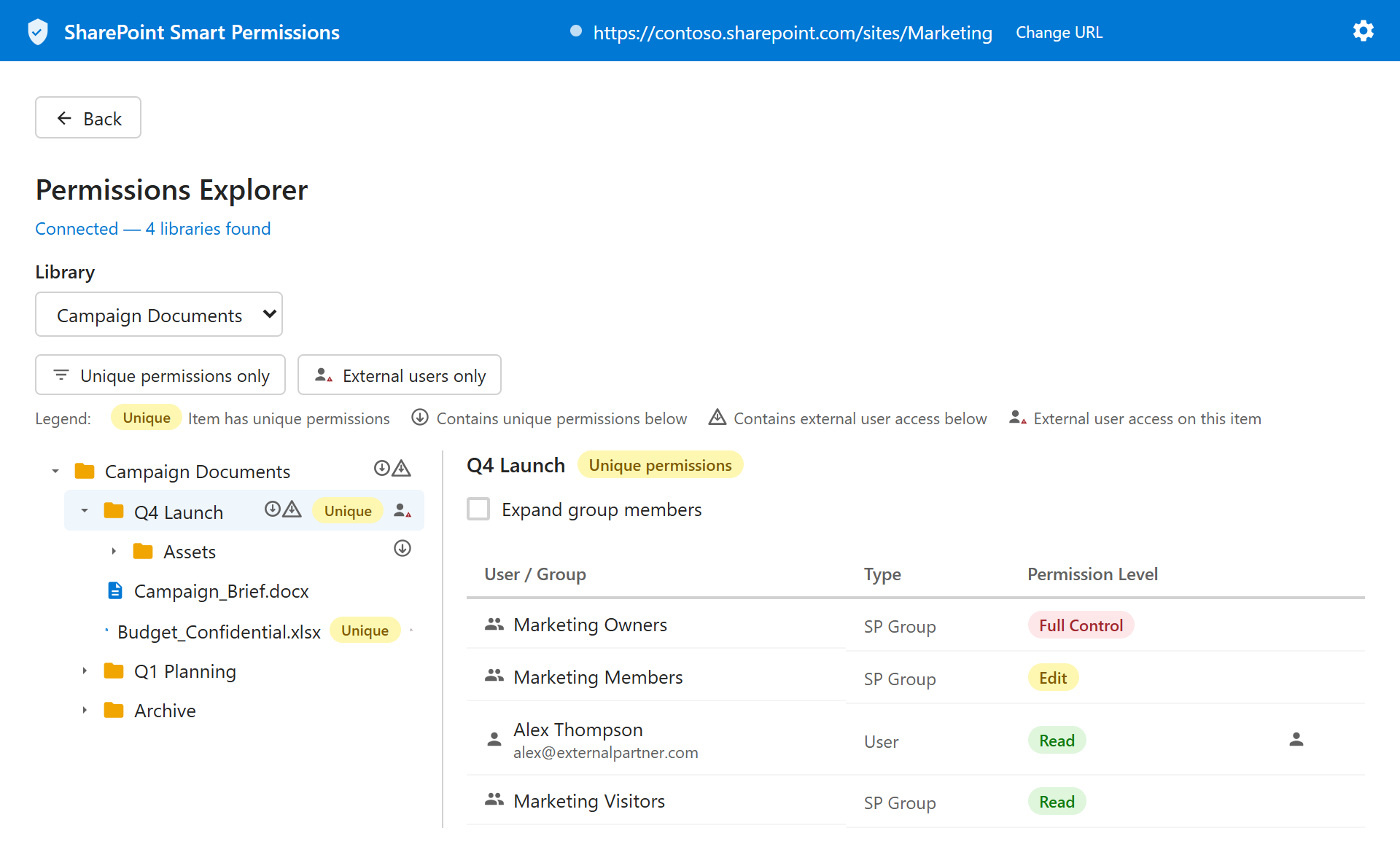
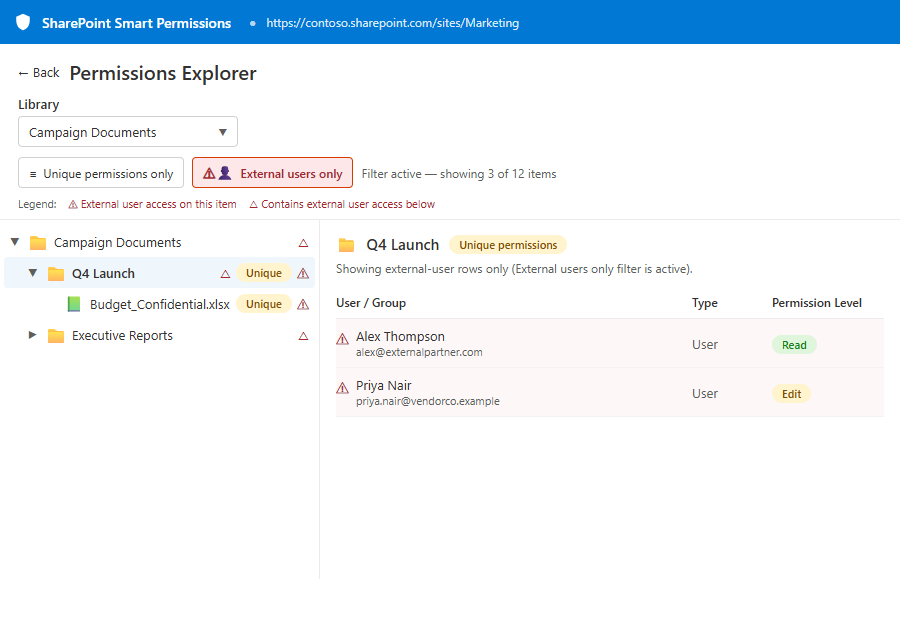
Permissions Explorer shows the same data folder by folder. Q4 Launch is flagged Unique, and the panel lists Marketing Owners (Full Control), Marketing Members (Edit), Marketing Visitors (Read) and one individual — Alex Thompson at alex@externalpartner.com with Read. Tick "Expand group members" to replace each group name with the real people inside it.
Step 6
Filter to external users only
The External users only filter cuts the tree to the items where guests actually have access — 3 of 12 items here — and decodes the guest addresses: Alex Thompson (externalpartner.com) with Read and Priya Nair (vendorco.example) with Edit on Q4 Launch. This is the view to run before a Copilot rollout.
Step 7
Answer "what can this person see?"
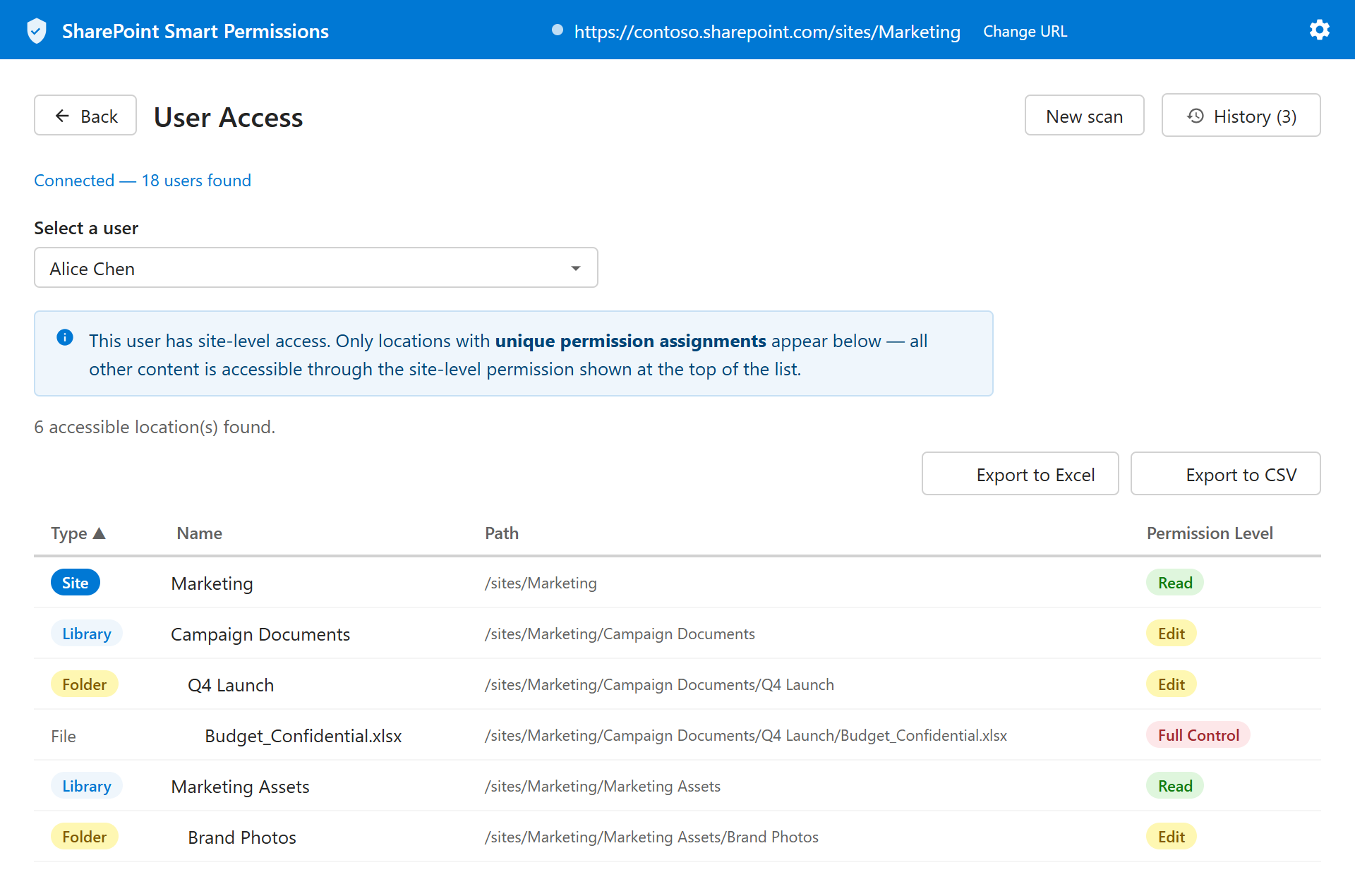
User Access takes one person and lists every location they can reach with the exact level at each. Alice Chen has Read at site level, Edit on Campaign Documents and Q4 Launch, Full Control on Budget_Confidential.xlsx, Read on Marketing Assets and Edit on Brand Photos — six locations, exportable to Excel or CSV. That Full Control on a single confidential file is exactly the kind of thing a leaver review is looking for.
Step 8
Compare this month's scan with last month's
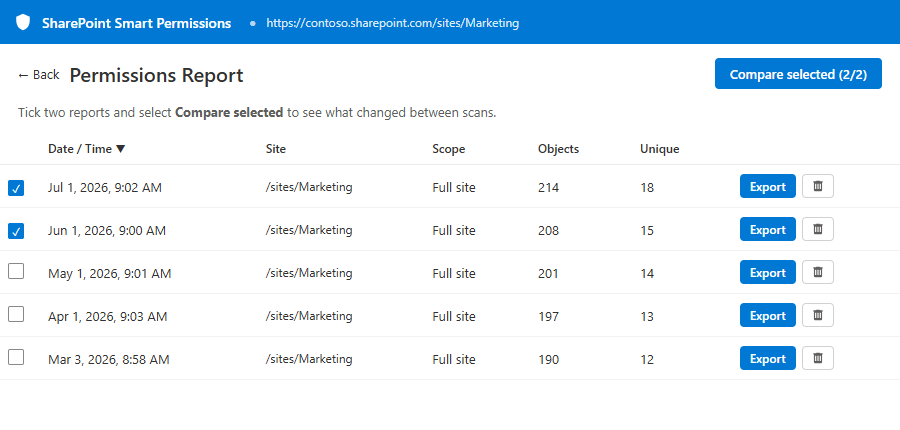
Every completed scan is saved. Tick two and choose Compare selected to see what changed between them — in this history the Marketing site went from 190 objects and 12 unique in March to 214 objects and 18 unique in July. Run it monthly and the report becomes a permissions change log.
Smart Permissions is read-only throughout. It finds and evidences the five unique-permission locations and the two guest accounts above; removing that access is still done in SharePoint itself.
External access at a glance
Spot guest and external-user access without hunting
As soon as a library loads, the Explorer runs a background scan for external accounts and surfaces every share — on the tree, on the permissions panel, and through a one-click filter. Critical before any Copilot or AI-search rollout.
Red warning-person icon
Marks any item that explicitly grants access to an external (#EXT#) account — exactly where the share was made, so you know where to remediate.
Triangle ↓ on ancestor folders
Folders that contain external access somewhere below get a triangle indicator, so you can drill straight to the source without expanding every branch.
External users only filter
One toggle hides everything that isn't externally shared. Both the tree and the permissions panel filter together for a focused review.
Decoded #EXT# email addresses
External accounts show both display name and the real email address — extracted from SharePoint's #EXT# login format — so you can identify the recipient instantly.
Member-level transparency. Reading role assignments requires the SharePoint "Manage Permissions" right (site owners and above). If your account doesn't have it, a blue banner tells you exactly which details are hidden — nothing fails silently.
Prepare your tenant for AI
Before you turn on Copilot or Claude Cowork, make sure people only see what they should
AI assistants like Microsoft 365 Copilot and Claud Cowork don't introduce new permissions — they expose the ones you already have. Quietly over-shared files become tomorrow's surprise search results. Smart Permissions helps you find and fix that, fast.
Copilot inherits user permissions
Microsoft 365 Copilot can surface anything the prompting user has access to — including files shared too broadly or forgotten in old libraries.
Over-sharing becomes instantly visible
What used to be buried in a deep folder is now one natural-language question away. Hidden permission breaks turn into accidental data leaks.
Least privilege is the prerequisite
Before you roll out Copilot or any AI assistant, every user should only have access to what they actually need — no stale, inherited, or forgotten grants.
A simple AI-readiness checklist
Run a tenant-wide Permissions Report to baseline current access
Spot-check sensitive sites with Permissions Explorer for unique permissions
Use User Access to verify what leavers, contractors, and execs can reach
Remove "Everyone except external users" from sites holding sensitive content
Re-scan after remediation and keep the Excel report as your audit evidence
Schedule a recurring review — access drifts, especially once Copilot is live
"What can this person actually see?" — answered in one screen
Pick a user, watch the scan, get the full picture — including a short-circuit for site owners and a history of every scan you've run.
Scan with live feedback
Type-ahead user search; the scan starts the moment you pick someone. Progress bar, current library, and elapsed timer update live — cancel any time and keep the partial results.
Full Site Access detection
Owners and Full Control users get a green confirmation instead of thousands of redundant rows — so the result list stays focused on people whose access really matters.
Excel + CSV export
Color-coded .xlsx for sharing with stakeholders, plain .csv for any spreadsheet or data tool.
Local scan history
Every completed scan is saved to IndexedDB. Re-export past scans to Excel without re-running them.
Site-level access banner
When a user has site-level access, an info banner explains that only unique-permission locations appear in the list.
Settings & performance
Sensible defaults — tunable when you need them
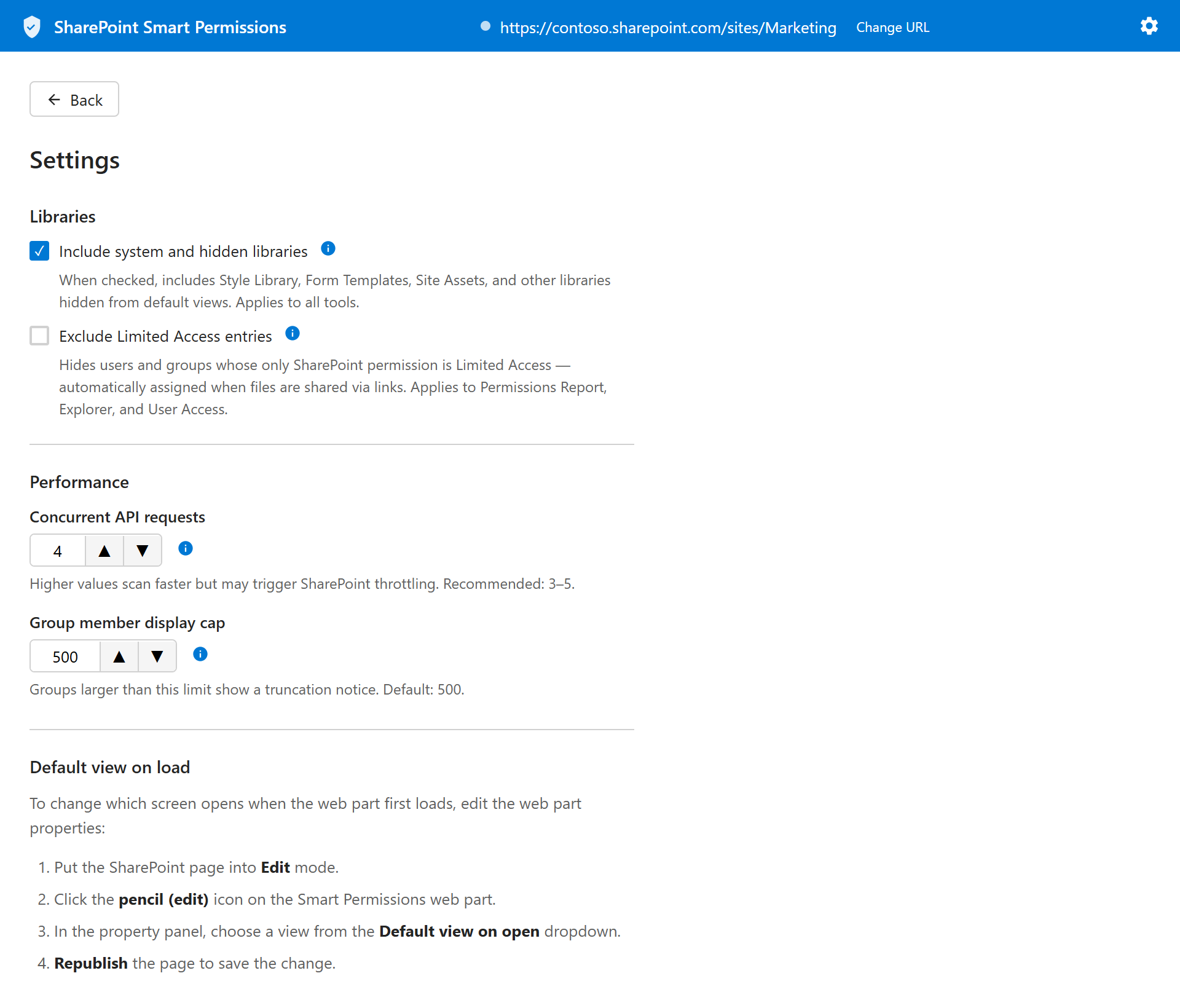
A single gear icon opens a clean settings page that applies to every tool. Tune scope, cut noise, or dial concurrency up or down for large scans.
Include system and hidden libraries
Off by default. Turn on for a thorough audit that also covers Style Library, Form Templates, Site Assets, and other libraries hidden from the default views.
Exclude Limited Access entries
Hides users and groups whose only right is the system-assigned Limited Access permission — created automatically when files are shared via links. Cuts a lot of noise from large permission sets.
Concurrent API requests (default 4)
Tune up to scan faster, down (2–3 recommended for large tenants) if your tenant trips SharePoint throttling on large scans.
Group member display cap (default 500)
Groups larger than this show a truncation notice instead of pulling thousands of members. Adjust if you regularly expand very large security groups.
SharePoint groups expand without extra permissions. Expanding Security or M365 groups is optional and requires the GroupMember.Read.All Graph permission approved in your tenant.
How it works
From install to insight in minutes
01
Add the web part
A site admin adds SharePoint Smart Permissions to any SharePoint page. No external installation, no service account.
02
Open the page
Navigate to the page. The web part auto-connects to the current site. Use Change URL to point at any other site you have access to.
03
Pick a tool
Permissions Report for a full audit, Permissions Explorer for interactive browsing, or User Access to look up a specific person.
04
Run and watch live
Progress bar, elapsed timer, and current item update in real time. Cancel any scan to keep the partial results.
05
Export or review
Permissions Report produces a color-coded Excel workbook with auto-filter. Explorer and User Access display results directly in the page.
06
Set a default view
Want to have the web part open by default to a specific screen, you can.
Tenant-wide rollout
One PowerShell script, every site collection
For organizations that want Smart Permissions on every site, the included Provision-SmartPermissions.ps1 PnP PowerShell script creates a Permissions.aspx page with the web part pre-added across every site collection in the tenant. Safe to re-run — sites that already have the page are skipped.
Runs with SharePoint Admin or Global Admin
Uses the standard PnP.PowerShell module
Test against one site before tenant-wide run
Logs each site; locked / no-script sites are skipped
Security & privacy
Your tenant, your session, your data
Smart Permissions is built so a security-conscious admin can deploy it without paperwork.
Runs as the signed-in user
The web part uses your existing SharePoint session. It can only see what your account can see — no elevated service principal, no impersonation.
No external servers
Every API call goes directly from your browser to your own SharePoint tenant. Nothing is sent to a third party, ever.
No data is stored
Completed scans are saved to IndexedDB in your own browser so you can re-export them, and clearing browser data removes them. There is no server-side database, no telemetry, and no audit trail of its own.
Read-only by design
The tool reads permissions via the SharePoint REST API. It never writes to your tenant — using it cannot change permissions or affect other users.
Who it's for
Built for the people who answer the access questions
Site owners
Understand and clean up permissions on the sites you own.
IT administrators
Run periodic access reviews and compliance audits.
Compliance officers
Document who has access to sensitive content.
Help desk
"Why can't this user see this file?" — answered in seconds.
Security teams
Identify over-privileged accounts and verify least privilege.
Playbooks
SharePoint permission audits you can run today
Six common access-review jobs, and where each one starts in the tool.
Access review of a site
Report the whole site, export to Excel, and filter to the Unique rows — those are the scopes that broke inheritance and need an owner's sign-off.
Browse the Permissions Explorer to a folder and see every principal on it, with group membership expanded to real people and each entry marked Inherited or Unique.
Run a User Access lookup for the person leaving to list everything they can reach across sites, then keep the Excel or CSV export as the offboarding record.
Find the broad grants — 'Everyone except external users', site-wide Full Control, wide-open libraries — before Copilot makes that content easy to surface.
How to run a SharePoint permission audit, step by step
A SharePoint access review is eight steps: scope the question, scan at the right depth, split Inherited from Unique permissions, expand groups down to named people, isolate external and guest access, spot-check with a per-user lookup, export to Excel for the site owners, then re-run on a cadence. Smart Permissions is read-only — it produces the evidence; the removals happen in SharePoint.
1. Decide the scope and the question
An access review answers one of three questions: who can reach this content, what can this person reach, or where has inheritance been broken. Pick one before you scan — the scope, depth and report you need differ for each.
2. Scan with the right depth
Run the report at site, library or folder scope and choose how many levels deep to walk (1–10). Deep scans on a large library take longer, so start shallow to find the broken-inheritance hotspots, then rescan those branches deeply.
3. Separate Inherited from Unique
Every scope comes back as either Inherited or Unique. Inherited scopes need no review — they are governed by the parent. Unique scopes are the entire audit: each one is a deliberate or accidental exception someone made.
4. Expand the groups into people
A report that says "Contoso Project Owners" has told you nothing. Group membership is expanded through Microsoft Graph transitive members, so nested Microsoft 365 and security groups resolve down to named people — which is what a reviewer signs off on.
5. Pull out external and guest access
Filter the report to guest accounts and sharing links. These are the findings that matter most in a compliance review and the ones least likely to be known by the site owner.
6. Spot-check with a per-user lookup
Pick two or three sensitive people — a recent leaver, a contractor, an executive assistant — and run the "what can this user see?" lookup. It validates the report from the other direction and catches access that came through a path you did not scan.
7. Export, circulate, remediate in SharePoint
Export to color-coded Excel with auto-filter and send each site owner their rows. Smart Permissions is read-only by design, so the actual removals happen in SharePoint — which keeps the audit trail where your governance process expects it.
8. Re-run and keep the evidence
Keep the exported workbook as the point-in-time evidence for the review, then re-run on a cadence — quarterly for most tenants, monthly for sites holding regulated content, and before enabling Microsoft 365 Copilot.
How often should you do this? Quarterly is the common cadence for a mid-size tenant. Run one immediately after a reorg or a wave of departures, and always run one before switching on Microsoft 365 Copilot — Copilot surfaces content through existing permissions, so an oversharing problem you have tolerated for years becomes a search result overnight.
Ways to get a permissions report
SharePoint permission audit tool comparison: Smart Permissions vs PnP PowerShell vs Check Permissions
The three free routes SharePoint admins use to answer "who has access?" — and where each one stops.
Capability
Smart Permissions
PnP PowerShell
Site Settings / Check Permissions (built-in)
Whole-site permissions report
Yes
Script you write and maintain
No — one object at a time
Setup
SPFx web part from the App Catalog, runs in the browser
PowerShell modules + app registration on a workstation
Smart Permissions vs ShareGate Protect vs AvePoint PI vs Syskit Point
What SharePoint admins compare when picking a permissions and Copilot-readiness tool.
Smart Permissions vs ShareGate Protect vs AvePoint PI vs Syskit Point. What SharePoint admins compare when picking a permissions and Copilot-readiness tool.
Smart Permissions
ShareGate Protect
AvePoint PI
Syskit Point
Price
Free
Subscription, per-user
Subscription, per-user
Subscription, per-user
Hosting
In-tenant SPFx web part
Vendor cloud
Vendor cloud
Vendor cloud
Setup
Deploy .sppkg, ~5 min
Vendor onboarding
Vendor onboarding
Vendor onboarding
Site / list / item permission report
Per-user access lookup
External sharing & guest report
Excel export with one click
Runs without exporting data off-tenant
License
MIT open source
Commercial
Commercial
Commercial
Support: every Smart Solutions tool comes with free community and GitHub support, and we also offer paid support plans for hands-on help.
Comparisons
Comparing SharePoint permissions tools?
See how a free, open-source web part stacks up against the paid SharePoint permissions and governance suites.
Download SharePoint Smart Permissions, follow the step-by-step install guide, and run it against a real site the same afternoon. Nothing to license, nothing to renew.
Download the .sppkg package from the latest release.
Missing something in SharePoint Smart Permissions? Feature requests and bug reports go straight to the developer on GitHub — no account needed to read, free account to post.