
See what's actually using SharePoint storage — and what's safe to archive.
A free, open-source SPFx web part that turns a SharePoint site into an interactive storage treemap and a full, exportable storage report — and, uniquely among free tools, measures per-file version-history size. Find the biggest folders, the stalest files and your M365 Archive candidates in minutes: no PowerShell, no third-party tools, no data leaves your tenant.
- Per-file version history size
- Storage treemap by folder
- Stale-file / age report
- M365 Archive candidates
- Excel & CSV export
- 30-language interface
SharePoint Online web part (SPFx) · Deploys to your tenant App Catalog · MIT licensed
Quick answer
What is SharePoint Smart Storage Analyzer?
SharePoint Smart Storage Analyzer is a free, open-source SPFx web part that shows what's actually using storage on a SharePoint Online site. Its Home screen opens Tree View, List View, or Storage Report; it can scan a whole site (and its subsites) for Stale and Very-stale files, always shows per-file version-history size in Tree View and List View, and exports a color-coded Excel report of every archival candidate — all read-only, all inside your tenant. See the storage cost-savings playbook for how to turn a scan into a budget case.
Cost: $0. MIT-licensed open source — no trial, no sign-up, no per-TB pricing.
How this compares
The SharePoint admin center's Active sites list reports one storage figure per site. Microsoft documents that figure as including version history, recycle bin contents and preservation-hold content — but it never separates them, and there is no per-file breakdown. Classic Storage Metrics gives folder totals with versions folded in and no export.
Smart Storage Analyzer reads the same libraries through the SharePoint REST API with the signed-in user's own permissions, and reports per file: size, created and modified dates, age in days, an archival tier, and that file's version-history size as a separate, additive figure. Tree View and List View always include it; Storage Report's separate option is enabled by default. SharePoint exposes no recursive version-history rollup, so folder rows remain current-file-only.
Planning to trim? Measure first, then follow how to trim version history with Automatic limits or size the saving with the version history storage calculator. Run the same report again after the trim to prove what came back.
Sources
Two tools, one web part
Find storage waste — visually or in a report
SharePoint tells you the total size of a library — and stops there. Smart Storage Analyzer answers "what's actually using it?" and "what's safe to archive?" from one screen.
Explorer
Interactive size treemap of any library
Choose Tree View or List View from Home to see every document library on the site, sized by storage. Drill into folders, switch between views without losing your place, or inspect the first-stage Recycle Bin.
- Treemap drill-down — square size = storage weight
- Version-history size always included for files
- Library switcher across every doc library on the site
- First-stage Recycle Bin in the library switcher
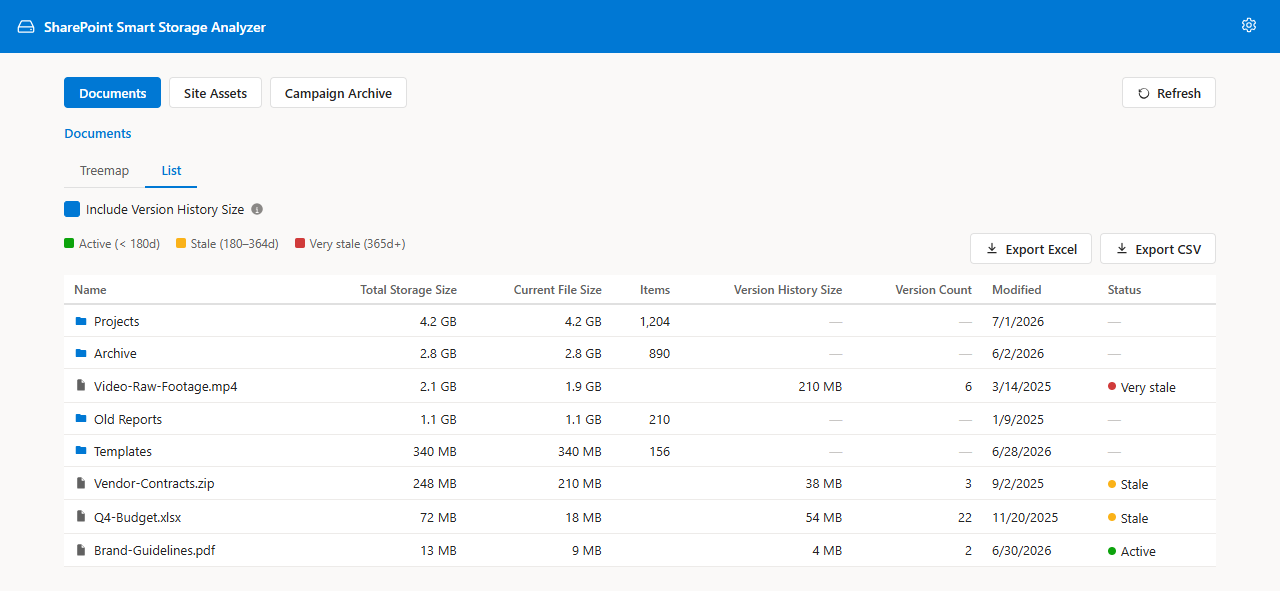
- Sortable list view with the same drill state
- Excel / CSV export of the current folder
Storage Report
Whole-site scan of every stale file
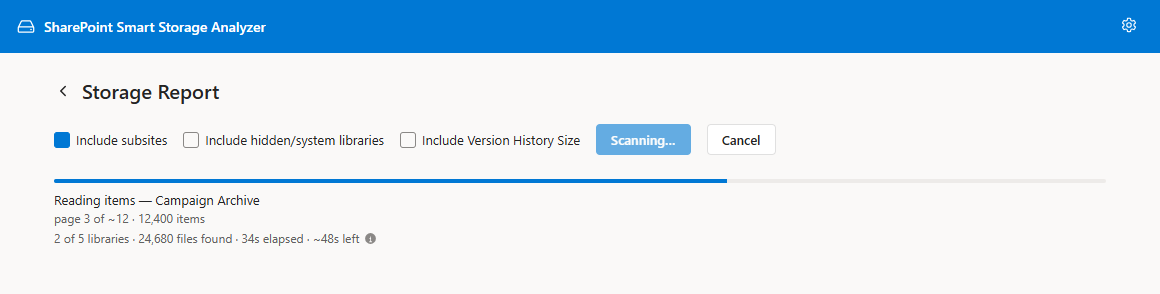
Scan a whole site — and optionally every subsite — and get a full, exportable report classifying every file as Active, Stale, or Very stale. Progress bar, live counters, and cancellable at any time.
- Optional subsites and hidden/system libraries
- Live progress, file count, elapsed timer
- Optional per-file version-history size + total tile
- Filter down to archival candidates only
- Color-coded Excel workbook (Summary + Details)
Scan history & compare
Track cleanup progress over time
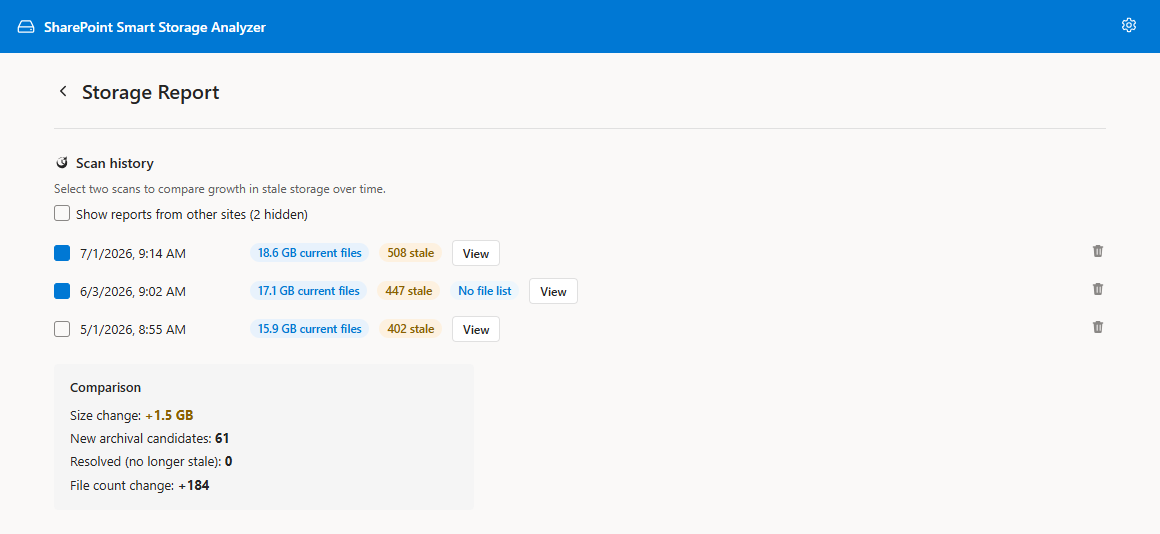
Every completed scan is saved automatically to your browser (IndexedDB). Re-open past scans without re-running, and check any two to see exactly what changed — size delta, new archival candidates, resolved items.
- 10 most recent scans kept locally
- One-click reload of any past scan
- Diff any two scans side by side
- Great for tracking a monthly cleanup cadence
Try it
Storage Analyzer demo
Click a folder to see its files. Sample data only — the real web part reads your own site.
Folder totals show current file size only. SharePoint has no recursive version-history rollup, so version history is shown per file.
Screenshots
What it looks like in SharePoint
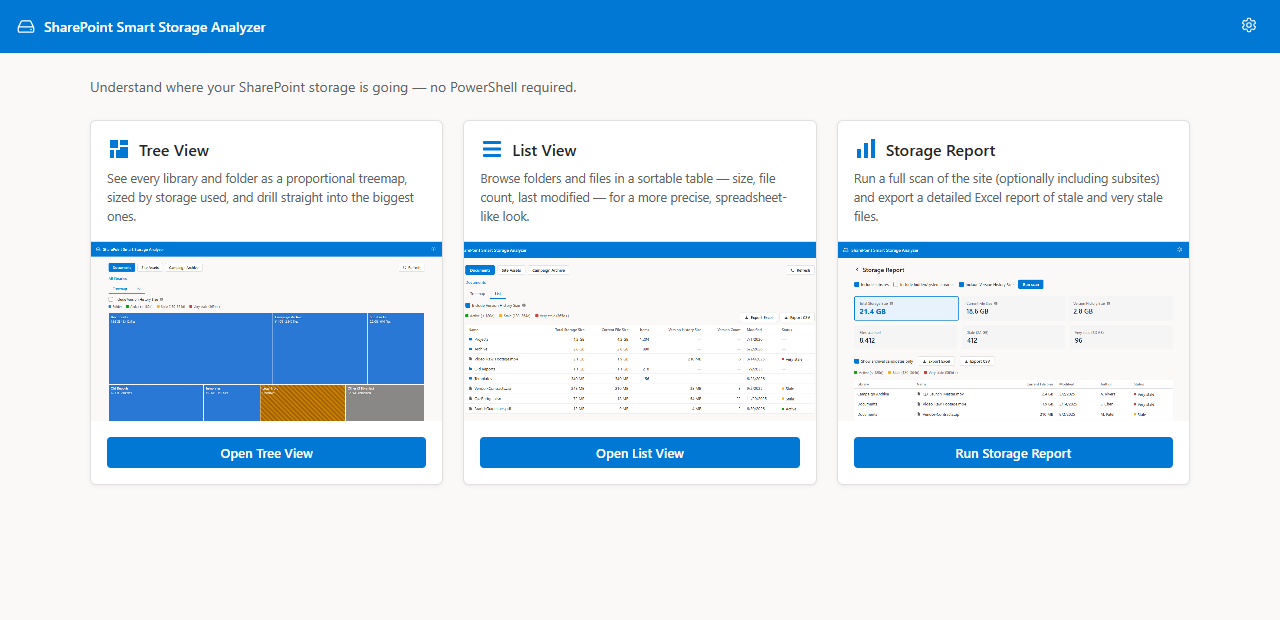
Explorer
A visual storage map for your document library
Every folder and file is a rectangle sized by how much space it uses. Big offenders are visually obvious in the first second — click any square to drill in, or hop back with the breadcrumb.
- Square size = storage weight; folders in blue, files colored by staleness
- Cells show name, size and file count when they fit — hover for full detail
- Breadcrumb + library switcher — never leave the view
- List view shares drill state — switch back and forth without losing your place
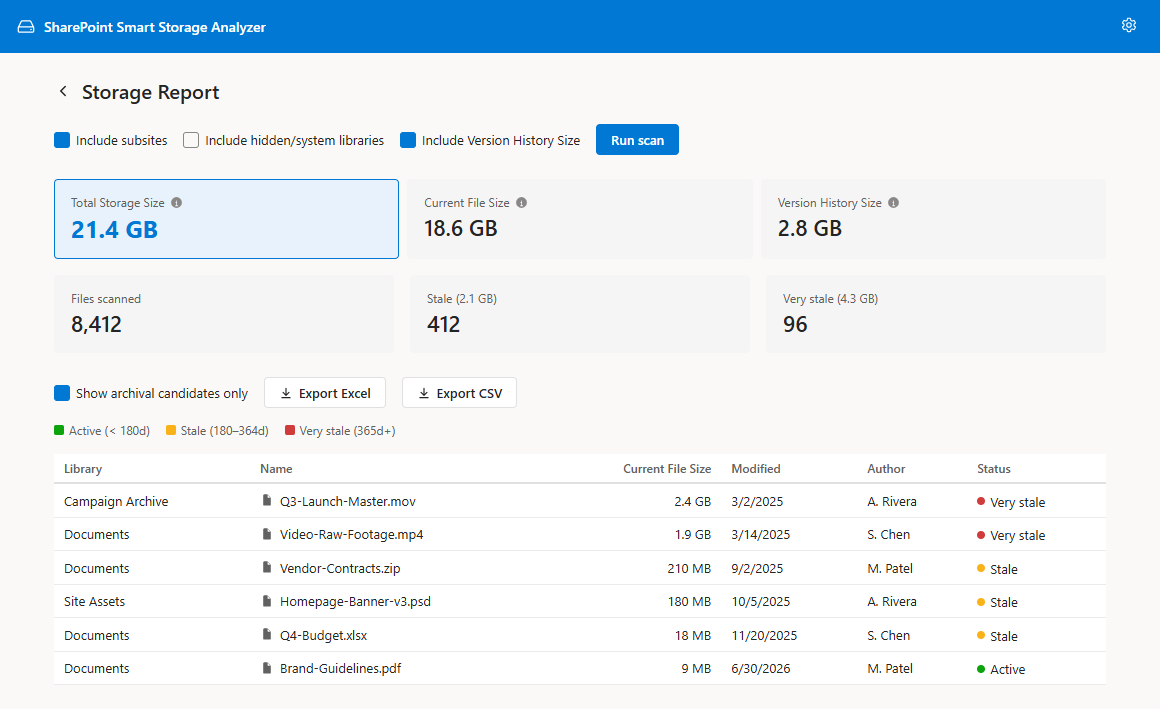
Storage Report
A complete, exportable stale-file report — in minutes
Configure scope (this site, or every subsite too), hit Run scan, watch the progress bar, and get separate storage and file-summary tiles plus a full file-level table you can filter and export.
- Include subsites and/or hidden/system libraries
- Live progress bar, current library, file count, elapsed timer
- Every file classified Active / Stale / Very stale
- Toggle "Show archival candidates only"
- Color-coded Excel workbook (Summary + Details), plus CSV

Track progress over time
Scan history and side-by-side comparison
Every completed scan is saved locally to your browser (the 10 most recent). Re-open any past scan without re-running it, or check two and get a diff. If browser storage fills, only the oldest report's file listing is removed; its summary and comparisons remain available.
- Size change between any two scans (e.g. +1.5 GB, −3.2 GB)
- New archival candidates since last scan
- Resolved items that are no longer stale
- File-count delta — spot mass uploads and cleanups
Settings
Sensible defaults — tunable when you need them
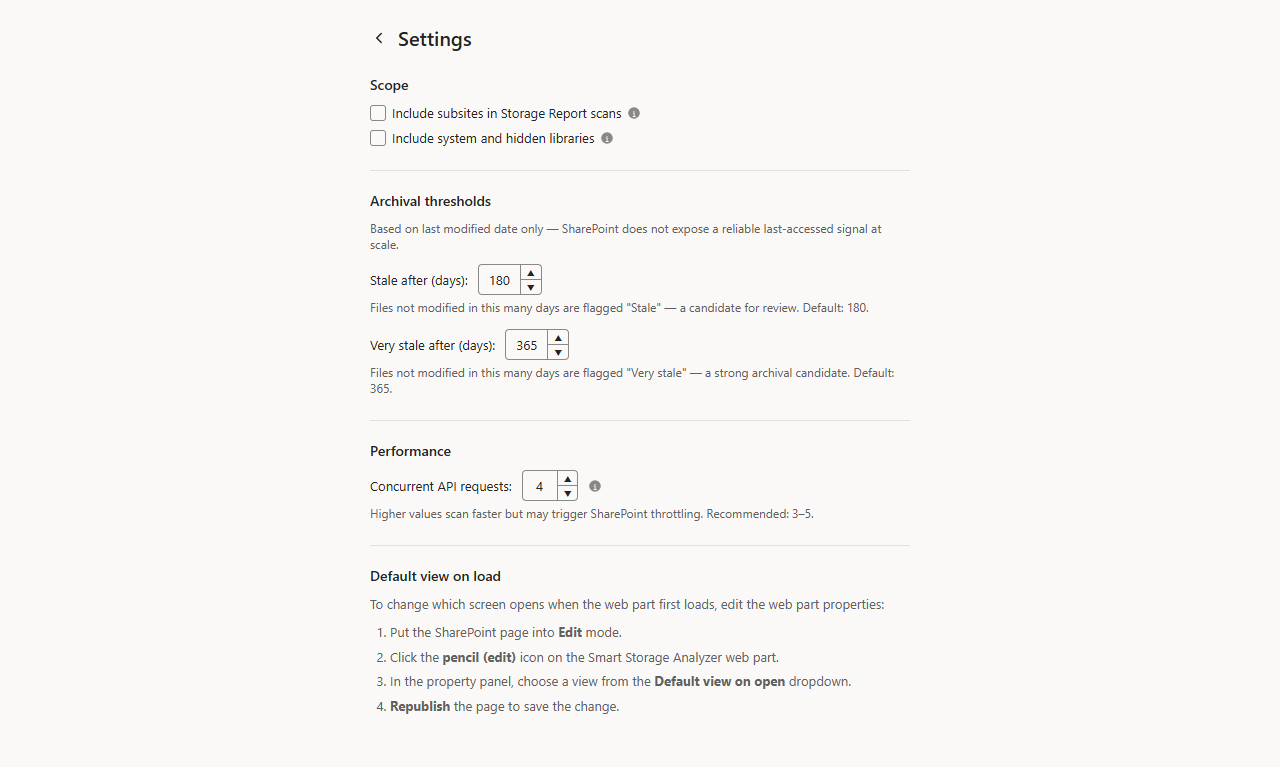
One gear icon opens a clean settings page for archival thresholds, scope, and concurrency. Every screen's legend reflects your current thresholds — not the defaults — so what you see is always accurate to your setup.
Stale after (days) — default 180
Files not modified in this many days are flagged Stale — a candidate for review. Tune to match your organization's retention posture.
Very stale after (days) — default 365
Files not modified in this many days are flagged Very stale — a strong archival candidate.
Include subsites — off by default
Walks every subsite beneath the current site during a Storage Report scan. Only affects the Report; the Explorer is always scoped to the current site.
Include hidden/system libraries — off by default
Also scans Style Library, Form Templates, Site Assets, and other libraries hidden from default views. Applies to both tools.
Concurrent API requests — default 6
Controls parallel SharePoint REST calls during scans and folder loads (1–15). The app automatically backs off and retries HTTP 429, 503, and 406 throttling responses; very high values can still be slower.
How it works
From install to insight in minutes
Add the web part
A site admin uploads the .sppkg to the App Catalog and drops the web part on a page. No service account, no external installation.
Open the page
The Home screen offers Tree View, List View, and Storage Report. An administrator can configure a different default opening view.
Browse or scan
Zoom around the treemap for a quick look, or switch to Storage Report for a full, exportable list.
Run & watch
Progress bar, current library, file count and elapsed timer update live. Cancel any time and keep the partial results.
Export & decide
Excel or CSV. Hand the workbook to the site owner — the tool never deletes anything, you're always in control.
Compare next month
Re-scan on a cadence and diff the two runs — see whether the cleanup effort actually moved the needle.
Why we built it
"This site is too big" — answered with data
SharePoint hides where the space is going
Libraries show a single rolled-up total. Folders don't show their own size at all. You get a number, not a picture.
Copilot amplifies stale content
Every stale draft, old contract, and orphaned export is fair game for Copilot search. Cleaning storage is also a Copilot-readiness task.
Storage quota conversations are political
"Delete stuff" is easy to say and hard to justify. A dated Stale/Very-stale report with real file names lets owners make defensible calls.
Security & privacy
Your tenant, your session, your data
Built so a security-conscious admin can deploy it without paperwork.
Runs as the signed-in user
The web part uses your existing SharePoint session. It can only see what your account can see — no elevated service principal, no impersonation.
No external servers
Every call goes directly from your browser to your own SharePoint tenant via the standard REST API. Nothing is sent to a third party, ever.
Local-only scan history
Saved scans live in your browser's IndexedDB, capped at the 10 most recent and stored in chunks. If space runs out, the oldest report's file list can be removed while its summary remains. Nothing is stored server-side.
Read-only by design
The tool reads storage metadata via the SharePoint REST API. It never moves, archives, or deletes anything — remediation is always up to you.
Site Owner access required. Storage totals rely on the same right as classic Site Settings → Storage Metrics. Members, Visitors, and guests see the web part with a clear warning banner instead of data.
Who it's for
Built for whoever gets the "why is this site so big?" question
Site owners
Understand where the space is going and pick archival candidates with confidence.
IT administrators
Run scheduled storage reviews and prep tenant-quota conversations.
Records / compliance
A dated, exportable trail of what was stale, when, and what was actioned.
Archive owners
Answer "what's in this archive site that we can finally delete?" with data.
FAQ
Frequently asked questions
Compare
Smart Storage Analyzer vs Storage Metrics vs ShareGate Desktop
What SharePoint admins compare when picking a storage-cleanup tool.
| Smart Storage Analyzer | SharePoint Storage Metrics | ShareGate Desktop | PowerShell (custom) | |
|---|---|---|---|---|
| Price | Free (MIT open source) | Free (built-in) | $5,995/yr (checked Nov 2026) | Free (your time) |
| Hosting | In-tenant SPFx web part | Built into SharePoint | Windows desktop app | Local machine |
| Per-file version-history size | Partial | Scriptable | ||
| Version-history size in Excel export | Scriptable | |||
| Treemap / visual storage map | ||||
| Whole-site stale-file scan | Scriptable | |||
| Include subsites | Scriptable | |||
| Archival tiering (Active / Stale / Very stale) | Partial | Scriptable | ||
| One-click Excel export | ||||
| Scan-to-scan comparison | ||||
| Runs without data leaving the tenant | ||||
| License | MIT open source | Microsoft proprietary | Commercial | N/A |
Support: every Smart Solutions tool comes with free community and GitHub support, and we also offer paid support plans for hands-on help.
Comparisons
Compare Smart Storage Analyzer
See how Smart Storage Analyzer compares to TreeSize, SpaceHound and Syskit Point Storage — or read which tools can measure SharePoint version-history size.
Free TreeSize alternative
Treemap and stale-file reports built for SharePoint — no drive-letter mapping.
Read comparisonFree SpaceHound alternative
Storage analytics for SharePoint Online without a per-tenant subscription.
Read comparisonFree Syskit Point Storage alternative
The storage piece of Syskit Point — free, in-tenant, and open source.
Read comparisonBeyond SharePoint admin storage metrics
What SPO admin storage metrics won't tell you — and how to actually reclaim quota.
Read comparisonVersion-history size: tools compared
Which tools can actually measure SharePoint version-history size — and which can't.
Read comparisonFree Nintex File Analytics alternative
File-level storage analytics for SharePoint Online without a Nintex license.
Read comparisonCut SharePoint storage costs
The costed playbook: version pruning and M365 Archive candidate selection.
Read comparisonWant a dollar figure first? Try the SharePoint storage cost calculator to see your included quota, overage cost, and months until full.
Get your first result in about 10 minutes
Download SharePoint Smart Storage Analyzer, follow the step-by-step install guide, and run it against a real site the same afternoon. Nothing to license, nothing to renew.
- Download the .sppkg package from the latest release.
- Upload it to your tenant App Catalog.
- Add the web part to a SharePoint page.
Email me when a new release ships
No marketing spam. One short email when a new release ships. You can unsubscribe anytime.
Running out of storage?
Let our team build your storage cleanup plan
We find what is driving your storage use, set version-history and retention policies that fit your organization, and help you avoid buying extra storage.
The SharePoint storage guides
Seven pages, three jobs: understand how storage is counted, measure what you actually have, then act on it.
Understand
Measure
Estimate version-history overhead and the savings from a lower version limit.
Seven steps to measure per-file version-history size, trim it safely, and prove the reclaim.
Admin center, Storage Metrics, PowerShell and Smart Storage Analyzer compared.