
Copy a SharePoint site or library to another site
Smart Copy is a free, open-source Windows desktop app for SharePoint Online. Copy a document library to another site, move custom lists, list items and modern pages, or copy a whole site in one run — with version history, Created By / Modified By, timestamps, custom column metadata and item-level permissions preserved. Copy within one tenant or between two Microsoft 365 tenants, with identity mapping for people and groups. No PowerShell, no subscription.
- Copy a library to another site
- Full version history
- Item-level permissions
- Incremental 'if newer' re-runs
- Excel verification report
Quick answer
How do I copy a SharePoint site or library to another site?
SharePoint Smart Copy is a free, open-source Windows desktop app that copies files, document libraries, custom lists, list items, modern Site Pages, item-level permissions, or an entire SharePoint Online site to another site — preserving full version history, Created By / Modified By, timestamps and custom column metadata. It uses Microsoft's own SharePoint Migration API and Microsoft Graph, so there's no PowerShell, no SaaS subscription, and your data never leaves the Microsoft cloud.
Its interface supports 30 languages, defaults to the Windows display language, and includes an in-app language selector. Only interface text is translated; SharePoint names, metadata, and copied content stay unchanged.
Scope, stated plainly: Smart Copy copies within one Microsoft 365 tenant or, in Multi-tenant mode, between two tenants — with Identity mapping so authors, editors, person columns and permissions land on the right target accounts. It does not copy from on-premises SharePoint Server or from file shares.
Cost: $0. MIT-licensed open source — no trial, no sign-up, no per-GB or per-seat fee.
How this compares
Copying a library between two sites in the same tenant is a surprisingly poorly served job. "Move to" and "Copy to" in the SharePoint UI move files but drop version history on copy and cannot bring list schema, item-level permissions or Site Pages. Microsoft's SPMT is built for on-premises and file-share sources moving into Microsoft 365, not for site-to-site copies inside a tenant.
Smart Copy calls the same SharePoint Migration API that Microsoft's own tooling uses, which is what makes exact version numbers, original authors and timestamps possible on the target. It is deliberately scoped: SharePoint Online to SharePoint Online, within one tenant or between two tenants. Cross-tenant copies keep full version history and use Identity mapping: a domain swap, a user/group table and CSV import.
Sources
What it does — and what it does not do
Stated plainly so you can rule Smart Copy in or out in ten seconds.
Does
- Copy document libraries, custom lists, list items, modern Site Pages and whole sites between two sites in the same Microsoft 365 tenant
- Copy between two different Microsoft 365 tenants with full version history, using Identity mapping to match people and groups
- Preserve full version history, original Created By / Modified By and timestamps via the SharePoint Migration API
- Recreate the structure of new lists and libraries: views, content types, list settings, column validation and formatting, document templates and folder defaults
- Copy item-level permissions and unique role assignments (opt-in)
- Copy Person/People and Managed Metadata columns, with source-to-target column mapping
- Re-run incrementally with 'If newer' and verify the result with an independent Verification Report
- Use the interface in 30 languages, selected from Windows by default or changed inside the app
Does not
- On-premises SharePoint Server sources — use Microsoft SPMT
- File shares, Box, Dropbox or Google Drive sources — use ShareGate or AvePoint
- Teams chats and channel conversations, Planner plans or Exchange mailboxes — out of scope (OneDrive and Teams files are supported)
- Document Set welcome pages, personal views, and the site title, time zone and regional settings
- Pre-migration assessment and planning suites, or a vendor support contract
A look inside
A guided six-step wizard.
Native Windows UI — fast, keyboard-friendly, and instantly familiar to SharePoint admins.
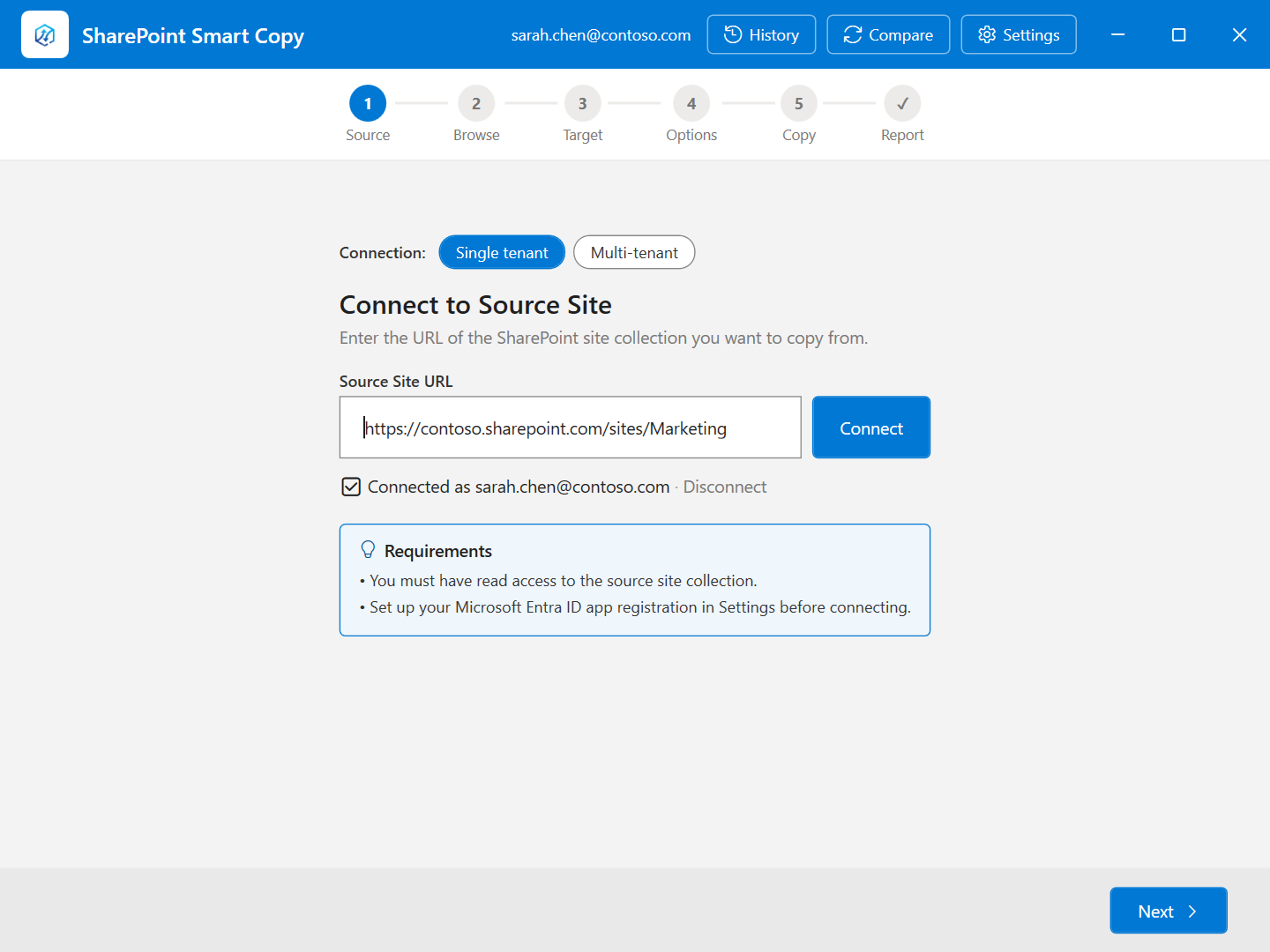
Step 1 — Choose Single tenant or Multi-tenant, enter the source site URL, and sign in with your Microsoft 365 account.
Static screenshot — click to enlarge.
Features
A full SharePoint Online migration tool — not just file copy.
Move files, libraries, lists, pages, or an entire site — with custom column metadata and version history intact.
Files, libraries, lists & sites
Copy individual files & folders, entire document libraries, custom lists (or individual list items), modern Site Pages, or migrate a whole site in one run. New lists and libraries keep their structure: columns, views, content types and settings.
Custom column metadata
Custom site columns travel with your content. Mismatched schemas? The Configure Mappings dialog auto-matches columns by name and type, with type-filtered dropdowns for the rest.
Person & People columns
Person and People columns (single or multi-value) are read with full user detail and written using SharePoint claims-format keys — no manual re-entry on the target.
Managed Metadata columns
Taxonomy and TaxonomyMulti columns copy across using Label | TermGuid pairs. Same-tenant term store means term GUIDs match — no term remapping required.
Version history preserved
Copy the complete version history for every file, or cap to the latest N versions. Major and minor versions, with original timestamps and editors.
Author & date metadata
Created By, Modified By, Created Date, and Modified Date travel with each version of each file — not just the latest content.
Incremental copy (If newer)
Three-way overwrite control: Skip, Overwrite, or 'If newer' — re-run the same job and only files whose source is newer than the target are recopied.
Modern Site Pages
Copy .aspx pages between sites with optional web part URL remapping — internal links get rewritten from the source domain to the target.
Item-level permissions
Optionally copy unique role assignments on libraries, lists, folders, items, and pages — broken inheritance and per-item sharing are reproduced on the target.
Whole-site migration
Site scope copies every document library and custom list — and optionally the Quick Launch navigation — from a source site to a target site in one operation.
Parallel transfers
Run 1–16 transfers simultaneously. Tune per run to balance speed against SharePoint throttling on large batches.
Automatic throttle handling
HTTP 429 responses from SharePoint are handled automatically — the app honors Retry-After, waits with jitter, and retries up to 5 times so large jobs complete unattended.
Real-time progress
Per-item status (Pending, Copying, Success, Failed, Skipped) with elapsed time updating every 400 ms, plus All / Failed / Skipped filter chips on the copy log.
CSV migration reports
Every run produces a per-item success / failed / skipped summary you can export to CSV for audits and change records.
Independent verification report
After any run, click Verify in History to re-scan source and target with fresh Graph API calls and export an Excel workbook confirming every file matches — content hash for most files, modified-date check for Office/Outlook formats that SharePoint re-serializes. Optional Deep Verify downloads any flagged .docx/.xlsx/.pptx/.vsdx pair and compares their internal content byte-for-byte, ignoring only the metadata parts SharePoint itself rewrites (Doc IDs, custom properties).
Full run history
Every run is saved locally. Browse previous runs, re-export their CSVs, run a Verification Report, or delete them — all from inside the app.
Two copy engines
Migration API mode for exact version numbers & dates server-side, or Enhanced REST mode when you don't have Site Collection Admin rights.
Your tenant, your tokens
Uses your own Azure AD app registration with delegated Graph permissions. No third-party servers, no stored passwords.
30-language interface
Defaults to the Windows display language, with an in-app selector when you want a different language. Unsupported languages fall back to English; SharePoint names, metadata, and copied content stay unchanged.
How it works
From sign-in to CSV report in six steps.
- 01
Connect source
Enter your source site URL and sign in with your Microsoft account in the browser popup.
- 02
Pick what to copy
Choose a scope: Files & Folders, Libraries & Lists, Entire Site, or Site Pages. Then check the items in the browse tree.
- 03
Pick target
Connect the destination site and pick where content should land — a folder, a list, or the site root for a full-site copy.
- 04
Configure options & mappings
Choose overwrite behavior, version history, parallel transfers, and map custom columns when source and target schemas differ.
- 05
Run the migration
Click Start Copy. Watch live progress per item and cancel any time without corrupting the destination.
- 06
Review the report
See a per-item success / failed / skipped summary and export it to CSV for your records.
Options
Sensible defaults. Tunable when it matters.
Three-way control. Skip leaves matching target files alone. Overwrite replaces them. 'If newer' compares the source's last-modified date to the target and copies only when the source is more recent — files already up to date are reported as Skipped.
Copies SharePoint version history and metadata alongside each file. Requires versioning to be enabled on the source library, and Edit-or-higher permission to read history.
When Copy version history is on, choose to copy the complete history or only the X most recent versions per file — useful for keeping target sites lean.
Optionally reproduce unique role assignments (broken-inheritance ACLs) on libraries, lists, folders, items, and Site Pages on the target. Inherited permissions are left intact so the destination's site-level governance still applies.
Copy text, choice, date, number, lookup, Person/People, and Managed Metadata columns. Opens the Configure Mappings dialog, which auto-matches on open and shows only type-compatible target columns in each dropdown.
One checkbox for each kind of structure Smart Copy recreates on new lists and libraries: views, list settings, content types and their templates, column validation and formatting, the library template and folder defaults, and in Site scope site columns, site content types, navigation and site settings. All on by default. Untick 'Copy files and list items' to copy structure only, with no content.
Number of files transferred simultaneously. The default of 4 is a good balance; raise to 8 or 16 on a fast connection for large batches. HTTP 429 throttling is handled automatically with Retry-After-aware backoff.
Prove the copy landed
Independent Verification Report
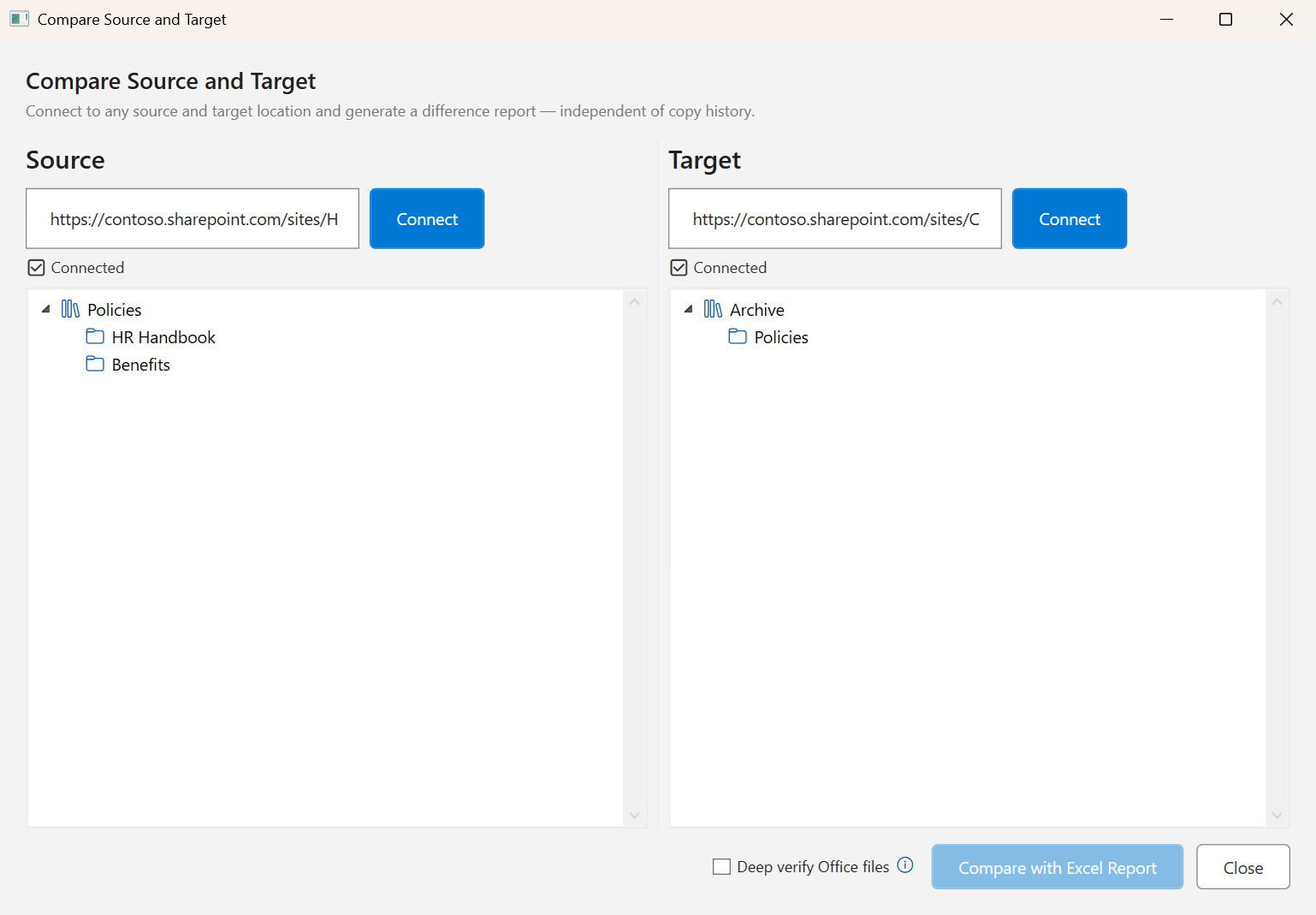
After any run, click Verify in History to re-scan source and target with fresh Microsoft Graph calls and export an Excel workbook. Compare also works on its own — pick any two folders or libraries, no copy run needed.
- Content hash for most files; modified-date check for Office and Outlook formats
- Optional Deep Verify compares Office and Visio file internals
- Overview, Source, Target, Comparison and Scan Errors sheets
Copy history
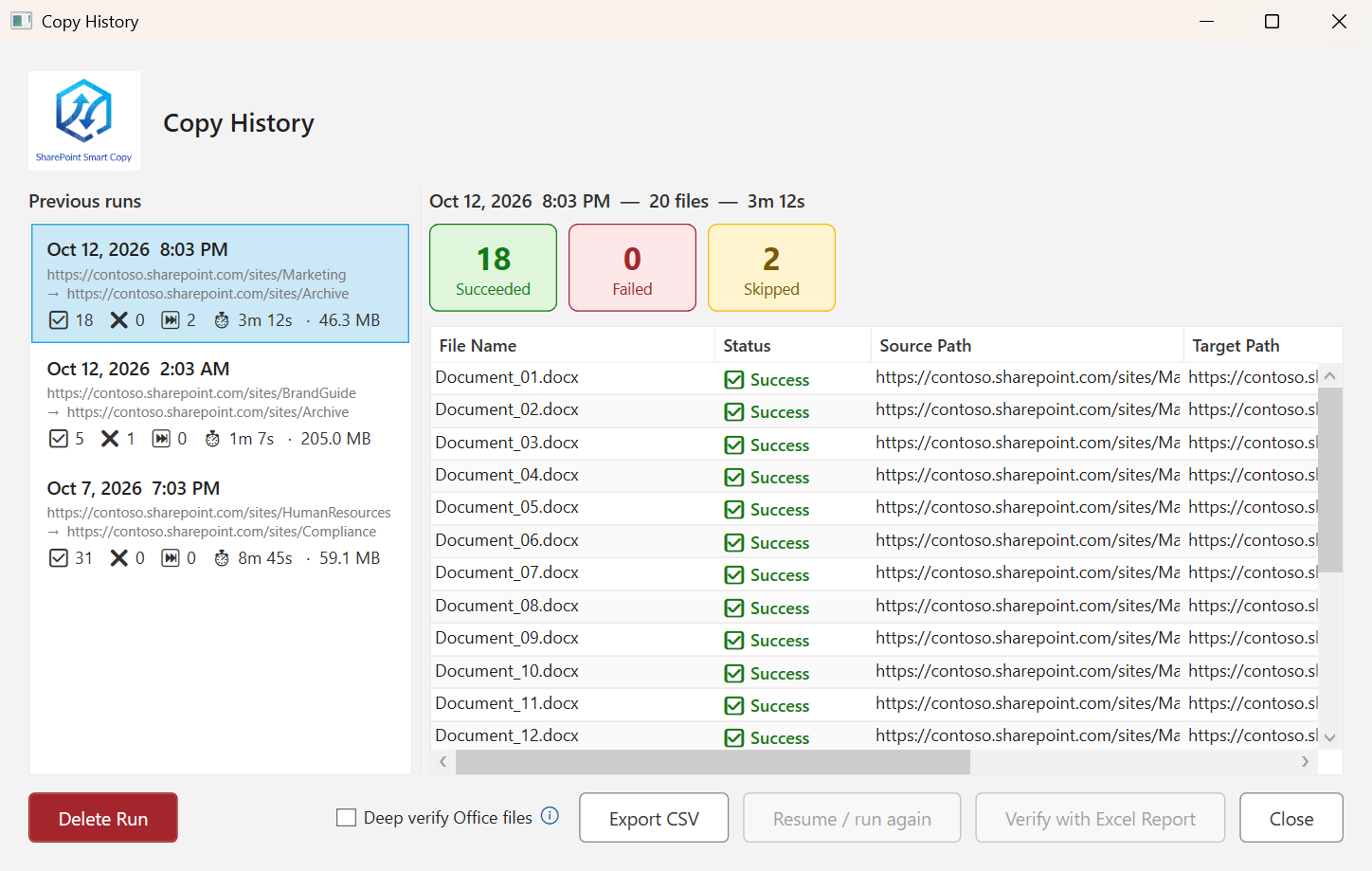
Every run, saved automatically.
Every completed copy is stored locally and accessible from the History button. Browse previous runs in reverse chronological order, see source and target URLs at a glance, and dive into per-file results for any run.
- Run summaries with succeeded / failed / skipped counts and total duration.
- Per-file detail for any historical run, including error messages.
- Verification Report — click Verify on any saved run to independently re-scan source and target with fresh Graph API calls and export an Excel workbook confirming what actually matches (content hash for most files, modified-date check for Office and Outlook formats, plus an optional Deep Verify that downloads any flagged .docx/.xlsx/.pptx/.vsdx pair and compares their internal content directly).
- Re-export to CSV at any time — perfect for audit trails and change records.
- Delete old runs you no longer need to keep your history clean.
Included with Smart Copy
Companion tools for the rest of your move
Moving more than SharePoint content? The same free app includes two separate wizards, each with its own walkthrough.
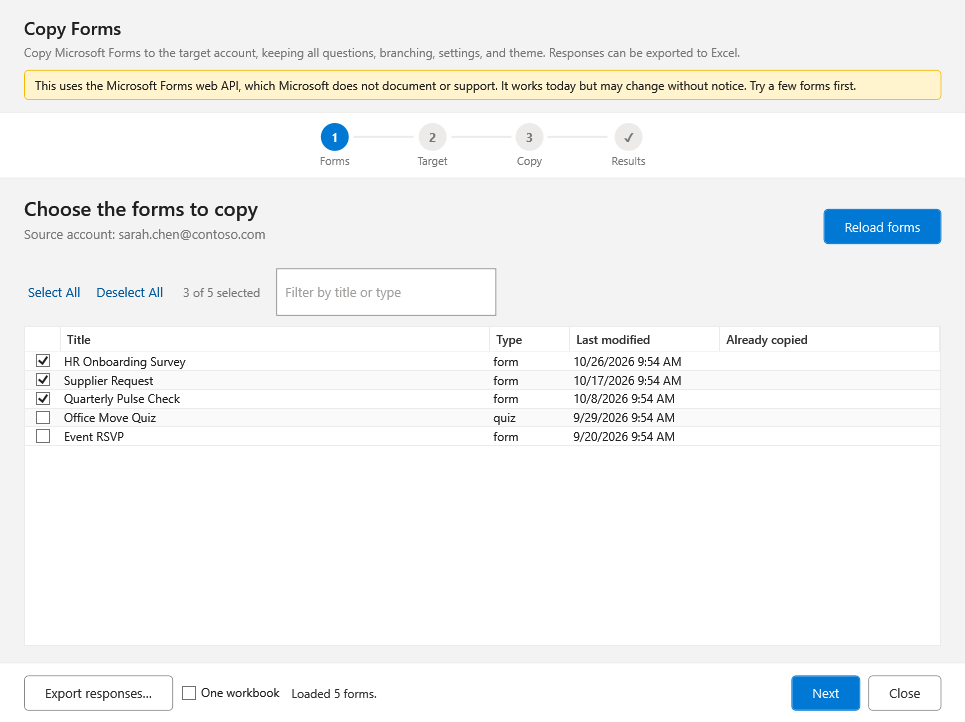
Microsoft Forms Copy
Copy forms, surveys, quizzes and polls to another account or tenant, keeping questions, branching, settings and theme. Export responses to Excel first.
Learn more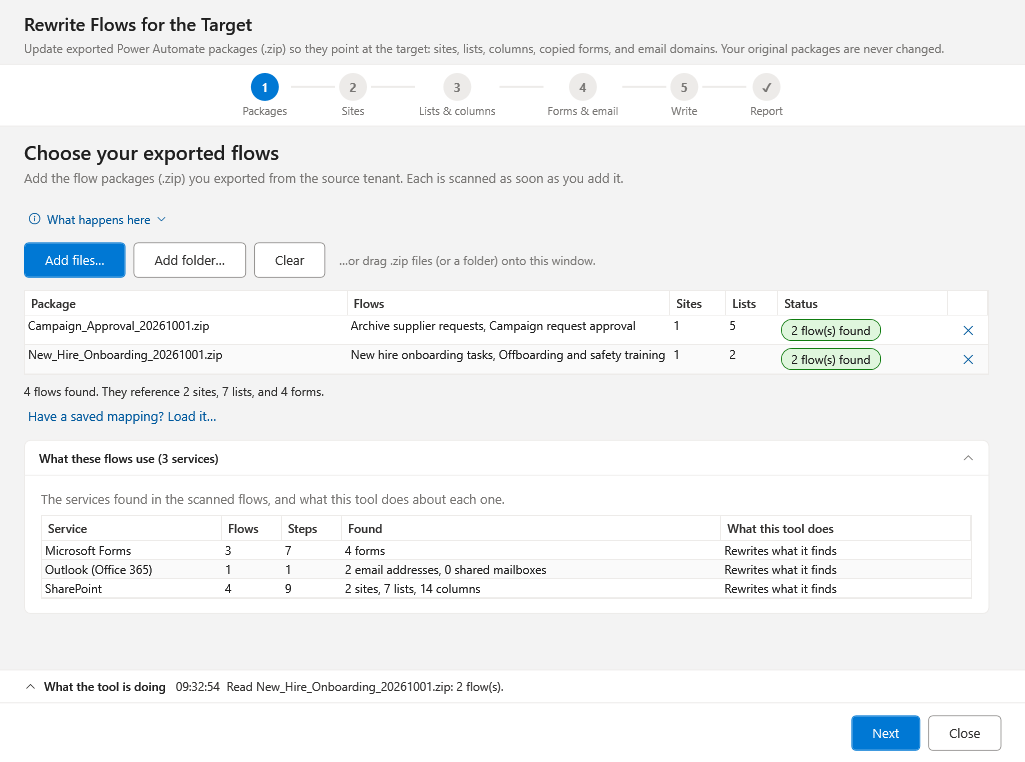
Power Automate Flow Rewriter
Rewrite exported flow packages (.zip) so their sites, lists, columns, form IDs and email addresses point at the target. Originals are never changed.
Learn moreSecurity
Built on Microsoft's identity platform. Nothing else.
All communication is with Microsoft. Your files never leave Microsoft's infrastructure, and your credentials never leave your browser.
OAuth 2.0 / MSAL sign-in
Authenticates against Microsoft's standard login page — the same one you use for SharePoint and Teams. The app never sees your password.
No stored credentials
Access tokens live in memory for the session. Optional refresh tokens use the Windows Credential Manager — same store as Microsoft Office.
Delegated permissions
Acts as the signed-in user. It can never touch a site, library, or file you couldn't already access in your own browser.
Your own app registration
You create and own the Azure AD registration in your tenant. Your IT team controls permissions and can revoke access at any time.
No external servers
Traffic flows directly between your machine and Microsoft Graph. No intermediate servers.
File content never on disk
Files stream directly from source to target through Graph. Only filenames and statuses are written locally for the copy report.
What's stored locally? Only application settings (%AppData%\SharePointSmartCopy\settings.json) and copy history reports (filenames and status only — no file content). The MSAL token cache is managed by Microsoft in the Windows Credential Manager.
Setup
One Azure AD app registration, then you're done.
The app uses delegated Microsoft Graph permissions, so it acts as the signed-in user. You'll need a Global Admin or SharePoint Admin to grant consent once.
Azure AD app registration
- 1. Go to
portal.azure.com→ Azure Active Directory → App registrations → New registration. - 2. Name it (e.g. "SharePoint Smart Copy").
- 3. Authentication → Add a platform → Mobile and desktop applications. Add redirect URI:
http://localhost - 4. API permissions → Add a permission → Microsoft Graph → Delegated:
Sites.ReadWrite.AllFiles.ReadWrite.All - 5. Add another permission → SharePoint → Delegated:
AllSites.FullControlRequired for Migration API mode only. Omit if you'll use Enhanced REST exclusively.
- 6. Click Grant admin consent.
- 7. Copy the
Application (client) IDfrom the Overview page.
Download or build
Download the latest release .exe to get started in seconds — or clone the source, inspect it, and build it yourself.
Building from source requires the .NET 8 SDK.
# Clone and run
git clone https://github.com/sregan1/SharePoint-Smart-Copy
cd SharePoint-Smart-Copy/SharePointSmartCopy
dotnet restore
dotnet run
First-time configuration
- Launch the app and click ⚙ Settings
- Paste your Client ID
- Set Tenant ID to your domain (e.g.
contoso.onmicrosoft.com) or leave ascommon - Click Save
Origin
How SharePoint Smart Copy started.
SharePoint Smart Copy was created to fill a gap. As a consulting team working with multiple clients, we often needed a simple way to move files between SharePoint sites, while keeping the metadata, version history, and the version history metadata — without the yearly costs of full migration tools.
SharePoint Smart Copy was designed to bridge the gap between migrations and everyday file movement with a lightweight, fast, and easy-to-use approach.
FAQ
Everything you need to know.
Compare
Smart Copy vs ShareGate vs AvePoint vs SPMT
The five things SharePoint admins actually compare when picking a migration tool.
| Smart Copy | ShareGate | AvePoint Fly | Microsoft SPMT | |
|---|---|---|---|---|
| Price | Free | $5,995/yr | Subscription, quote | Free |
| Hosting | Local Windows app | Local + vendor cloud | Vendor cloud | Local Windows app |
| Setup | Azure AD app + .exe, ~10 min | Vendor license + install | Vendor account + agent | Download .exe |
| SPO → SPO with full version history | Limited | |||
| Item-level permissions copy | ||||
| Person/People & Managed Metadata columns | Limited | |||
| Incremental 'if newer' re-runs | ||||
| Copy Microsoft Forms (questions, branching, settings) | Not listed | |||
| Rewrite Power Automate flows for a new tenant or site | Yes (Fly for Power Platform) | Converts some on-premises workflows | ||
| CSV / Excel report export | ||||
| License | MIT open source | Commercial | Commercial | Microsoft proprietary |
Support: every Smart Solutions tool comes with free community and GitHub support, and we also offer paid support plans for hands-on help.
Comparisons
Shopping ShareGate or AvePoint?
See how a free, open-source tool stacks up against the paid SharePoint migration suites.
Free ShareGate alternative
How Smart Copy compares to ShareGate for SharePoint Online site-to-site file migration.
Read comparisonFree AvePoint alternative
A local, open-source option vs AvePoint's Fly and Elements platform.
Read comparisonFree Metalogix alternative
Smart Copy vs Metalogix / Quest Content Matrix for same-tenant SPO copies.
Read comparisonFree Quest Migration Manager alternative
In-tenant SPO copies without Quest's per-user SaaS subscription.
Read comparisonShareGate vs AvePoint vs Smart Copy
Side-by-side: features, price, deployment model, and when to pick which.
Read comparisonBeyond the SharePoint Migration Tool (SPMT)
Where SPMT stops — and what a site-to-site copy tool does instead.
Read comparisonFree DocAve alternative
Smart Copy vs AvePoint DocAve for same-tenant SharePoint Online content moves.
Read comparisonFree Colligo alternative
Moving SharePoint content without a Colligo license or an email-management suite.
Read comparisonFree Cloudiway alternative
In-tenant SharePoint copies without Cloudiway's per-object SaaS pricing.
Read comparisonReady to move some files?
Grab the latest executable from Github and you're copying with metadata and version history in minutes.
Need expert hands on deck?
Let our team plan and run your SharePoint migration
Full-service file and metadata migrations across sites, tenants, or from on-premises to SharePoint Online, from planning and test runs to verification and cutover.
Get your first result in about 10 minutes
Download SharePoint Smart Copy, follow the step-by-step install guide, and run it against a real site the same afternoon. Nothing to license, nothing to renew.
- Download the Windows app from the latest release.
- Run it and sign in to your Microsoft 365 tenant.
- Pick a source and target site, then copy.
No marketing spam. One short email when a new release ships. You can unsubscribe anytime.