
SharePoint Forms with Conditional Branching, Without Power Apps
Every form starts short. Then someone points out that half the questions do not apply to half the people, and you are in branching territory. This is the point where SharePoint forms usually go one of two bad ways: the form becomes a 40-question wall that everyone scrolls past, or someone starts writing Power Fx visibility expressions across a dozen controls and nobody else can maintain it.
Rules you can read out loud
In Smart Forms, branching is a rule on the question, written as a sentence: show this question when Category is Hardware. There is no formula bar and no expression language. Conditions combine with AND and OR, so show when Category is Hardware and Priority is High is two clicks rather than a nested boolean.
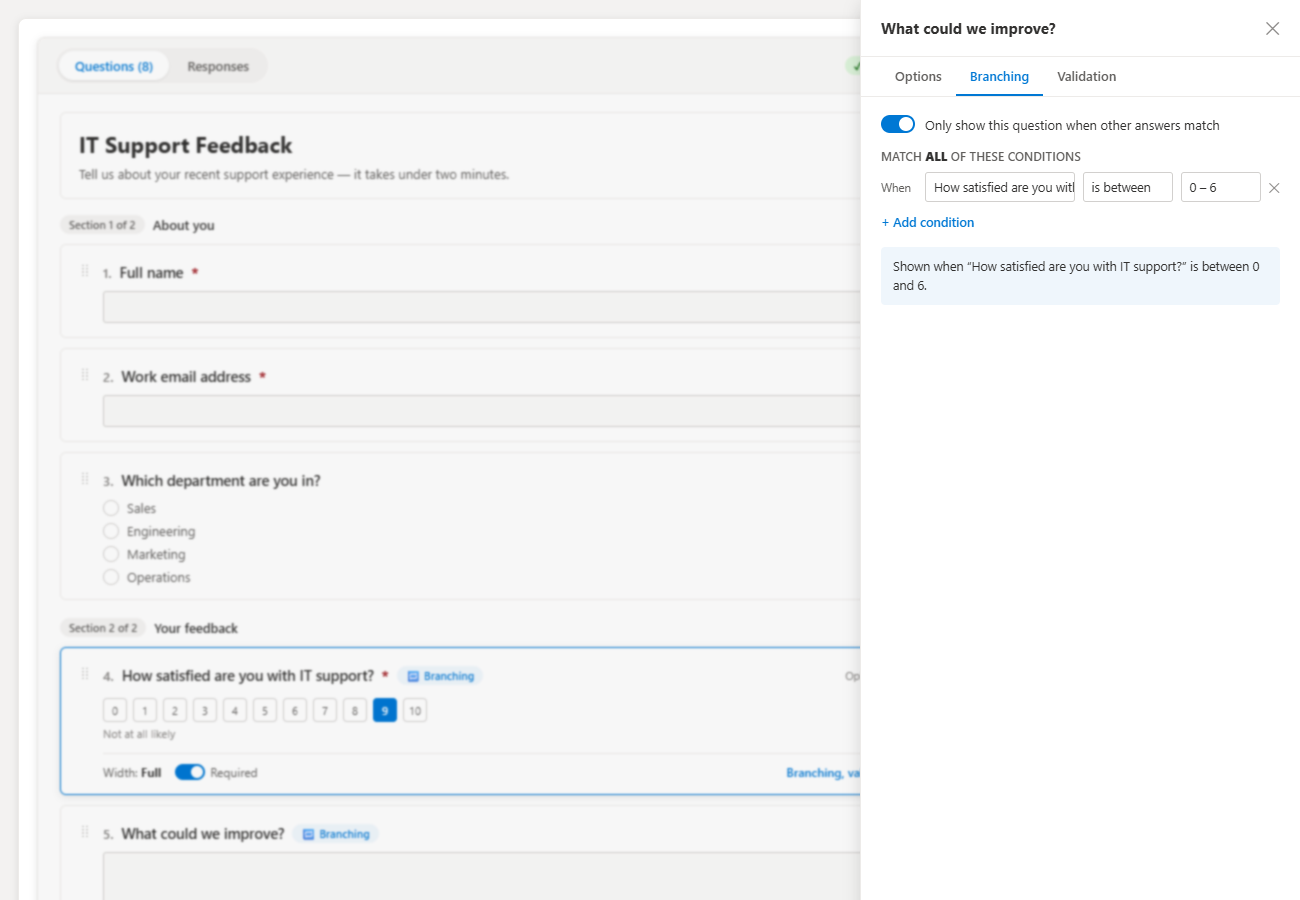
The practical benefit is not that it is easier to write — it is that it is easier to read a year later, by somebody who did not build it. A business owner can look at the rule and confirm it matches the process, which is not true of a Power Fx Visible property buried in a control.
Branch sections, not just questions
The cheapest way to keep a branched form maintainable is to branch at the section level wherever you can. One rule that hides an eight-question section beats eight rules that each hide one question, and it survives somebody adding a ninth question later.
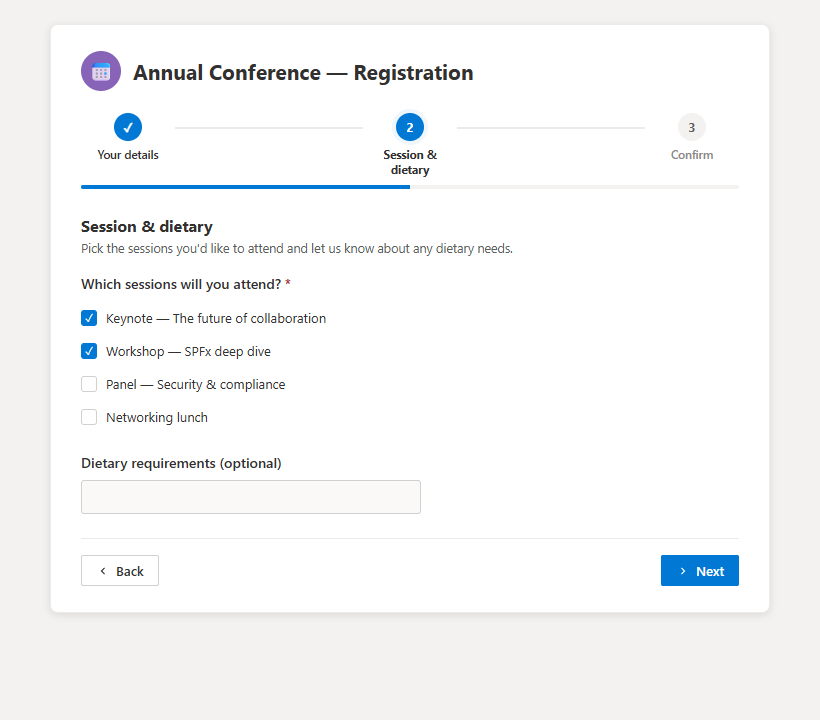
This pairs well with the wizard layout: each section becomes a step with a progress bar, and skipped sections simply do not appear in the sequence. A respondent who answers "No" to "Did anything fail?" never sees the remediation step at all.
Four rules for keeping branching sane
- Branch on a controlled value, never on free text. Conditions built on a choice, yes/no or lookup answer stay true. Conditions built on typed text break the first time someone writes "hardware".
- Put the deciding question first. A rule that depends on an answer further down the form confuses respondents and makes the pre-flight check harder to reason about.
- Do not hide required questions. Make the branch reveal the question and mark it required inside the branch, rather than marking a hidden question required and wondering why nobody can submit.
- Keep the depth to two. A rule that depends on a question that is itself conditional is already hard to test. Three levels deep is where forms start dropping data silently.
Check it before you share it
Smart Forms runs a pre-flight check over the form before you collect responses. It flags empty option lists and — more usefully — branches that no combination of answers can ever reach. Unreachable branches are the classic symptom of a form that has been edited by three people over two years, and they are invisible until someone notices a column in the list that is always blank.
What lands in the list
Branching only affects what is asked, not how the data is stored. Every question still maps to its own SharePoint column, and questions that were never shown land empty. That is worth knowing when you build views: filter on the deciding question rather than on emptiness, or you will mix "not applicable" with "skipped".
Related
Get your first result in about 10 minutes
Download SharePoint Smart Forms, follow the step-by-step install guide, and run it against a real site the same afternoon. Nothing to license, nothing to renew.
- Download the .sppkg package from the latest release.
- Upload it to your tenant App Catalog.
- Add the web part to a SharePoint page.
Email me when a new release ships
No marketing spam. One short email when a new release ships. You can unsubscribe anytime.
Frequently asked questions
Can I add conditional logic to a SharePoint list form without Power Apps?
Yes. Smart Forms provides show/hide rules per question and per section, configured as plain-English conditions with no Power Fx expressions to write.
Can one question depend on two answers?
Yes. Rules combine with AND and OR, so a question can appear only when Category is Hardware and Priority is High.
Does hidden mean the answer is discarded?
A question that never becomes visible is not answered and lands empty in the list. Branch on required questions rather than hiding required ones, and the pre-flight check will warn you about branches nobody can reach.
Does branching work in the wizard layout?
Yes. Rules apply to sections as well as questions, so an entire wizard step can be skipped when it is not relevant.
The SharePoint forms guides
Pick the right form approach, build it against a SharePoint list, then compare it with the paid tools.
Understand
Every way to collect data into a SharePoint list, and what each approach costs you.
Microsoft Forms, list forms, Power Apps and SPFx compared by job.
Where responses land, who can edit them, and why that decides the choice.
Build
Free SPFx form that writes straight to a SharePoint list — no Power Automate, no premium license.
Skip the connector chain: submit directly into the list item.
Required fields, formats and ranges enforced before submit.
Attach photos and documents to the created list item.
Was this page helpful?
One click. No form, no email address.
Missing something in SharePoint Smart Permissions? Feature requests and bug reports go straight to the developer on GitHub — no account needed to read, free account to post.
Request a featureRelated tool
SharePoint Smart Permissions
Visual permissions audit + Excel export. No PowerShell. Free, MIT licensed, no sign-up.
Keep reading
Routing SharePoint form responses to Teams and email
One flow, triggered on the list rather than the form, routes every submission to the right channel or mailbox — and keeps working if you rebuild the form.
SharePoint form validation rules that actually hold
Most SharePoint forms validate in one place and leak in three. Here is which layer catches which mistake, and the rules worth setting on every form you build.
Build a multi-page SharePoint form (wizard) for free
Thirty fields on one page is a completion-rate problem. Splitting the same thirty fields into five short steps is not.
Prefer a hands-off move?
Let our team move and rebuild your forms and flows
Our team plans the move, remaps your Power Automate flows and Microsoft Forms, recreates connections in the new tenant, and tests every flow before you switch over.
About the author
Sean Regan
SharePoint & Microsoft 365 consultant with 20+ years of hands-on experience building SPFx web parts, migration tooling and tenant-grade automation. Maintainer of the open-source SharePoint Smart Solutions suite.