
Moving a Microsoft Forms form into SharePoint — and keeping the data
Microsoft Forms is excellent at the thing it was built for: a quick survey, sent to a lot of people, answered in a browser. What it is not built for is being the front door to a business process whose data has to live in SharePoint. Once a form starts feeding a register, a request queue, or an inspection record, its limits become your data quality problem — and the usual patch is a Power Automate flow that translates responses into list items.
This is the process for getting off that pattern: rebuild the form inside SharePoint, keep the history, and be honest about which forms should stay where they are.
Step 1 — Export the responses before you touch anything
Open the form in Microsoft Forms, go to Responses, and choose Open in Excel. Save that file somewhere durable. This is your only copy of the history once the form is retired, and it is also the document you will use in step 6 to seed the new list.
Step 2 — Inventory the questions, and upgrade them on paper
Print the question list and write the intended SharePoint column type next to each one. This is the highest value ninety minutes in the whole exercise, because Microsoft Forms only knows text, number, choice, date and rating — so every question about a person, a project, or a site has been arriving as a string, spelled three different ways.
- "Your manager" → person picker, resolved against Entra ID.
- "Which project?" → lookup against the existing project list, so the values cannot drift.
- "Cost" → currency, not a text box someone types "£1,200 approx" into.
- "Department" → choice, or a lookup if the department list already exists somewhere.
Step 3 — Create the destination list
Create the list in the site where the process lives, or let Smart Forms provision it when you bind the form. Either way, the responses arrive as one item per submission with one typed column per question — an ordinary SharePoint list with ordinary views, permissions, retention labels, and Excel export.
Step 4 — Rebuild the form
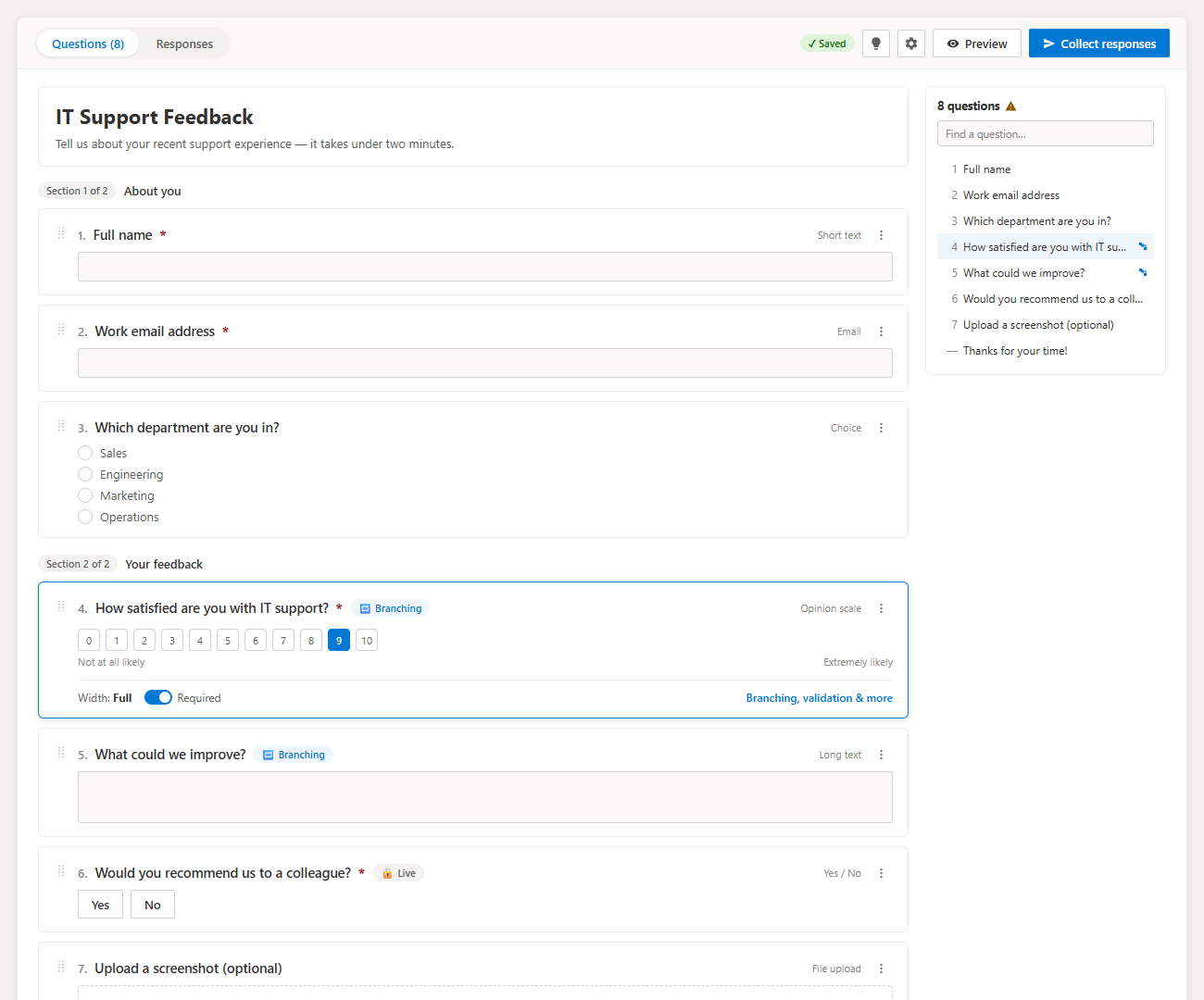
Add the web part to a modern page and recreate the questions on the canvas. Rebuilding a fifteen-question form is typically twenty minutes, because you are copying text you already have and choosing better types as you go.
Step 5 — Re-add the branching
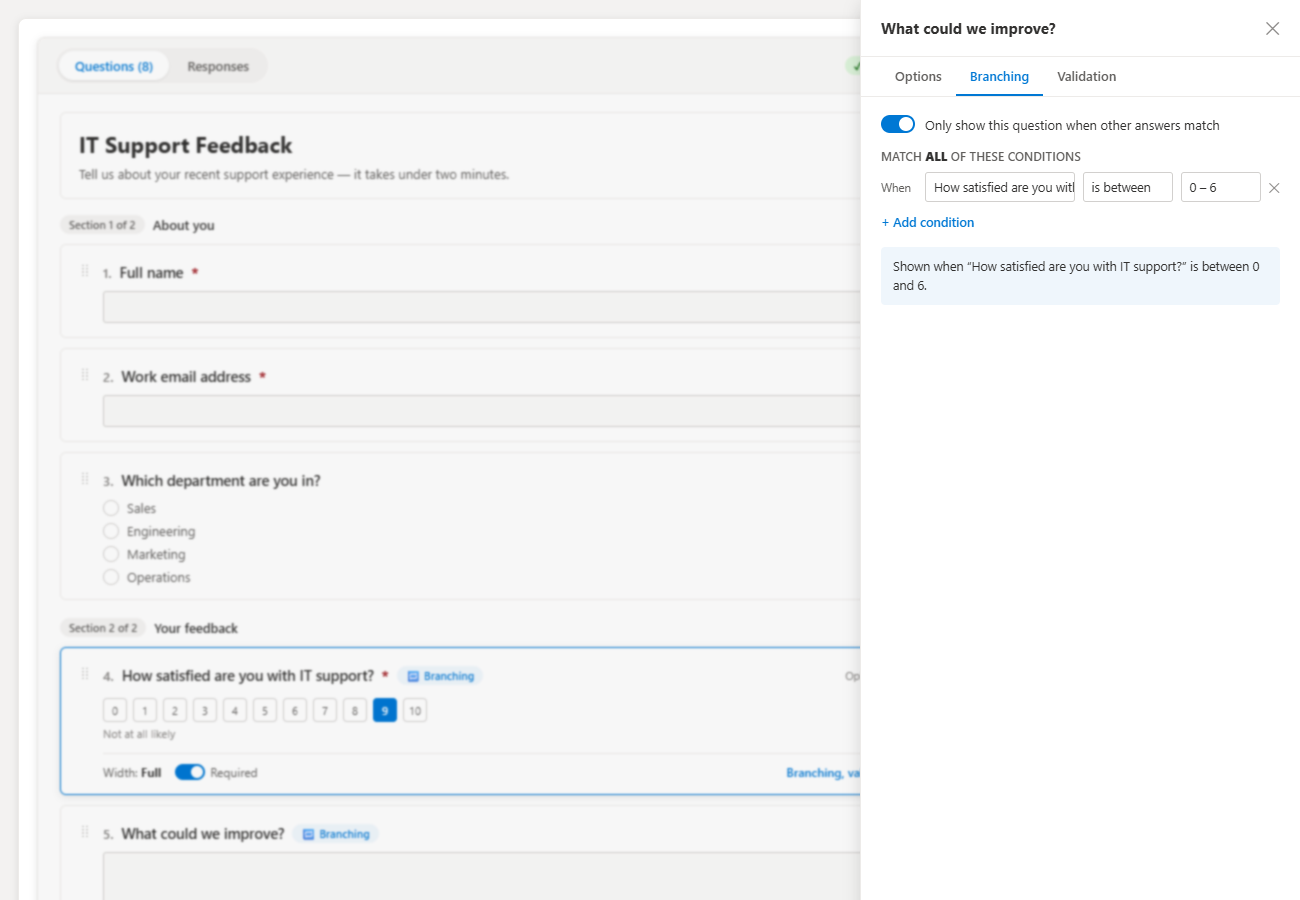
Microsoft Forms branching is one rule per question. Rebuild it as AND/OR conditions, which usually collapses several awkward Forms sections into a single clear rule. The pre-flight check flags any question that has become unreachable — a failure mode that is silent in the original.
Step 6 — Import the history into the same list
Open the Excel export from step 1, align its column headers with the new list's internal column names, and import it into the destination list with the standard Edit in grid view paste or the Import from Excel option. Two details save pain later:
- Import the historical rows before you go live, so any type mismatch surfaces while nobody is watching.
- Add a single-line column such as
Sourceand stamp the imported rows "Microsoft Forms" so a future reader can tell the two eras apart.
Person and lookup columns will not resolve from a text export automatically. Either accept the historical rows with those values as text in a parallel legacy column, or clean the names once during import — a one-off cost that ends the ongoing one.
Step 7 — Run both in parallel, then cut over
Leave the Microsoft Forms form open for a week while the SharePoint page collects real submissions. Then set the original to stop accepting responses, replace the link everywhere it appears — Teams tabs, email signatures, the intranet page — and let the results dashboard be the place people look.

Which forms should not move
Two categories, and they are not edge cases. If responses must be anonymous, or the respondents are outside your organization, keep them in Microsoft Forms — a SharePoint web part writes as the signed-in user, which is precisely what makes the data good and precisely what makes anonymity impossible. Employee pulse surveys and public intake stay put. Everything internal whose answers belong in a list is a candidate to move.
Related
Get your first result in about 10 minutes
Visual permissions audit + Excel export. No PowerShell. Free, MIT licensed, no sign-up.
- Download the .sppkg package from the latest release.
- Upload it to your tenant App Catalog.
- Add the web part to a SharePoint page.
Email me when a new release ships
No marketing spam. One short email when a new release ships. You can unsubscribe anytime.
Frequently asked questions
Can I import a Microsoft Forms form into SharePoint?
There is no direct import. You rebuild the questions once in a SharePoint form web part, which takes under an hour for a typical form and is the moment to upgrade weak text questions to real SharePoint column types.
What happens to my existing responses?
Export them from Microsoft Forms to Excel and import the rows into the same SharePoint list the new form writes to. History and new submissions then live in one place with one set of views.
Should every form move?
No. Anonymous surveys and anything filled in by people outside your organization must stay in Microsoft Forms, because a SharePoint web part runs as the signed-in user.
Do I lose the Microsoft Forms charts?
No equivalent charts move with the data, but Smart Forms has its own results dashboard, and a SharePoint list can be charted directly with a chart web part.
Will my Power Automate flow still work?
The Microsoft Forms trigger stops firing once you retire the form. Any 'when an item is created' flow on the destination list keeps working, and it is usually simpler — the item now arrives already typed.
The SharePoint forms guides
Pick the right form approach, build it against a SharePoint list, then compare it with the paid tools.
Understand
Every way to collect data into a SharePoint list, and what each approach costs you.
Microsoft Forms, list forms, Power Apps and SPFx compared by job.
Where responses land, who can edit them, and why that decides the choice.
Build
Free SPFx form that writes straight to a SharePoint list — no Power Automate, no premium license.
Skip the connector chain: submit directly into the list item.
Show and hide questions based on earlier answers.
Required fields, formats and ranges enforced before submit.
Attach photos and documents to the created list item.
Was this page helpful?
One click. No form, no email address.
Missing something in SharePoint Smart Permissions? Feature requests and bug reports go straight to the developer on GitHub — no account needed to read, free account to post.
Request a featureRelated tool
SharePoint Smart Permissions
Visual permissions audit + Excel export. No PowerShell. Free, MIT licensed, no sign-up.
Keep reading
Routing SharePoint form responses to Teams and email
One flow, triggered on the list rather than the form, routes every submission to the right channel or mailbox — and keeps working if you rebuild the form.
SharePoint form validation rules that actually hold
Most SharePoint forms validate in one place and leak in three. Here is which layer catches which mistake, and the rules worth setting on every form you build.
Build a multi-page SharePoint form (wizard) for free
Thirty fields on one page is a completion-rate problem. Splitting the same thirty fields into five short steps is not.
Building out your intranet?
Let our team design and build your SharePoint intranet
Intranet design, integrations, Power Automate workflows, and Microsoft 365 strategy, plus paid support packages for the tools on this site.
About the author
Sean Regan
SharePoint & Microsoft 365 consultant with 20+ years of hands-on experience building SPFx web parts, migration tooling and tenant-grade automation. Maintainer of the open-source SharePoint Smart Solutions suite.