
How to copy a Power Automate flow to a different SharePoint site or list (without rebuilding it)
| Approach | Remaps site, lists and columns? | Best when |
|---|---|---|
| Export and import a package | No. You choose connections on import; actions keep the old references | A single simple flow, edited by hand afterward |
| Solution with environment variables | Only the values you parameterized, such as the site URL | The flow was built for it from the start |
| Edit every action by hand | Yes, one action at a time | One or two small flows |
| Smart Copy Flows tool (free) | Yes: sites, lists, columns, copied forms and email domains | Many flows, or a flow that moves to a brand-new site |
A Power Automate flow that reads and writes a SharePoint list is tied to that list. The site address, the list and the column names are all stored in the flow, so a flow copied to a different site keeps pointing at the old one. In the best case it fails on the first run. In the worst case it quietly reads or writes the wrong data.
What breaks when a flow moves
- Site address: set separately in every SharePoint trigger and action.
- List: a copied list is a different list, even with the same name.
- Columns: referenced by internal name in actions, conditions and expressions, and the names can differ on the target.
- Forms and email: a copied Microsoft Form has a new ID, and approvals may still use the old email domain.
Microsoft's options
Export and import a package
Microsoft's export and import a non-solution flow article covers the .zip package: you choose to create the flow as new or update an existing one, and set up the related resources, such as connections, during import. It does not describe remapping the SharePoint sites, lists or columns inside the flow's actions, so those are yours to fix afterward. The same article points to solutions for application lifecycle management.
Solutions and environment variables
Microsoft's environment variables let you store a value such as a SharePoint site URL once and set a different value per environment when you import a solution. That is the supported route for planned moves between development, test and production, but it only works if the flow lives in a solution and was built to use the variables. An existing flow that uses hard-coded values has to be edited to use them first.
Fix every action by hand
Open each action, reselect the site and list, re-pick the columns, and check the expressions. For a flow with twenty SharePoint actions across three lists, that is an afternoon per flow.
The faster way: Smart Copy's Flows tool
The Flows tool in SharePoint Smart Copy is free and open source. It reads a flow from a source Power Automate environment, rewrites it for the target, and creates it there, in the same tenant or another one.
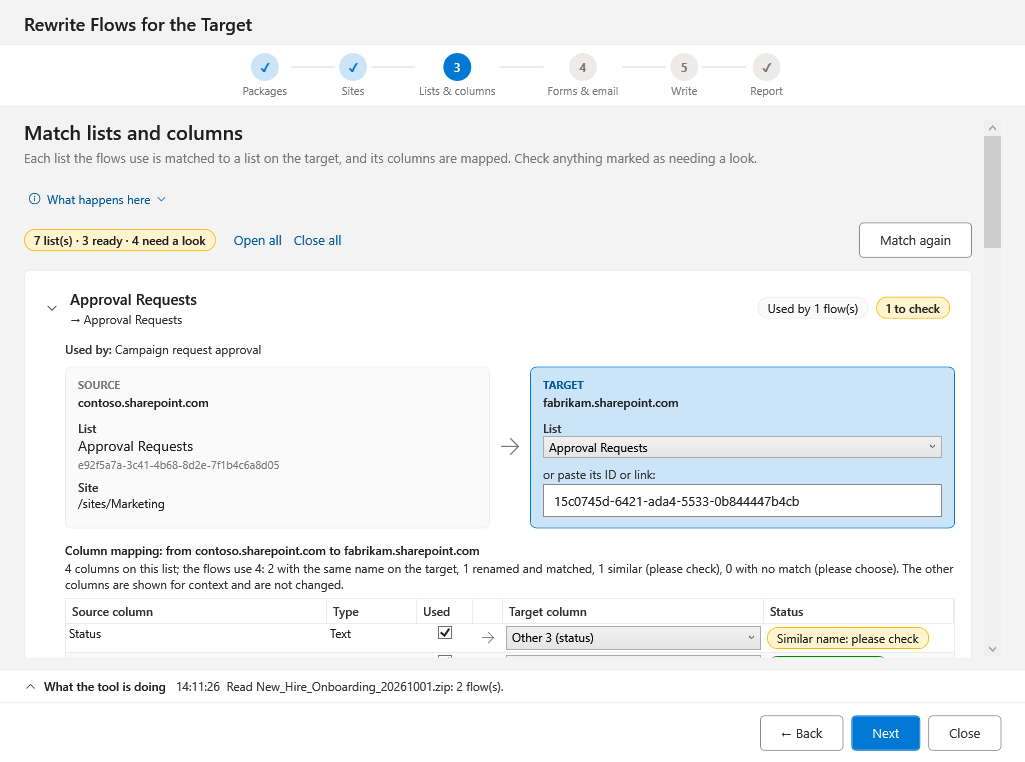
- Pick the flows in the source environment, or add exported packages.
- Map the new site. Sign in to the target and the site addresses are filled in.
- Match lists and map columns. Each list is matched to a target list, and its columns are mapped as same name, renamed or flagged for a look. A column the target list lacks is left out of the steps that write it, with a warning.
- Match forms and email. Copied Microsoft Forms are matched by title to their new IDs, and email addresses can follow a domain change.
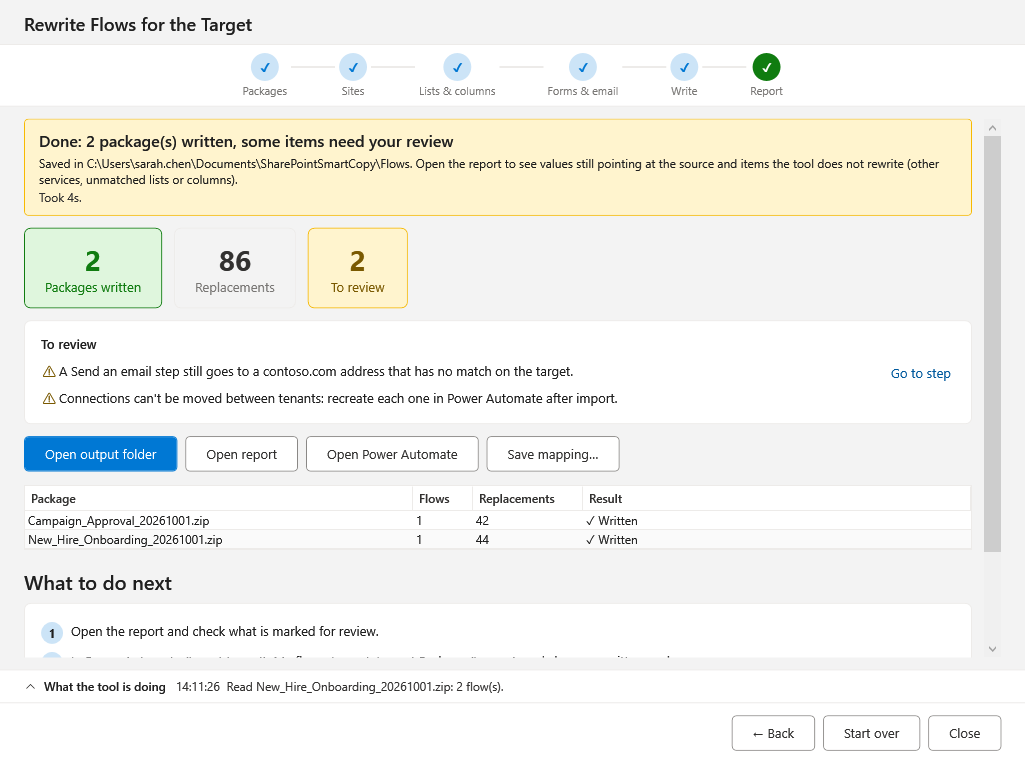
- Copy. The flows are created switched off. In an environment with Dataverse they can be created inside a solution you choose.
- Review the report. It lists replacements and anything still pointing at the source. A retry skips flows that were already created, so you do not get duplicates.
Before you turn the copy on
- Check the report for warnings, especially columns that were left out.
- Check connections. Smart Copy binds each connection reference to one of your connections in the target when it finds a match. Confirm the account is the one you want the flow to run as.
- Test with a sample item before turning the flow on.
What you need
Live copy needs delegated Power Automate Service (Flows.Read.All and Flows.Manage.All) and PowerApps Service (User) permissions on your own app registration, and optionally Dataverse user_impersonation to create flows inside a solution. The account also needs access to both environments. The full list is in the permissions table and the Smart Copy README.
Move the content first
A flow needs its target site, list and forms to exist. Copy the SharePoint content with Smart Copy, copy forms with the bulk Microsoft Forms copy, then copy the flows. For the wider picture, see how to move Power Automate flows to a new tenant and the SharePoint migration tool comparison.
Get your first result in about 10 minutes
Copy sites, libraries, lists and pages with full version history. Free, MIT licensed, no sign-up.
- Download the Windows app from the latest release.
- Run it and sign in to your Microsoft 365 tenant.
- Pick a source and target site, then copy.
Email me when a new release ships
No marketing spam. One short email when a new release ships. You can unsubscribe anytime.
Frequently asked questions
Why does a copied Power Automate flow still point at the old SharePoint site?
SharePoint actions store the site address, the list and the column names inside the flow definition. Copying or importing the flow keeps those values, so they keep pointing at the source until each one is changed.
Can I copy a Power Automate flow to a different SharePoint site for free?
Yes. SharePoint Smart Copy is free and open source, and its Flows tool copies flows live between environments or tenants and remaps the SharePoint sites, lists and columns for the target.
Does the copied flow run straight away?
No. Smart Copy creates the copy switched off, so nothing runs in the target until you have reviewed the report and turned it on.
What happens to a column that does not exist on the target list?
It is left out of the steps that write it and listed in the report with a warning, instead of failing the import. Fix the list or map the column, then run again.
Do connections come across?
Connections belong to a person and a tenant. In live copy, Smart Copy binds each connection reference to one of your existing connections in the target when it finds a match and shows which one in the report. After a package import you choose or recreate them yourself.
Was this page helpful?
One click. No form, no email address.
Missing something in SharePoint Smart Copy? Feature requests and bug reports go straight to the developer on GitHub — no account needed to read, free account to post.
Request a featureRelated tool
SharePoint Smart Copy
Copy sites, libraries, lists and pages with full version history. Free, MIT licensed, no sign-up.
Keep reading
How to move Power Automate flows to a new tenant or SharePoint list
Repointing a Power Automate flow to a new list means fixing every site, list and column reference by hand. Smart Copy copies flows live between environments or rewrites whole packages at once.
How to Migrate a Large SharePoint Document Library Without Timeouts or Throttling
One giant copy job is the most common reason large library migrations stall. Here is how to break the move into batches, pre-seed it and verify the result.
SharePoint Tenant-to-Tenant Migration Playbook for Mergers and Acquisitions
Mergers and divestitures put a hard date on a tenant move. This playbook breaks the SharePoint part into five phases, with the decisions that matter in each.
Prefer a hands-off move?
Let our team move and rebuild your forms and flows
Our team plans the move, remaps your Power Automate flows and Microsoft Forms, recreates connections in the new tenant, and tests every flow before you switch over.
About the author
Sean Regan
SharePoint & Microsoft 365 consultant with 20+ years of hands-on experience building SPFx web parts, migration tooling and tenant-grade automation. Maintainer of the open-source SharePoint Smart Solutions suite.