
Highlight long SharePoint file paths with column formatting
Need expert hands on deck?
Let our team plan and run your SharePoint migration
Full-service file and metadata migrations across sites, tenants, or from on-premises to SharePoint Online, from planning and test runs to verification and cutover.
Why 180 characters is the number that matters
The famous SharePoint path problem is really a Windows problem. OneDrive sync fails when the fully-qualified local path passes 260 characters — and the local path is longer than the SharePoint one, because the sync root gets prepended to it.
A typical sync root looks like this:
C:\Users\YOURUSERNAME\OneDrive - Company Name\Site Name - Shared Documents\
That is roughly 80 characters gone before the first folder of your library. Which means the practical budget for everything below the library root is about 180 characters. Flag anything over that and you are flagging the files that will break sync — before a user files a ticket.
Adjust the threshold if your organization name is unusually long or short: count your own sync root and subtract it from 260.
Step 1 — Add a column named "Path"
Open the document library, click + Add column, choose Single line of text, name it Path, and save.
Leave the column completely empty. It never holds data — it exists purely as a place to hang the formatting JSON, which computes the value from the file's own [$FileRef] property at render time.
Step 2 — Open "Format this column"
- Click the
Pathcolumn header. - Choose Column settings → Format this column.
- In the pane that opens, click Advanced mode (or "Switch to advanced mode") to reveal the raw JSON box.
Step 3 — Paste the JSON
Paste the block below into the JSON box. Then replace /sites/YOURSITE/Shared Documents/ — in all four places — with your own library's server-relative path (copy it from the browser address bar).
{
  "$schema": "https://developer.microsoft.com/json-schemas/sp/v2/column-formatting.schema.json",
  "elmType": "div",
  "txtContent": "=replace([$FileRef], '/sites/YOURSITE/Shared Documents/', '') + ' [len: ' + indexOf(replace([$FileRef], '/sites/YOURSITE/Shared Documents/', '') + '|', '|') + ']'",
  "style": {
    "color": "=if(indexOf(replace([$FileRef], '/sites/YOURSITE/Shared Documents/', '') + '|', '|') > 180, '#FFFFFF', '#000000')",
    "background-color": "=if(indexOf(replace([$FileRef], '/sites/YOURSITE/Shared Documents/', '') + '|', '|') > 180, '#D9534F', 'transparent')",
    "padding": "4px 8px"
  }
}
What the JSON actually does
[$FileRef]is the server-relative path of each item, e.g./sites/VeevaDrop/Shared Documents/01 Trial Management/report.docx.replace(...)strips the library root so you measure only the part that lands under the sync folder.indexOf(path + '|', '|')is the length trick: SharePoint column formatting has nolength()function, so appending a character that cannot occur in a path and asking for its index returns the string length.- The two
if(... > 180, ...)expressions swap the text and background colors once the count crosses the threshold.
Step 4 — Save and read the result
Click Save. Every row now shows its library-relative path followed by [len: N], and anything over 180 characters renders as white text on a red block:
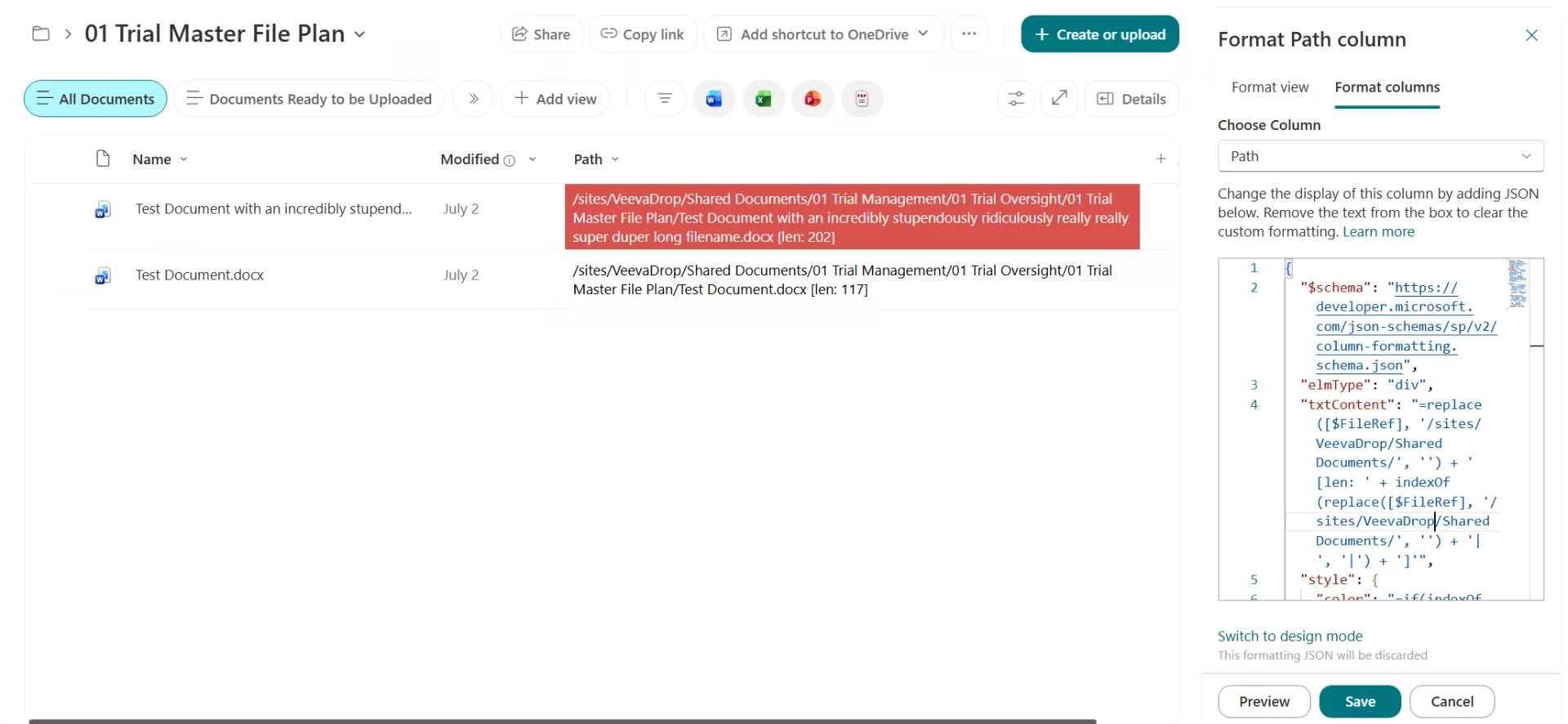
To work through the list, sort the view by Name and scan for red, or switch the view to a folderless flat view (All Documents → Edit current view → Show all items without folders) so every file in the library is visible in one scroll.
Fixing what it finds
- Shorten folder names first — a single deep folder renamed from "01 Trial Master File Plan" to "01 TMF" removes 20+ characters from every file beneath it.
- Flatten depth. Four levels is usually enough; metadata columns and views replace deeper nesting without costing path characters.
- Rename the worst offenders. Descriptive filenames are good; 90-character filenames are not.
- Add the shortcut higher up. "Add shortcut to OneDrive" on a subfolder rather than the library root shortens the local prefix for users.
Limits of the column-formatting approach
This is a great per-library canary, and it costs nothing. But it stops where the view stops:
- It applies to one library, one view at a time — you would repeat it for every library in the tenant.
- It measures the SharePoint path only; the OneDrive prefix is assumed rather than simulated.
- There is no export. You cannot hand a project manager an Excel file of offenders.
- Folder items and files are treated the same way, so a long folder path shows up once per child.
When you need site- or tenant-wide coverage, SharePoint Smart Path Length does the same job recursively: it scans a library, site, or whole tenant, simulates the actual OneDrive shortcut prefix you configure, color-codes against your own warning and critical thresholds, and exports the offending items to Excel. It is a free SPFx web part and, like the column formatting above, it is strictly read-only — nothing is renamed or moved.
More background: SharePoint path length: complete reference and the OneDrive path length cleanup use case.
Frequently asked questions
Why 180 characters and not 260?
The 260-character limit applies to the full local Windows path after sync, not the SharePoint URL. A typical sync root — C:\Users\YOURUSERNAME\OneDrive - Company Name\Site Name - Shared Documents\ — already uses about 80 characters, so a library-relative path over 180 characters is the one that pushes the local path past 260.
Does the Path column need any data in it?
No. The column is only a container for the formatting JSON. The displayed value is computed from [$FileRef] at render time, so the column stays empty and adds no storage.
Does this change or rename any files?
No. Column formatting is display-only. Clearing the JSON box removes the highlighting and leaves every file untouched.
Will it work in folders and in search results?
It works anywhere the library view renders, including inside folders. It does not apply to search result pages or to the OneDrive mobile app, and it only covers the one library you formatted.
How do I check every library at once instead of one at a time?
Column formatting is per-library and per-view. For a site- or tenant-wide picture, SharePoint Smart Path Length scans recursively, simulates the OneDrive shortcut prefix, and exports the offending items to Excel.
Was this page helpful?
One click. No form, no email address.
Missing something in SharePoint Smart Permissions? Feature requests and bug reports go straight to the developer on GitHub — no account needed to read, free account to post.
Request a featureRelated tool
SharePoint Smart Permissions
Visual permissions audit + Excel export. No PowerShell. Free, MIT licensed, no sign-up.
Keep reading
SharePoint File Path Too Long: Find Every Offending File Free
One long-path file breaks the whole folder's sync. Here's the free way to find every one on the site.
SharePoint Error Messages Explained: What They Mean and How to Fix Them
Ten SharePoint errors that send people to the help desk, what each one really means, and the quickest way to fix it.
SharePoint Online Limits Cheat Sheet (2026): File Size, Path Length, List Threshold and More
Most SharePoint limits only show up when something breaks. Here is the one-page reference for the limits admins actually hit, and what to do when you are close.
Need expert hands on deck?
Let our team plan and run your SharePoint migration
Full-service file and metadata migrations across sites, tenants, or from on-premises to SharePoint Online, from planning and test runs to verification and cutover.
About the author
Sean Regan
SharePoint & Microsoft 365 consultant with 20+ years of hands-on experience building SPFx web parts, migration tooling and tenant-grade automation. Maintainer of the open-source SharePoint Smart Solutions suite.