
Free SharePoint permissions report in Excel
What a permissions report should contain, what the Excel export looks like, and how to produce one for any SharePoint Online site without PowerShell, admin rights or a license.
Last updated · By Sean Regan
Quick answer
How do I get a free SharePoint permissions report?
Scan the site with a read-only reporting tool and export to Excel. A usable report has one row per object per principal, marks each object Inherited or Unique, expands nested Microsoft 365 and Entra ID groups down to named people, and flags guests and sharing links. SharePoint has no built-in export, so this is the one part you cannot do natively.
SharePoint Smart Permissions produces exactly that as a multi-sheet workbook, in the browser, using your own permissions. Cost: $0, MIT-licensed, no trial, no sign-up.
The columns a permissions report needs
Most homegrown reports fail review for the same reason: they list group names instead of people, so nobody can answer "can this contractor see the payroll folder?" These ten columns make the file self-sufficient.
| Column | Why it matters |
|---|---|
| Object URL | Full server-relative URL of the site, list, library, folder or file. |
| Object type | Site, List, Library, Folder or File — so you can filter the review to one level. |
| Inherited / Unique | Whether the object inherits from its parent or carries its own assignments. Unique rows are the review list. |
| Principal | The user, security group, Microsoft 365 group or SharePoint group holding the assignment. |
| Principal type | Person, group or sharing link — the difference between a name and a container. |
| Member (expanded) | The named people behind each group, resolved recursively through nested groups. |
| Permission level | Full Control, Edit, Contribute, Read, Limited Access, or a custom level. |
| Granted via | The path the access came through: direct assignment, a group, or a sharing link. |
| External / guest | Flag for guest accounts and anonymous or organization-wide sharing links. |
| Scanned on | Timestamp of the scan, so the file stands on its own as evidence months later. |
What the Excel export looks like
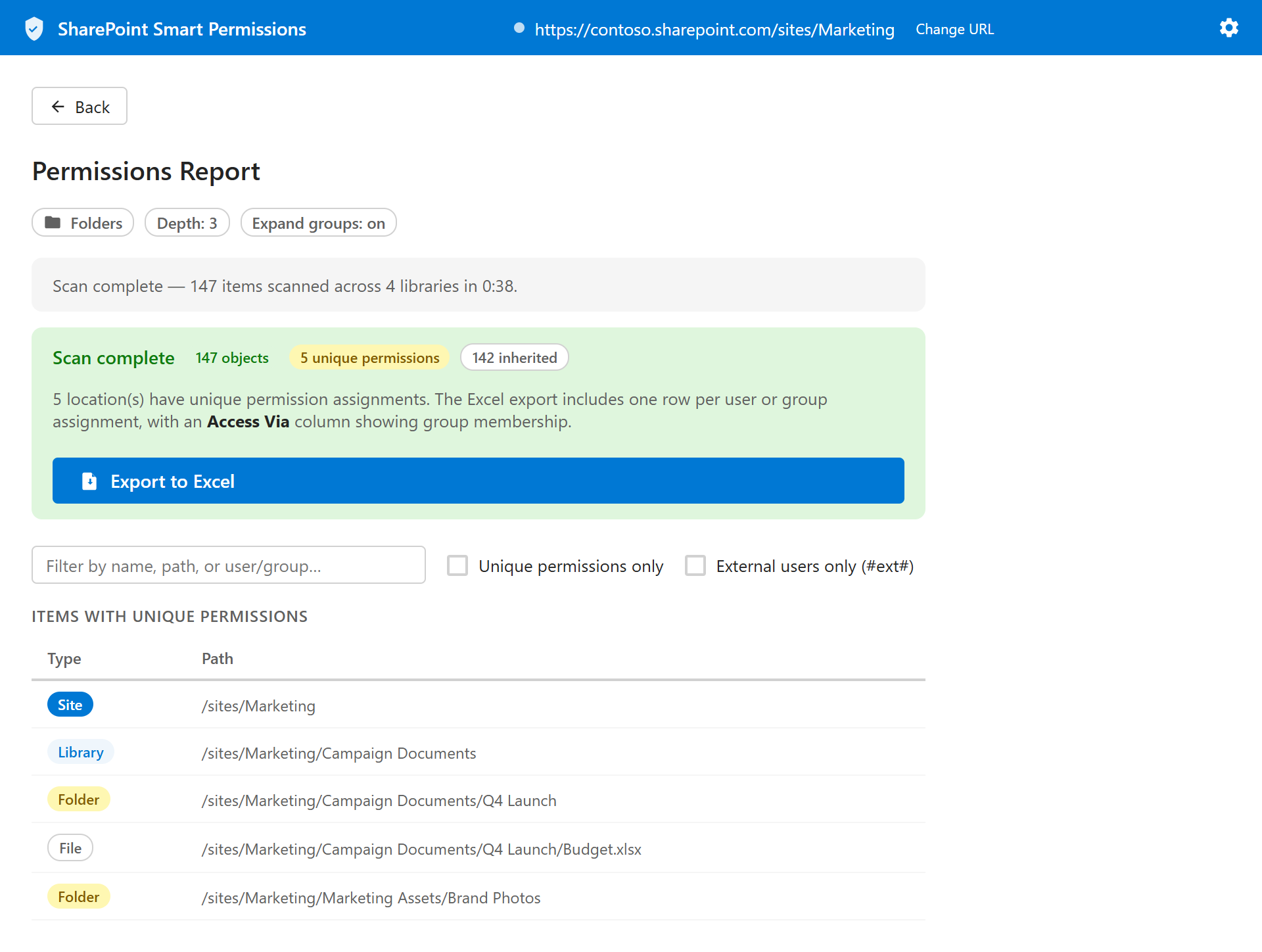
The workbook is generated client-side and saved straight to your machine. Five sheets, so each audience gets the slice it needs without filtering someone else's grid.
- Summary — Scope, scan time, counts of objects, unique scopes, external users and sharing links.
- Permissions — One row per object per principal — the main grid, color-coded by permission level.
- Unique scopes — Only the objects where inheritance is broken. This is the sheet owners actually review.
- External access — Guests, anonymous links and company-wide links, isolated for the security question.
- Group membership — Each group expanded to its transitive members, so the report names people.
Running the report
- Deploy the Smart Permissions .sppkg to the App Catalog and approve the delegated Graph scopes (once).
- Add the web part to a modern page on a governance or admin site.
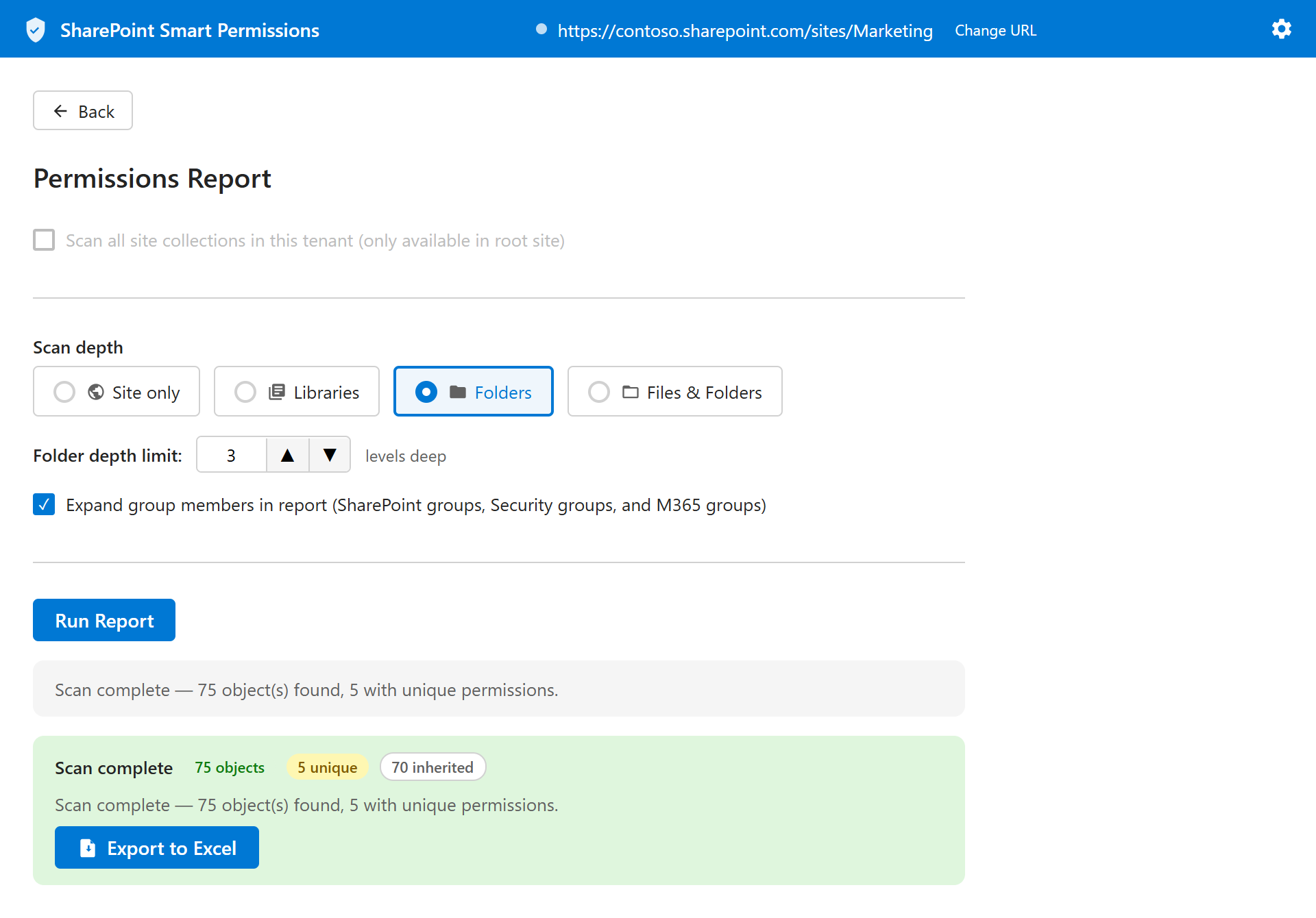
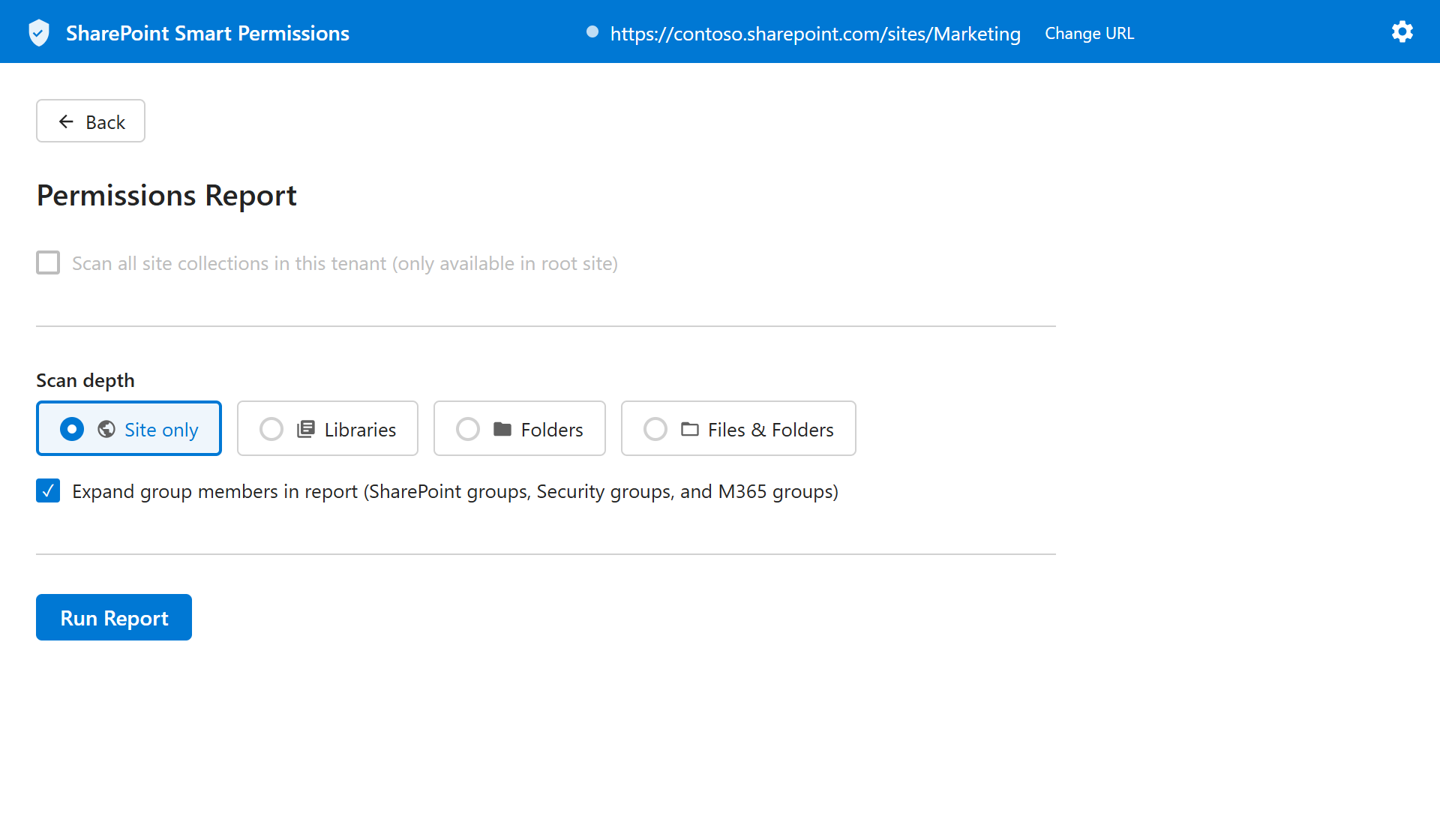
- Pick a scope — one high-risk site to start, not the whole tenant.
- Run the scan and let it expand group membership recursively.
- Export to Excel and filter to Unique scopes, guests and sharing links.
- Send each owner their slice, and keep the dated file. The run history is the audit evidence.
Why SharePoint cannot do this natively
Microsoft documents two permission surfaces in SharePoint Online: Site permissions in Site Settings, and the per-item Manage access panel. Both are single-object views. Neither enumerates the objects in a site with broken inheritance, and neither exports.
The second gap is membership. Access usually arrives through a SharePoint group containing a Microsoft 365 group containing a security group, and only a recursive Graph transitiveMembers call resolves that to people. A report that stops at group names cannot answer the questions an access review asks, which is why "export permissions" is the one job that always needs a tool.
Sources
Frequently asked questions
Is there a free SharePoint permissions report?
Yes. SharePoint Smart Permissions is a free, MIT-licensed SPFx web part that scans a site and exports a multi-sheet Excel permissions report: every object marked Inherited or Unique, every principal with nested groups expanded to named people, external guests and sharing links flagged, and a per-user access lookup. Cost is $0 — no trial, no sign-up, no seat count.
Can SharePoint export a permissions report on its own?
No. SharePoint Online shows permissions one object at a time in Site Settings and the Manage access panel. There is no built-in export, no site-wide list of broken-inheritance scopes, and no expansion of nested group membership.
What format is the report?
An Excel workbook (.xlsx) with multiple sheets — Summary, Permissions, Unique scopes, External access and Group membership — plus a CSV option. The file is generated in the browser and saved to your machine; nothing is uploaded anywhere.
How long does a permissions report take to run?
A single site with a few thousand items usually completes in a few minutes. Time scales with the number of objects that have unique permissions, because each one must be read individually. Start with one high-risk site rather than an entire tenant.
Do I need to be a tenant admin to run the report?
No. The web part runs with the signed-in user's own permissions, so a site owner can report on their own site. You do need someone with App Catalog rights to deploy the .sppkg once.
Can the report change permissions?
No. It is read-only by design — GET calls to Microsoft Graph and the SharePoint REST API only. Remediation happens in SharePoint itself, which means anyone with read access can produce the evidence without holding a privileged role.
How often should I run it?
Quarterly for an access recertification cycle, and ad hoc before a Copilot rollout, a security questionnaire, or after a reorganization. Keep the dated files — a run history is what an auditor asks for, not a single snapshot.