
SharePoint custom org charts: cards, layouts and themes
Building out your intranet?
Let our team design and build your SharePoint intranet
Intranet design, integrations, Power Automate workflows, and Microsoft 365 strategy, plus paid support packages for the tools on this site.
Most requests for a "custom org chart in SharePoint" start the same way: someone adds the built-in People web part, sees a flat row of faces with no reporting lines, and goes looking for something better. The People web part was never a hierarchy tool — it renders a list of people you pick by hand. Delve draws a real manager chain, but it is fixed: you cannot choose the fields, embed it in a page with your own branding, or start it anywhere other than the person viewing it.
Everything below uses SharePoint Smart Org Chart — free, MIT licensed, and running as an SPFx web part inside your own tenant. It reads the same Entra ID manager relationships Delve uses, and exposes the parts you actually want to change as settings rather than code.
Customize the person card
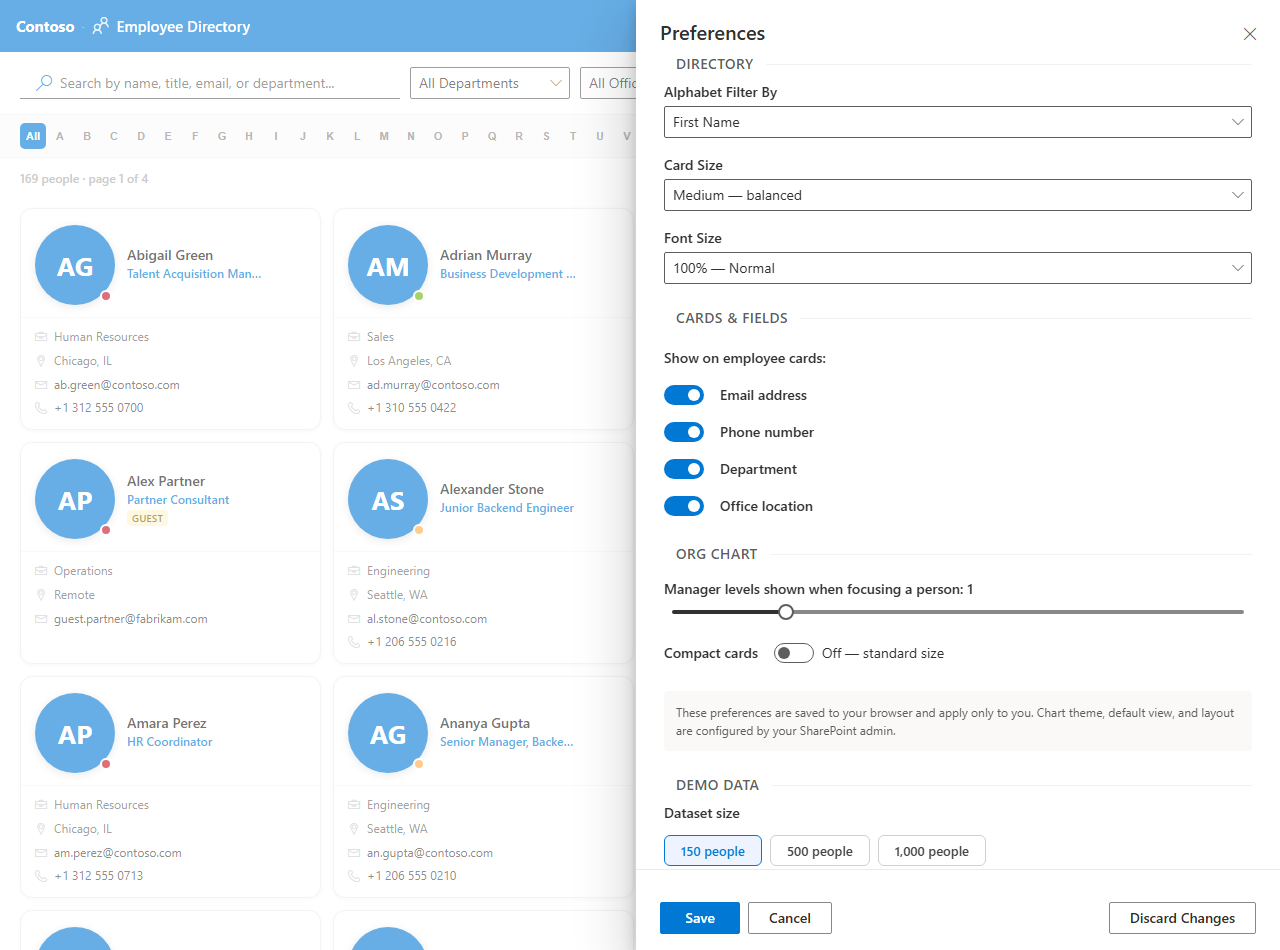
The card is where most of the customization value sits, because it determines whether your chart reads as an org structure or as a staff directory. Each card can carry the photo and display name plus any combination of job title, department, office location, phone and email.
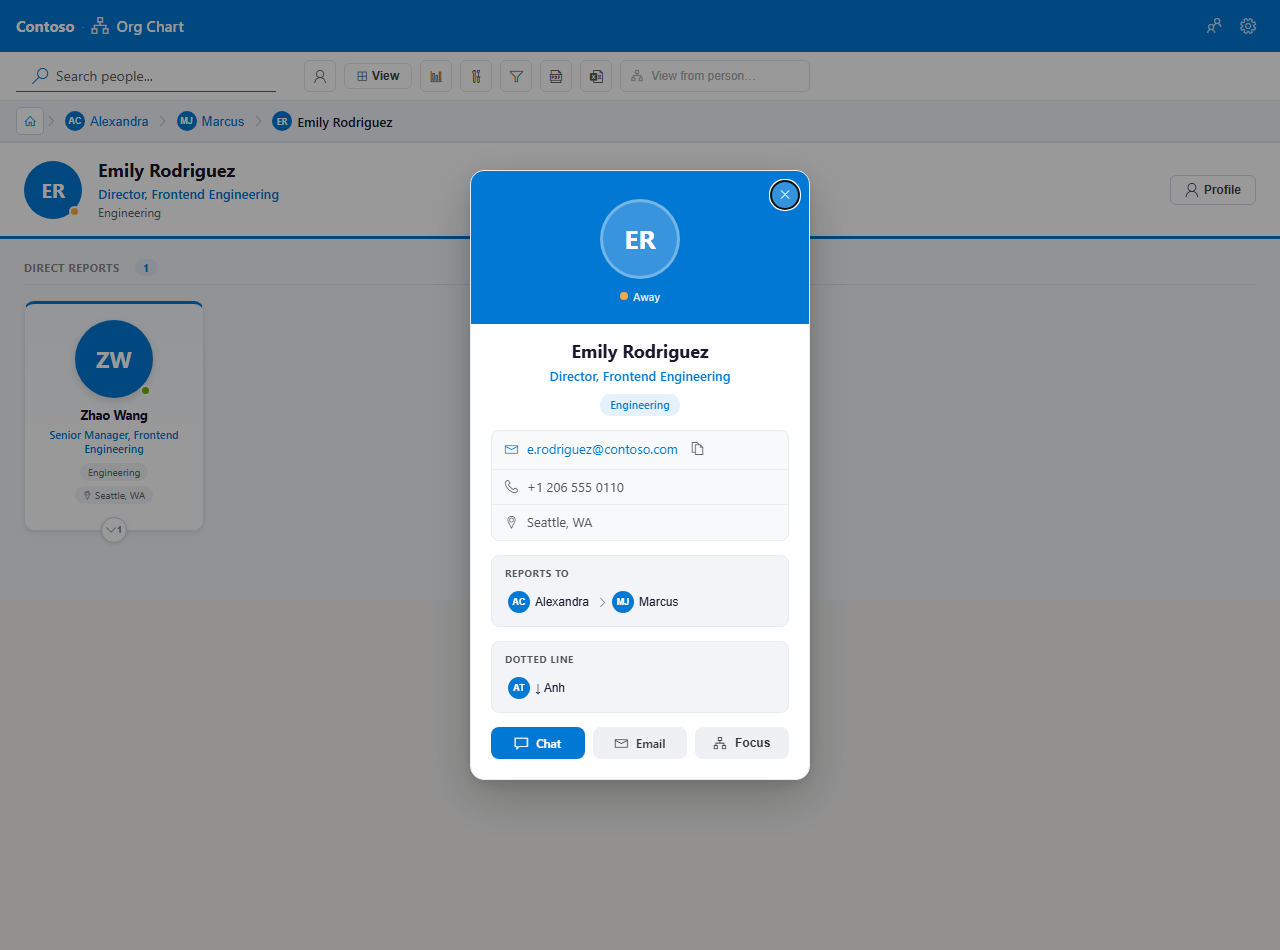
A practical rule: on a company-wide chart, show name and job title only — five fields per card across two hundred people is unreadable. On a departmental page, turn contact fields on and the chart doubles as the team's phone list.
Choose the layout direction
Horizontal is the classic top-down tree everyone pictures. It works well for wide, shallow structures and for export to a slide. Vertical renders the same hierarchy as an indented, expandable list, which is far easier to navigate when the organization is eight levels deep or when the page column is narrow.
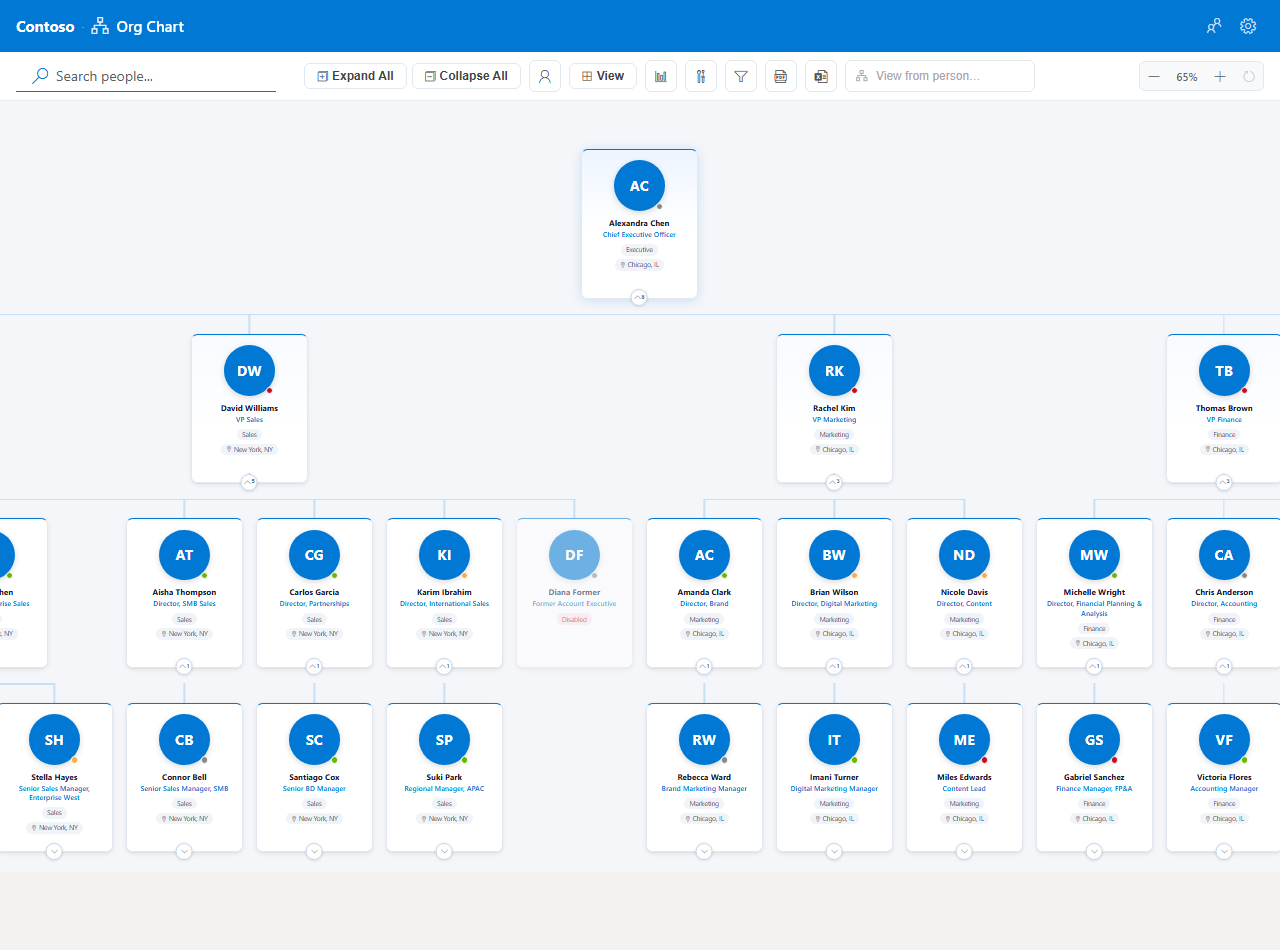
Pair the direction with an expansion depth. Opening two levels by default gives visitors immediate context without a wall of cards; anyone who needs more clicks to drill into a manager's team, and a breadcrumb tracks where they are.
Set the starting point and filters
A chart rooted at the CEO is the right answer for exactly one page on the intranet. Everywhere else, set the root to the relevant department head, or to the current user so the chart shows people their own reporting line. Department filters narrow a company-wide chart down to Finance or Engineering without a second web part instance.
Theme and branding
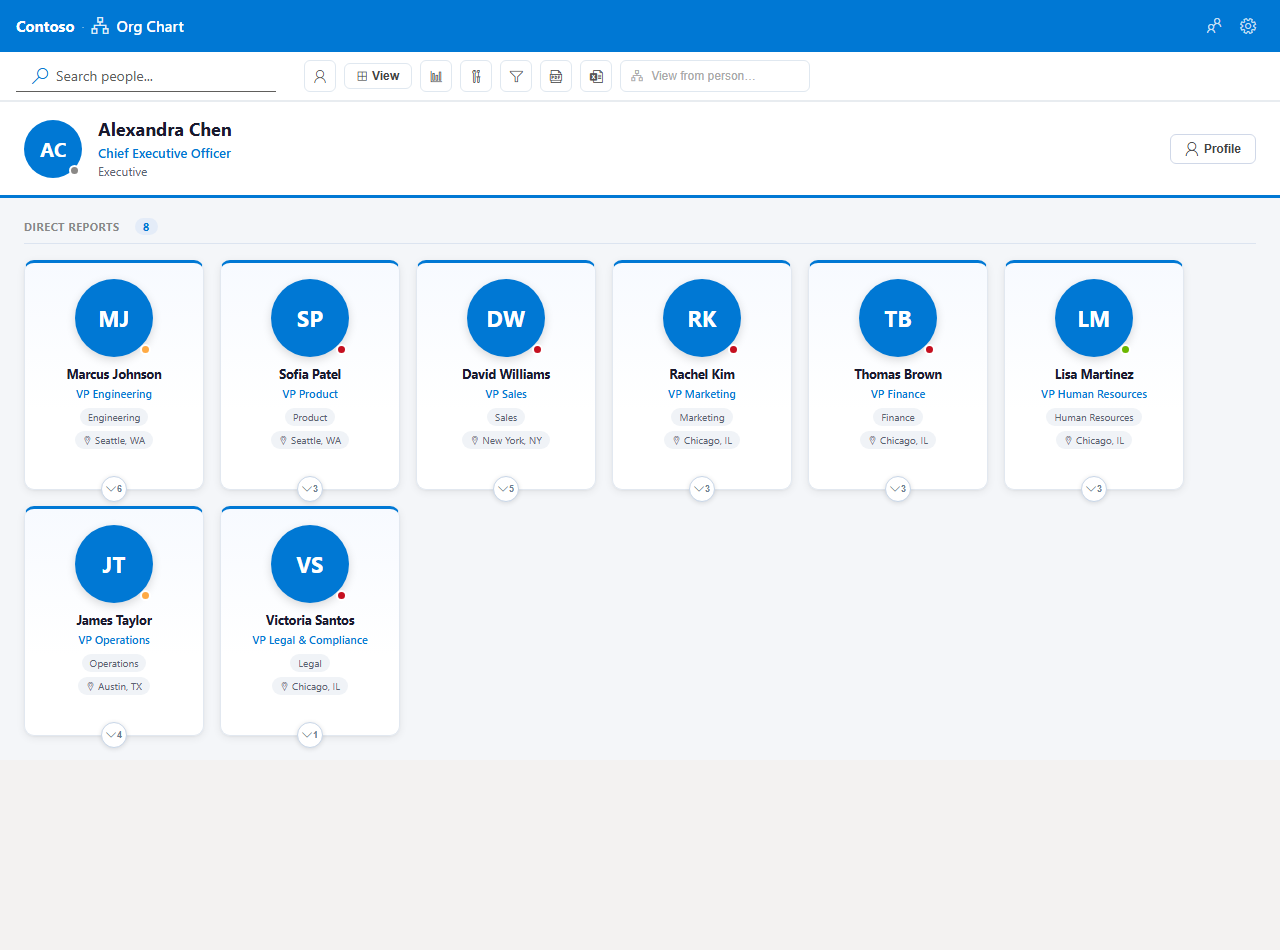
Four themes ship with the web part — Modern, Minimal, Corporate and Dark — and each respects the contrast rules that keep small card text legible. Set your company name and logo URL in the property pane and the chart stops looking like a bolted-on component.
If none of the four is close enough to your brand, the project is MIT licensed on GitHub — fork it, restyle it, and deploy your own build. That is the practical difference between a customizable open-source web part and a SaaS org chart where the theme list is the theme list.
What you cannot customize
Two honest limits. First, the hierarchy comes from the manager attribute in Entra ID — if that data is wrong, the chart is wrong, and the fix belongs in the directory, not the web part. Dotted-line and matrix reporting relationships are not represented, because Entra ID does not store them. Second, the web part is strictly read-only: it will never write a manager change back to Entra ID.
Go deeper
Frequently asked questions
Can you customize the built-in SharePoint org chart web part?
Barely. The People web part lets you pick which people to show and switch between a couple of card sizes — it has no hierarchy, no drill-down and no field selection. The organization chart in Delve is read-only and cannot be branded or embedded with different fields.
Do I need JSON or SPFx code to customize the chart?
No. Every option described here — card fields, layout direction, expansion depth, department filter, theme, logo — is a setting in the preferences panel or the property pane. You only need code if you fork the open-source repository to add something new.
Which profile fields can appear on a person card?
Job title, department, office location, phone and email, alongside the photo and display name. All of them come from the Microsoft 365 user profile via Microsoft Graph, so they stay in sync with Entra ID automatically.
Can different pages show different org charts?
Yes. Each web part instance keeps its own settings, so an HR page can show the whole company horizontally while a department page starts at that department's manager with only two levels expanded.
Can I change the colors to match our brand?
You pick one of four themes — Modern, Minimal, Corporate or Dark — and set a company name and logo. The themes follow sensible contrast rules; for anything beyond them the project is MIT licensed, so you can fork it and restyle freely.
Does customizing the chart change anything in Entra ID?
No. The web part is read-only. It reads manager and profile data through delegated Microsoft Graph permissions and renders it in the browser — it never writes back, and no data leaves your tenant.
The SharePoint org chart guides
Understand what SharePoint ships with, build a live chart from Microsoft 365 data, then compare the options.
Understand
Build
Step-by-step install and configuration with screenshots, in about 10 minutes.
30 interface languages, picked automatically from each user's Microsoft 365 language.
Contractors, consultants and board members without Entra ID accounts — added manually or by CSV import.
A searchable staff directory built live from Entra ID, with A–Z, department and office filters.
When the built-in People web part is enough, and when you need a live directory.
Which to use for a SharePoint employee directory, and when PnP search is the better fit.
The free, MIT-licensed SPFx web part: live Graph data, Teams presence, PDF/PNG/Excel export.
Compare
Why the People and Organization web parts fall short of a real reporting hierarchy.
Free and paid options side by side, with pricing and licensing.
Live charts without a Visio license or a manual redraw every reorg.
Was this page helpful?
One click. No form, no email address.
Missing something in Smart Org Chart & Directory? Feature requests and bug reports go straight to the developer on GitHub — no account needed to read, free account to post.
Request a featureRelated tool
Smart Org Chart & Directory
Live SPFx org chart built from Microsoft Entra ID. Free, MIT licensed, no sign-up.
Keep reading
Add external users to a SharePoint org chart (contractors, consultants, board members)
Your org chart is missing the contractors, consultants, and board members who have no Entra ID account. Here's how to add them — one at a time or in bulk from a CSV file — for free.
Multilingual SharePoint Org Chart: 30 Languages, Automatic (Free)
A global intranet needs an org chart everyone can read. Smart Org Chart switches its interface language per user, automatically — no per-language pages.
Build a SharePoint org chart from the Microsoft 365 Manager field (free)
Your reporting hierarchy already lives in the Microsoft 365 Manager attribute. Here's how to put it on a SharePoint page as a live chart — for free.
Building out your intranet?
Let our team design and build your SharePoint intranet
Intranet design, integrations, Power Automate workflows, and Microsoft 365 strategy, plus paid support packages for the tools on this site.
About the author
Sean Regan
SharePoint & Microsoft 365 consultant with 20+ years of hands-on experience building SPFx web parts, migration tooling and tenant-grade automation. Maintainer of the open-source SharePoint Smart Solutions suite.