
How to Copy SharePoint, Teams, and Exchange Between Tenants with Free Tools
| Workstream | Tool | Boundary to plan around |
|---|---|---|
| SharePoint and OneDrive content | Smart Copy | Pilot versions, metadata, links, and approved access |
| Teams channels and conversations | Smart Copy | Meeting chats excluded; message attachments and other Teams features need separate review |
| Exchange Online mail | Smart Mailbox Copy | Existing target mailboxes; not mail-routing cutover or coexistence |
| SharePoint access review | Smart Permissions | Read-only audit, not permission remediation or Exchange access verification |
A tenant migration is several projects sharing the same deadline. Files, Teams conversations, mailboxes, identity, access, and mail routing need separate acceptance criteria. This guide joins the documented copy workflows into one plan; it is not a promise that every Microsoft 365 workload or setting moves automatically.
The software is free and open source. That does not remove your Microsoft licensing requirements, the work of preparing the target tenant, or the need for owner-led validation. Use Smart Copy for content and Teams, Smart Mailbox Copy for Exchange Online, and Smart Permissions to review SharePoint access.
1. Define what moves and who signs it off
Create a workstream register before downloading anything. For each site, OneDrive, team, chat, and mailbox, record the source, intended destination, owner, identity mapping, exclusions, pilot result, and acceptance decision. Treat the order below as a planning sequence, not a mandatory queue: mail and content work can proceed in parallel after their pilots pass.
- Content: choose sites, libraries, lists, pages, metadata, version history, and the access that should be recreated.
- Teams: distinguish channel files from messages, chat history, and Teams configuration.
- Mail: identify the mailbox folder trees and supported calendar and contact data; inventory unsupported Exchange settings separately.
- Dependencies: list Forms, flows, links, integrations, and anything still pointing at the old tenant.
- Cutover: assign ownership of domains, mail routing, user sign-in, communications, and the decision to stop or postpone.
Obtain business-owner and compliance approval before excluding or retiring content. For a broader acquisition schedule, use the M&A SharePoint migration playbook. This walkthrough focuses on the copy and verification workstreams.
2. Prepare identities, destinations, and access
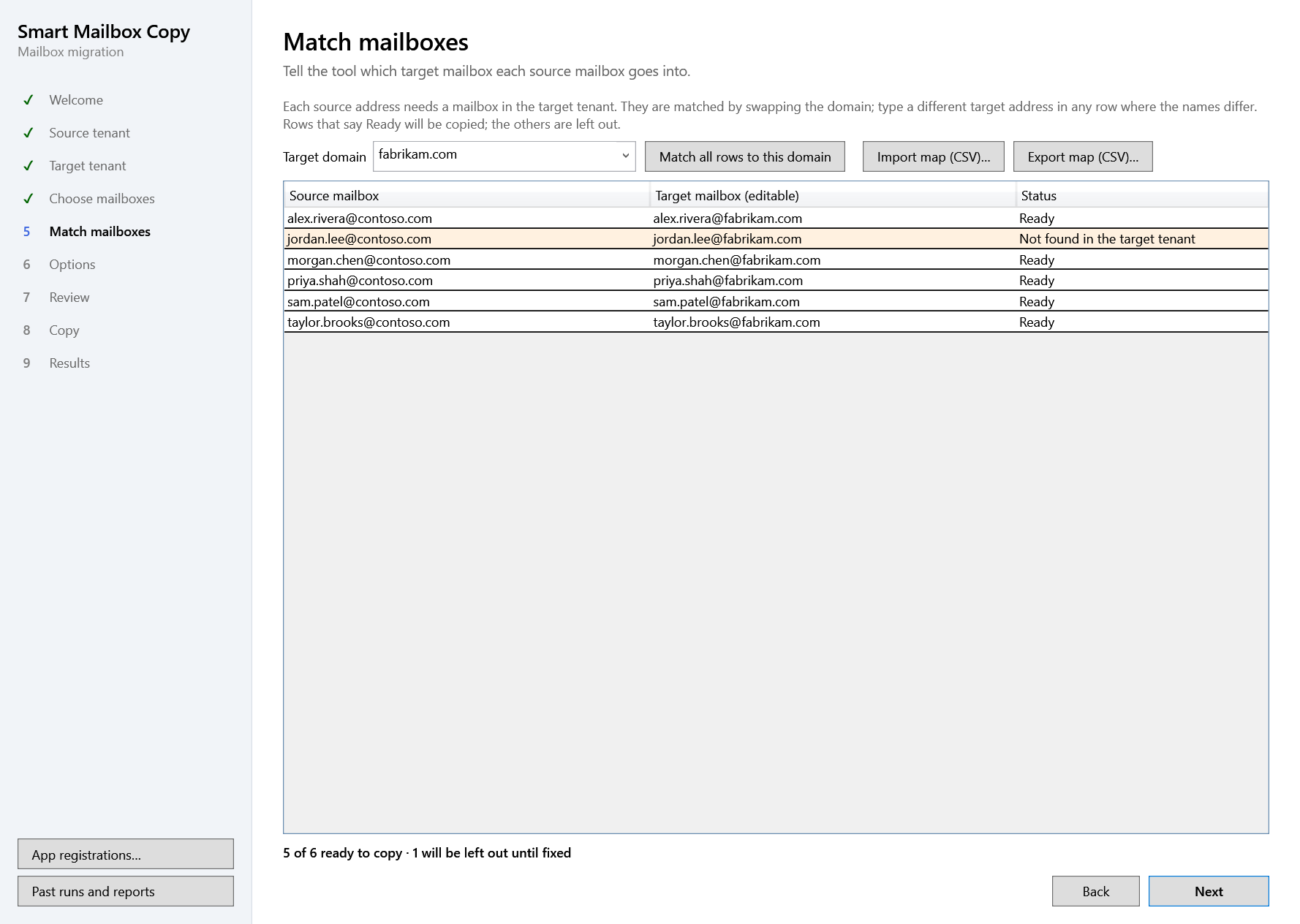
Have the identity and messaging teams prepare the target accounts, groups, and mailboxes. A source address and target address are not interchangeable just because the names look similar. Smart Copy's Identity mapping supports a user/group table, domain swap, CSV import/export, and Check in target. Smart Mailbox Copy has its own mailbox matching screen with domain swap, row edits, and CSV. Reconcile the two against the same approved identity register; do not assume their CSV files are interchangeable.
Follow the separate Smart Copy install guide and Smart Mailbox Copy install guide. Do not reuse one tool's permission checklist for the other. Smart Copy's content work uses delegated access; message import additionally uses application permissions on the target. Microsoft's import API requires an app-only context with Teamwork.Migrate.All. (Microsoft Learn: import messages into Teams)
For mail, use the application registrations and exact source/target permission lists in the Smart Mailbox Copy user guide. Keep secrets out of mapping spreadsheets and project reports. Scope and approve access before running a pilot, and retire migration credentials when the work is accepted.
Deploy Smart Permissions where you need a SharePoint audit, using its install guide. Review Inherited and Unique access on the source. The tool is read-only: the responsible administrators make approved changes separately.
3. Pilot SharePoint and OneDrive, then copy in batches
In Smart Copy, choose Multi-tenant mode, connect to the source and target separately, review Identity mapping, and select the content and copy options. Start with a representative library rather than the largest site. Include a file with history, custom metadata, person fields, and a unique permission assignment if those are in scope.
Smart Copy supports full version-history copies between tenants. Its copy modes have different access and fidelity details; use the cross-tenant library workflow to select and test the mode, rather than assuming all options behave identically. Record the pilot's actual duration and exceptions before choosing batch sizes.
For later file passes, the documented If newer option copies a source file when its modified date is newer than the target. That is not a two-way sync or a mirror of source deletions. Validate your re-run options on the pilot before pre-seeding live content. Keep target editing controlled until you have agreed how to handle conflicts.
Run Smart Copy's independent Verification Report from History and review exceptions, metadata, and representative versions. A finished progress bar is not owner acceptance. For large libraries, read the 429 and 503 troubleshooting guide; Microsoft's throttling guidance requires honoring Retry-After. (Microsoft Learn: avoid getting throttled or blocked in SharePoint Online)
4. Copy Teams files and conversations as distinct checks
Smart Copy can copy a team into a new team, including channels, members, files, and optionally messages and replies; it can also copy chats into new group chats. Treat destination creation and identity mapping as part of the pilot. Do not assume the workflow merges conversations into an existing production team or offers the same incremental behavior as file copying.
Channel files and conversations are different data. Standard channel files use the parent SharePoint site; private and shared channels have separate sites. (Microsoft Learn: Teams connected sites) Check that each destination channel's files arrived as well as its selected conversation history.
Microsoft's channel migration API supports standard, private, and shared channels, while its chat migration API excludes meeting chats. (Microsoft Learn: channel startMigration) (Microsoft Learn: chat startMigration) API support is not proof that every Teams feature is copied by the application. Smart Copy's stated exclusions include reactions, edits, deleted and system messages, tabs, apps, bots, connectors, pinned messages, and moderation settings. Message file attachments are named in the text rather than copied as message attachments. One-to-one chats become group chats.
On the pilot, have owners check membership, channel type, timestamps, author attribution, replies, and file access. Review cases where an author's target identity is missing: Smart Copy posts those messages as the copying user with the original author's name in the text. Agree on those differences before widening the scope.
5. Pilot mail into a new folder, then choose the final landing mode
In Smart Mailbox Copy, save the registrations, choose the source mailboxes, and confirm each matching target mailbox exists. Start with a non-critical mailbox and the Mail only, into one new folder option. This keeps the copied folder tree separate from live Inbox and Sent Items data. It does not copy calendar events or contacts into that mail folder.
For the final layout, choose a merge into the real folders only after owner approval. Merging adds items permanently, and the tool cannot remove them. Supported calendar events and contacts are included through the merge option or copied separately with Calendar events and contacts only. Check the current user guide for any additional-folder permissions and exclusions.
The source is read-only and the tool never deletes from either side. Keep Skip mail that is already in the target enabled and retain the resume journal when repeating a run. Duplicate checks and resume support do not mean continuous mail synchronization, reconciliation of every changed item, or coexistence between tenants.
Use the Results screen, per-item list, and field-by-field message verification. Owners should also inspect the target in Outlook: folders, dates, attachments, read state, and any calendars and contacts selected. Check recurring meetings explicitly. Do not size a production window from fictional screenshot counts or a small test run.
6. Verify access and plan the separate cutover
Run Smart Permissions on the target and compare the intended SharePoint access with the source review. Test representative users, including people who should not have access. Smart Permissions does not audit Exchange mailbox permissions or prove that Teams chat membership is correct; validate those in their own workstreams.
Copy completion is not cutover completion. Domain transfer, mail routing, coexistence, user and license provisioning, Exchange settings, and client changes need a separate approved runbook. Smart Mailbox Copy does not cover in-place archive or group mailboxes, public folders, mail rules, or mailbox permissions. Do not retire the source solely because copy totals look right.
Use an acceptance checklist: reconcile failed and skipped items; confirm content and versions; approve Teams differences; validate mail and calendars; test access; update links and integrations; and obtain owner sign-off. Retain the source for an agreed, policy-compliant period and record how the team will pause or recover if a check fails.
For Forms and flows, follow the Forms Copy guide and Flow Copy guide. Copied flows start switched off; review target connections and test before enabling them. If your scope needs unsupported workloads, coexistence, or a vendor-managed contract, evaluate a dedicated platform against those requirements—not just the headline license price.
Need help scoping the pilot or acceptance criteria? Our team can review the workstreams and the separate cutover plan. Talk to us.
Get your first result in about 10 minutes
Copy sites, libraries, lists and pages with full version history. Free, MIT licensed, no sign-up.
- Download the Windows app from the latest release.
- Run it and sign in to your Microsoft 365 tenant.
- Pick a source and target site, then copy.
Email me when a new release ships
No marketing spam. One short email when a new release ships. You can unsubscribe anytime.
Was this page helpful?
One click. No form, no email address.
Missing something in SharePoint Smart Copy? Feature requests and bug reports go straight to the developer on GitHub — no account needed to read, free account to post.
Request a featureRelated tool
SharePoint Smart Copy
Copy sites, libraries, lists and pages with full version history. Free, MIT licensed, no sign-up.
Keep reading
SharePoint Migration Throttling: Handle HTTP 429 and 503
A faster retry loop can make a throttled migration slower. Read the response, pause the affected workload, and verify before replaying writes.
Microsoft Teams and SharePoint Sites: Standard, Private, and Shared Channels
A team is not always one SharePoint site. Map channel sites, permissions, ownership, and retention before cleanup or migration.
How to Migrate a Large SharePoint Document Library Without Timeouts or Throttling
One giant copy job is the most common reason large library migrations stall. Here is how to break the move into batches, pre-seed it and verify the result.
Need expert hands on deck?
Let our team plan and run your SharePoint migration
Full-service file and metadata migrations across sites, tenants, or from on-premises to SharePoint Online, from planning and test runs to verification and cutover.
About the author
Sean Regan
SharePoint & Microsoft 365 consultant with 20+ years of hands-on experience building SPFx web parts, migration tooling and tenant-grade automation. Maintainer of the open-source SharePoint Smart Solutions suite.