
How to copy a Power Automate flow to a brand-new SharePoint site and remap its lists and columns
Quick answer
How do I copy a Power Automate flow to a new SharePoint site without fixing every action by hand?
Use the Flows tool in SharePoint Smart Copy (free, MIT-licensed). Sign in to the source and target, pick the flows, map the new site, match each list and map its columns, then copy. The flows are created switched off in the target environment, and a report lists every replacement and anything left to review. Exported packages (.zip) work too, if you would rather import them yourself.
The scenario
A department's SharePoint site has been rebuilt as a new site, or moved to another tenant, with copies of its lists. Its Power Automate flows still point at the old site, the old lists and the old column names. You need working copies of those flows for the new site without opening every action in every flow.
Why it matters
A flow stores the SharePoint site address, the list and the column names inside each action. Copying or importing the flow keeps all of them, so it fails on the first run or, worse, reads and writes the wrong data. Microsoft's package import covers connections and create-or-update, and environment variables in a solution only help for flows built to use them, so for most existing flows the references are fixed by hand, action by action.
Step-by-step walkthrough
- 1
Copy the SharePoint site, lists and libraries to the target first with Smart Copy, so the lists the flows need exist there. Copy any Microsoft Forms the flows use too.
- 2
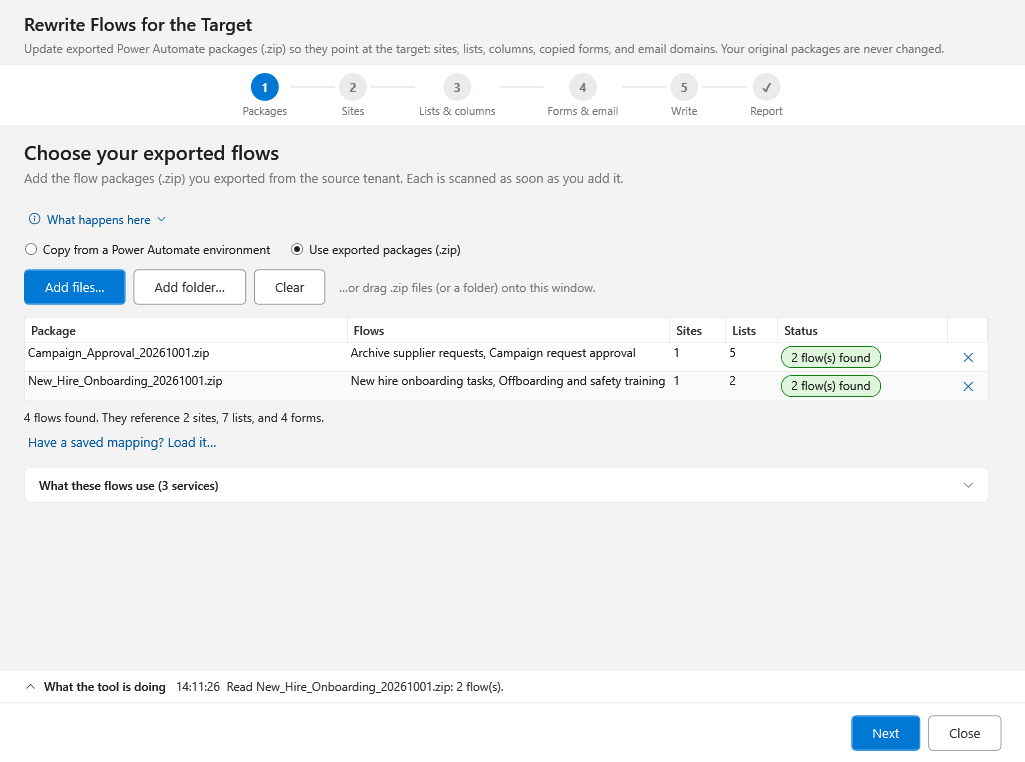
Open the Flows tool, sign in to the source and the target (for two tenants, sign in to each), and choose the flows to copy from the source Power Automate environment.
Step 2: choose the flows to copy. - 3
On the Sites step, confirm the source-to-target site mapping. After you sign in to the target, the site addresses are filled in.
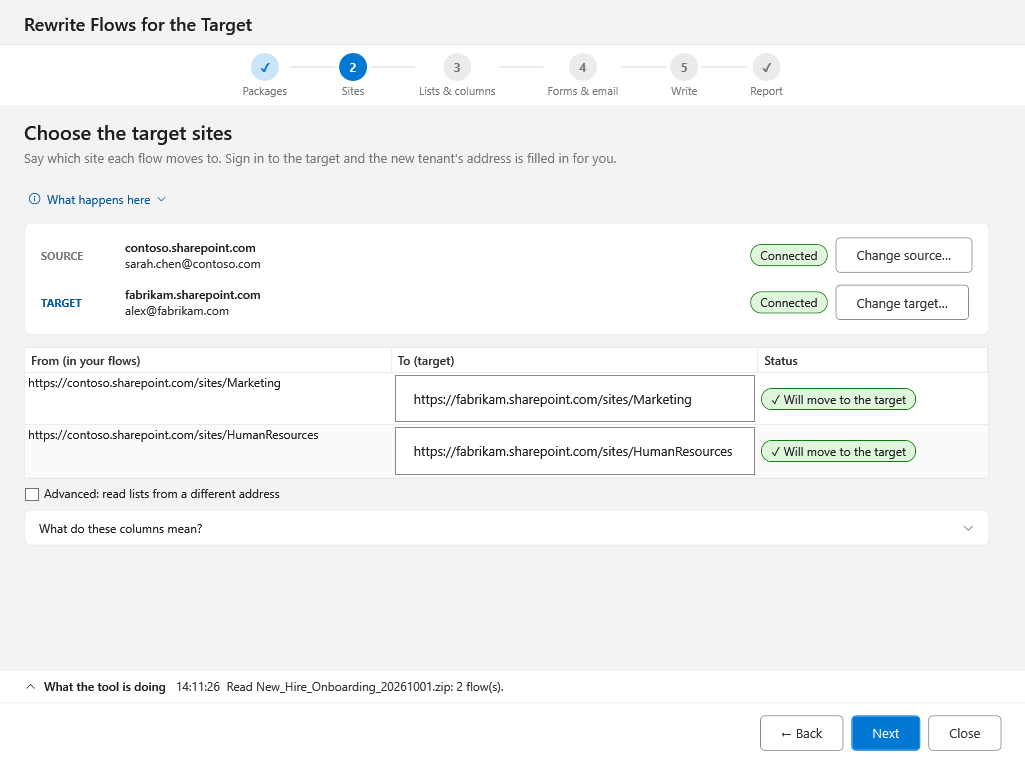
Step 3: confirm the source-to-target site mapping. - 4
On the Lists and columns step, check the match for each list and map its columns: same name, renamed, or flagged for a look. A column the target list lacks is left out of the steps that write it, with a warning.
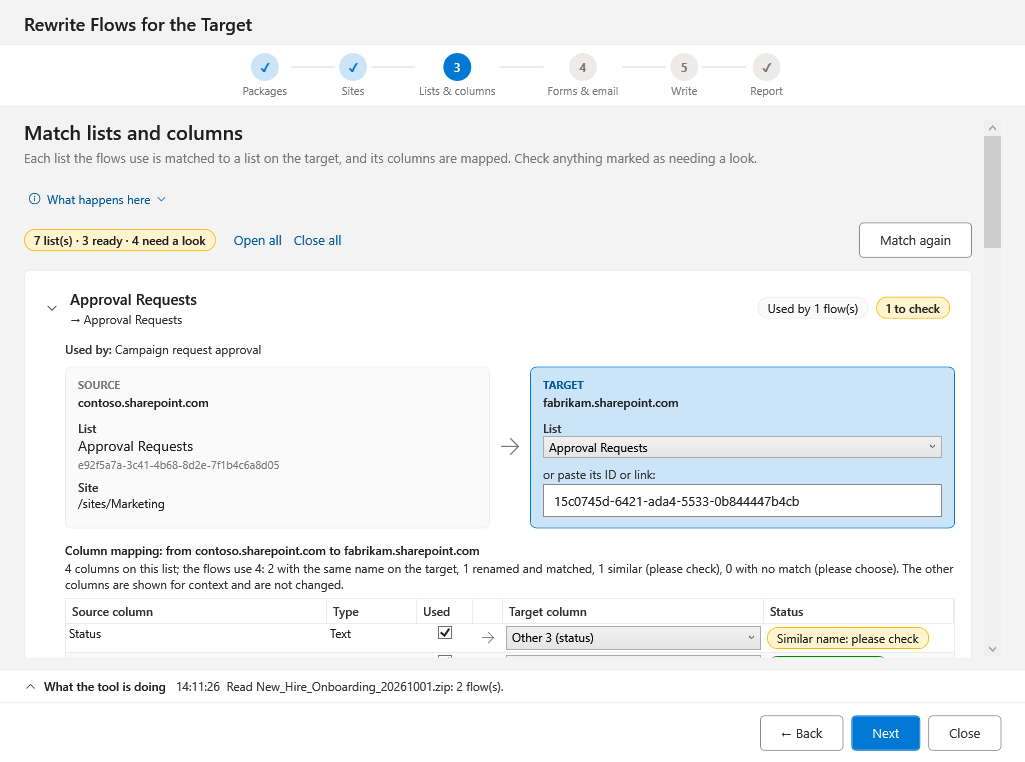
Step 4: match each list and map its columns. - 5
On the Forms and email step, match copied Microsoft Forms by title to their new IDs and set an email domain replacement if the domain changed.
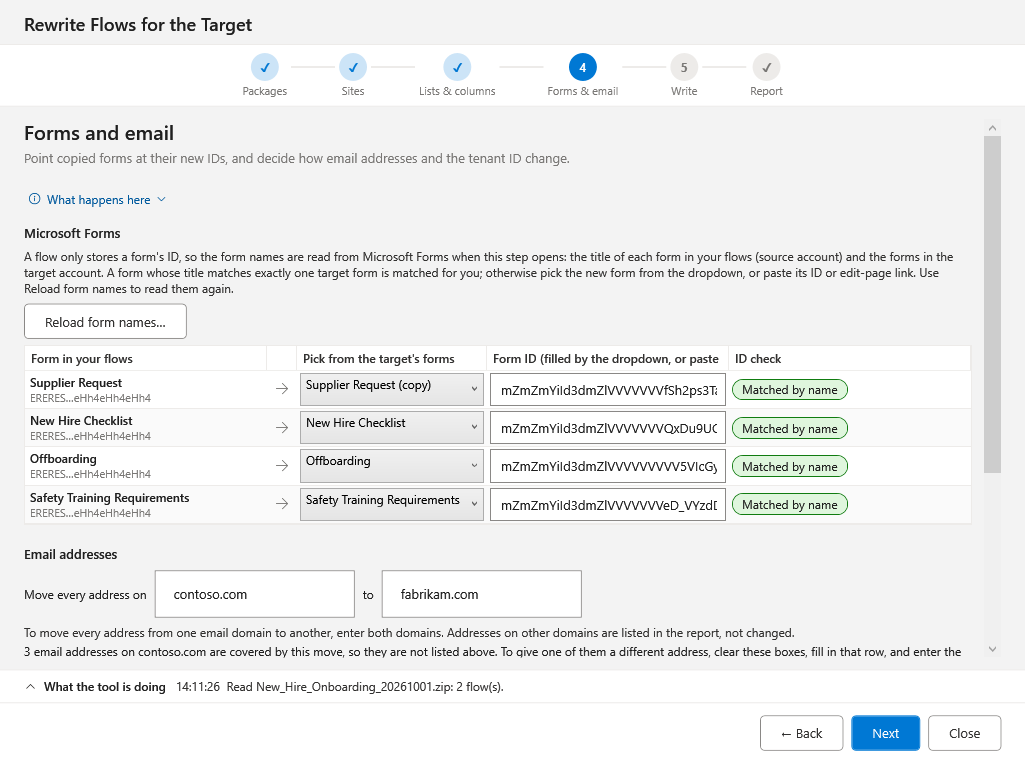
Step 5: match copied forms and replace the email domain. - 6
Review the checklist, choose the target environment (and a solution, if the environment has Dataverse), and copy. The flows are created switched off.
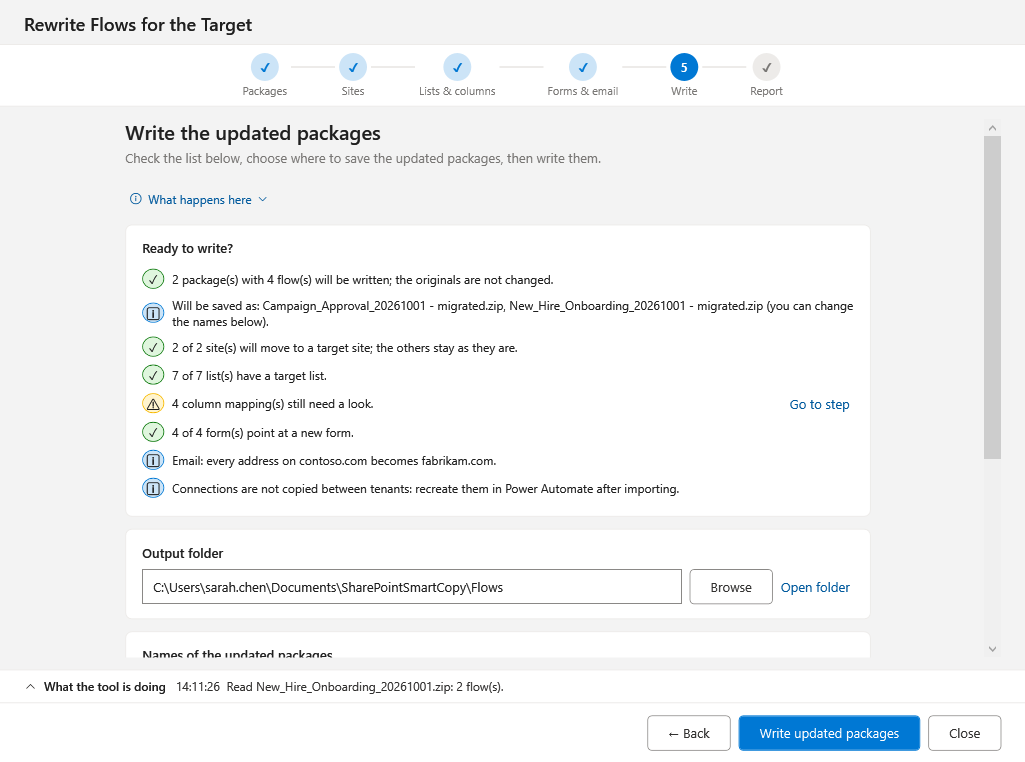
Step 6: review the checklist, then copy. - 7
Open the report, work through the items marked for review, check the connections each flow was bound to, test with a sample item, then turn the flow on.
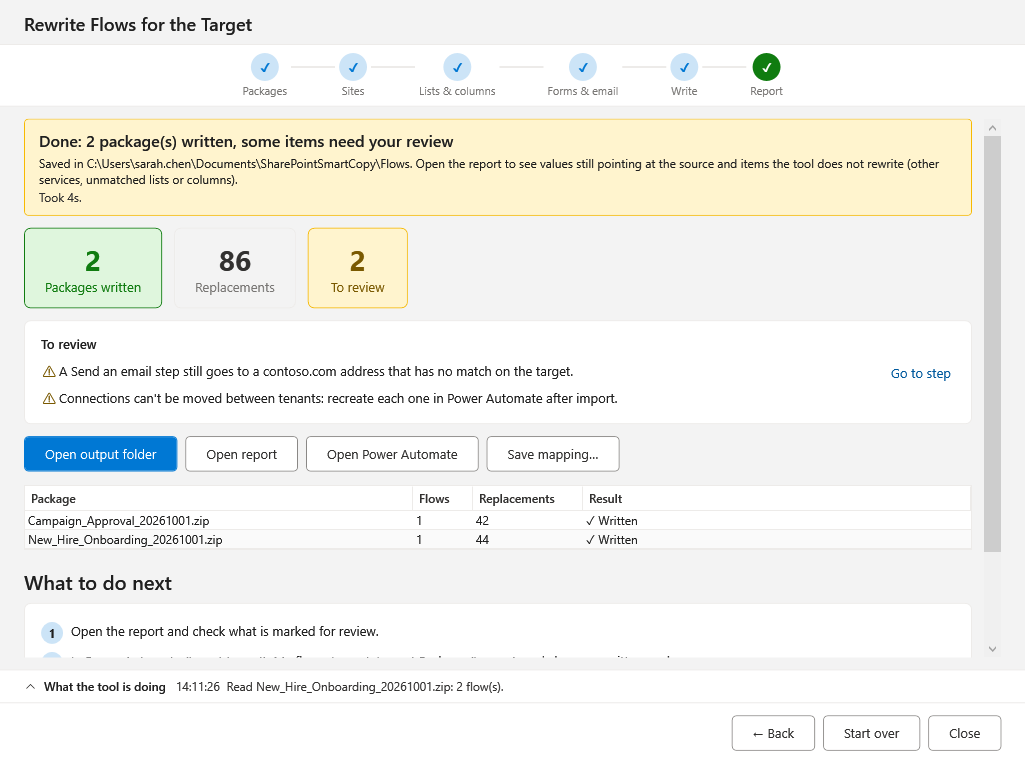
Step 7: the report lists replacements and anything still pointing at the source.
Frequently asked questions
- Does it change the original flows?
- No. Live copy only reads the source flows and creates new ones in the target. In package mode it writes new packages and never modifies the originals.
- Is the copied flow turned on?
- No. It is created switched off, so nothing runs in the target until you have reviewed the report and turned it on.
- What if a column does not exist on the target list?
- It is left out of the steps that write it and listed in the report with a warning. Add the column or map it to another one, then run again; a retry skips flows already created.
- What permissions does live copy need?
- Delegated Power Automate Service (Flows.Read.All and Flows.Manage.All) and PowerApps Service (User) permissions on your own app registration, plus optional Dataverse user_impersonation to create flows inside a solution. See the Smart Copy README for the full list.