
How to run an internal event registration form in SharePoint
Quick answer
How do I collect internal event registrations in SharePoint without a third-party form service?
Add the free SharePoint Smart Forms web part to the event page and build the registration as a multi-step wizard: attendee details from the Entra ID person picker, session choices from a lookup into your Sessions list, dietary requirements, and a consent question. Point it at a Registrations list and every signup becomes a list item immediately — with no submission caps and no attendee data leaving your tenant.
The scenario
Comms is running an all-hands day with breakout sessions. They need registrations, session choices capped by room capacity, dietary requirements, and a live headcount they can watch — without signing up for another hosted form service that stores staff data.
Why it matters
Registration data is staff personal data — names, dietary and accessibility needs. Hosted form builders put that in a vendor cloud, meter submissions by plan, and then need a connector to get anything back into SharePoint. Keeping the form in-tenant removes the processor review, the submission cap and the export step at once.
Step-by-step walkthrough
- 1
Add the Smart Forms web part to the event page on the comms site.
- 2
Build step one: the person picker pulls the attendee's name, email and department from Entra ID automatically.
- 3
Build step two: a lookup question reading live session titles from your Sessions list, so the options update when the agenda changes.
- 4
Add dietary requirements, accessibility needs, and a consent question for the attendee photo policy.
- 5
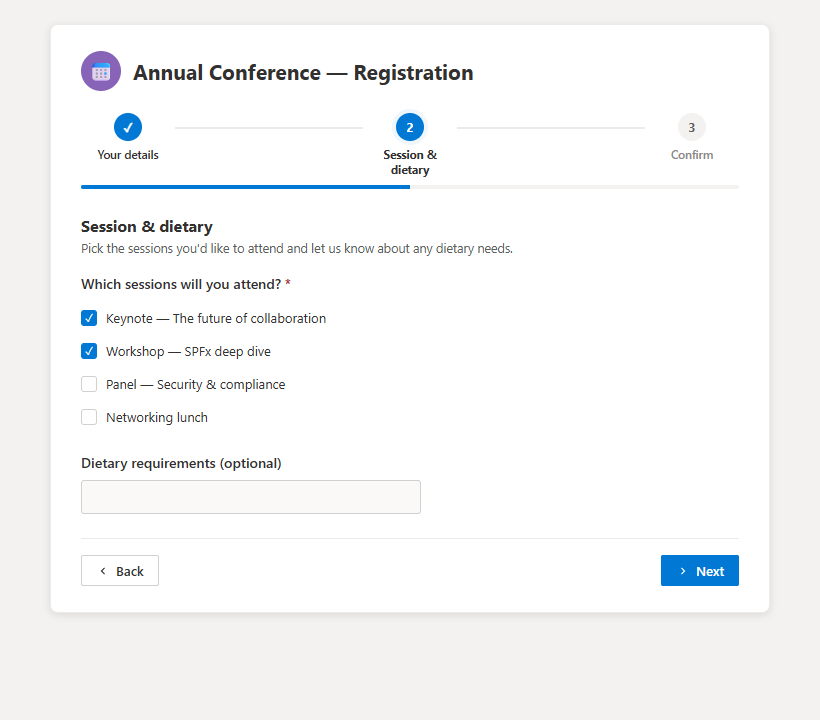
Choose the wizard layout so registration is three short steps with a progress bar.
Step 5 — registration as a three-step wizard. - 6
Point Collect responses at the Registrations list and turn on the email notification for each response.
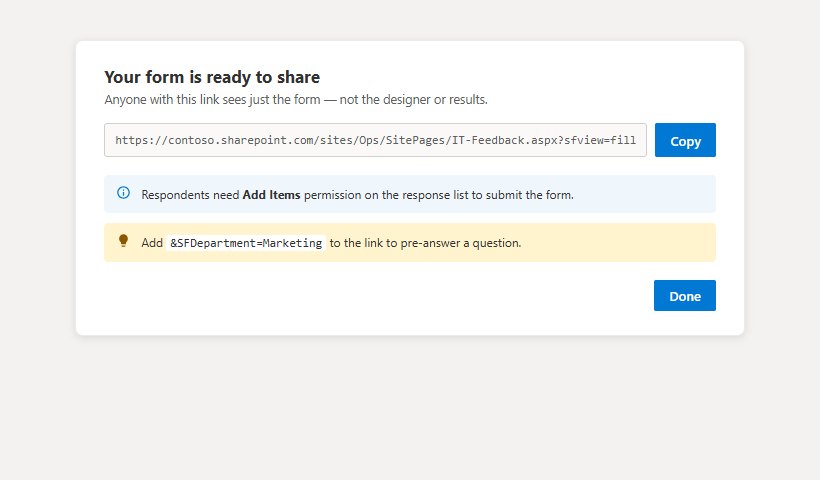
Step 6 — pick the Registrations list and grab the share link. - 7
Share the link in Teams and on the intranet; watch the headcount in the results dashboard.
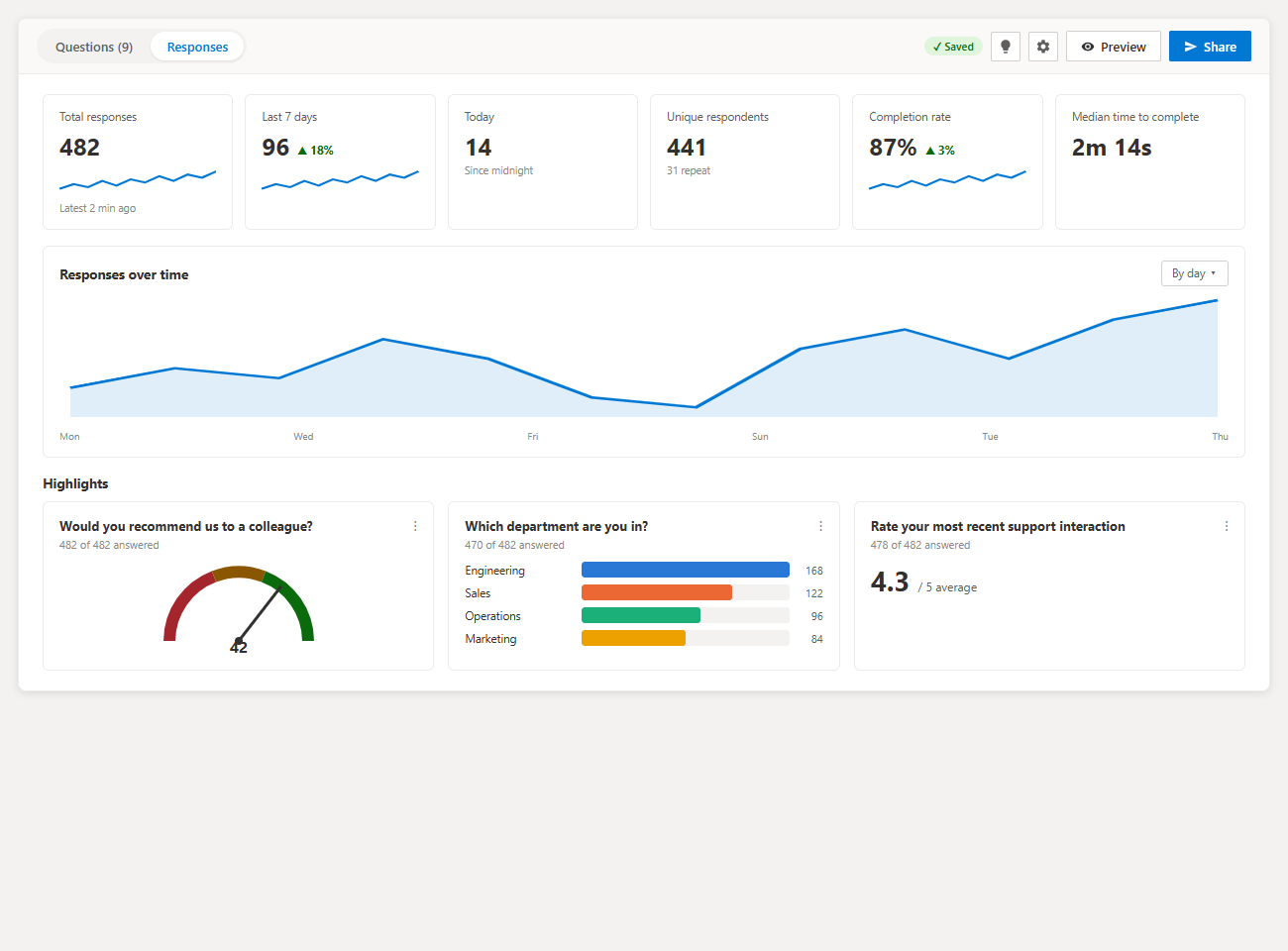
Step 7 — the live headcount. - 8
Export CSV the day before for catering and badge printing.
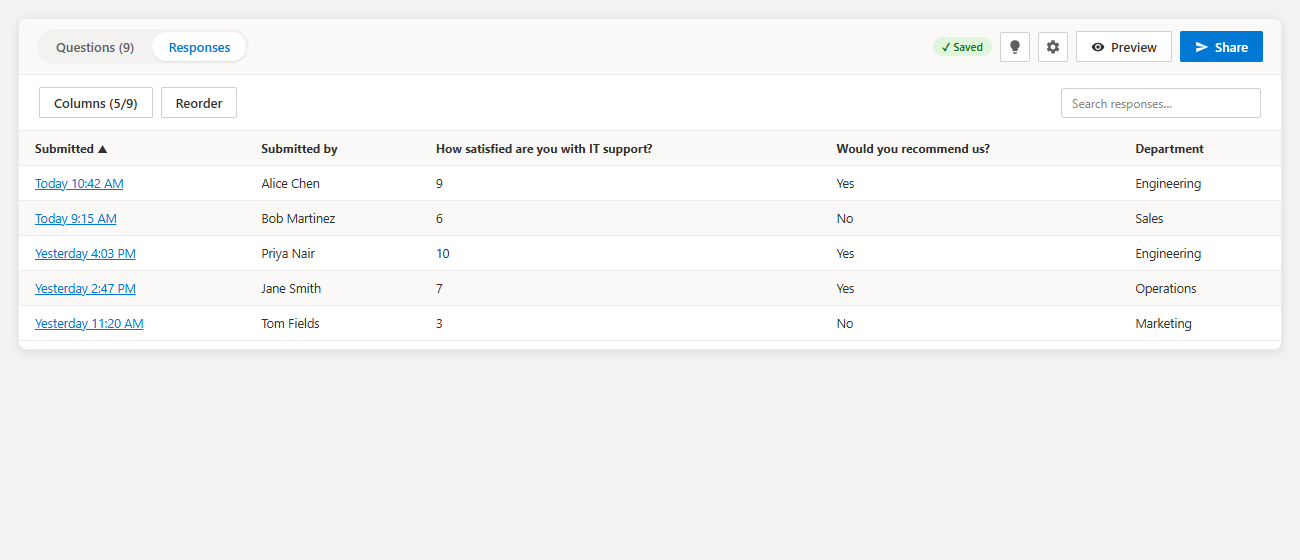
Step 8 — the sortable response table, exportable to CSV.
Frequently asked questions
- Can I cap a session at a maximum number of attendees?
- Not automatically. Smart Forms reads live options from the lookup list but does not enforce capacity; teams usually watch the dashboard and remove a session from the lookup list once it is full.
- Is there a limit on the number of registrations?
- No. Responses are SharePoint list items, so the only ceiling is your list and tenant capacity — unlike hosted builders, which meter submissions by plan.
- Can people outside the organization register?
- No. Respondents sign in to SharePoint, so this is for internal events. Use Microsoft Forms or a hosted builder for public registration.