
Several People Editing One SharePoint Project Plan: How Conflicts Are Handled
Rolling this out to more teams?
Let our team set up project tracking in SharePoint
We design your project sites, lists, and Power Automate workflows, then train your team so project tracking actually sticks.
The point of putting a project plan on a SharePoint page is that the whole team can update it. The risk is the one everyone remembers from shared spreadsheets: two people edit at once and one set of changes disappears. Here is how Smart Gantt Chart handles that, and how to keep a busy shared plan clean.
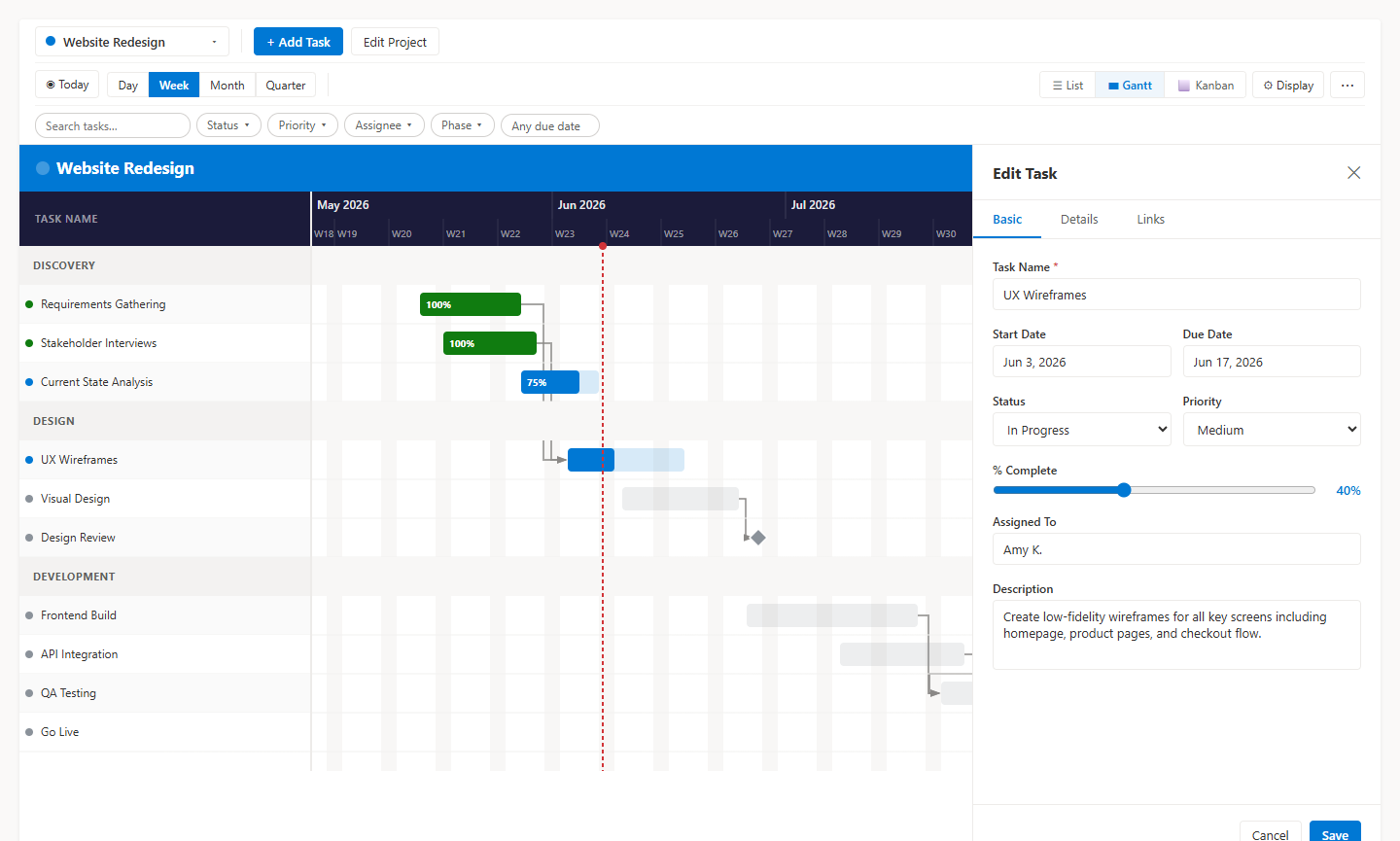
Who can edit
A Site Owner is needed once, for first-time setup. After that, any Site Member can add tasks, edit tasks and switch views. Guests with Edit permission can too — see sharing a plan with external guests.
What happens when two people edit the same task
If two people change the same task or project at nearly the same time, whoever saves second sees a message along the lines of "This task was changed by someone else since you loaded it. Refresh and try again." The first person's change is protected instead of being silently overwritten.
- Refresh the project — switch to another project and back, or reload the page.
- Check what the other person changed.
- Re-apply your edit if it is still needed.
Quick edits that save immediately
- List view: click the Status or Priority cell and change it inline.
- Gantt view: drag a bar left or right to shift its dates, or drag its right edge to change the duration. This works with touch and pen as well as a mouse.
- Kanban view: drag a card to another column to change its status.
Small, quick saves like these also reduce the window in which two people are editing the same task.
A routine that keeps a shared plan clean
- Own your rows. Put a name in Assigned To and let that person update the task. Filtering by assignee shows each person just their work.
- Keep phase names consistent. The Phase field autocompletes from existing values; a typo like "Desgin" creates a separate group.
- Use Notes for decisions. The Notes field on the Details tab holds links and context, so the reasoning stays with the task.
- Delete from the row. There is no delete button in the task panel; use the row's hover action in the Gantt or List view.
For the weekly rhythm around all of this, see running the weekly status meeting. Install the web part from the Smart Gantt Chart page.
Frequently asked questions
Can two people edit the same Smart Gantt Chart project at once?
Yes. Any Site Member can add and edit tasks. If two people change the same task or project at nearly the same time, whoever saves second is asked to refresh and try again.
What does 'changed by someone else' mean?
Someone saved that task or project after you loaded it. Your save is stopped so it does not overwrite their change. Refresh the project (switch away and back, or reload the page), then re-apply your edit.
Which edits save immediately?
Changing Status or Priority inline in List view, dragging or resizing a bar in Gantt view, and dragging a card to another column in Kanban view.
Is there a delete button in the task panel?
No. Delete a task from the row's hover action in the Gantt or List view.
The SharePoint project management guides
Build the plan, run it week to week, then share it with the people who only ever see the summary.
Build the plan
Start a project, add tasks with dates, and get a timeline on a SharePoint page.
Bring a task list, Excel sheet or Microsoft Planner board in through the import wizard.
Group work into phases and mark the dates that people actually care about.
The SharePoint lists the web part creates, who needs which permission, and what that means for governance.
Export a proven plan to Excel, reset the dates, and start every similar project from it.
Two ways to give a long task list structure, and the roll-up behavior to plan around.
Run the project
A 20-minute routine straight from the SharePoint page, ending with a one-click deck.
On Track, At Risk, Overdue or Done, derived from dates and progress instead of typed in.
Assign tasks, filter by assignee, and find the person carrying too much of the plan.
Cut a 400-task timeline down to the slice you need for a single conversation.
Retire completed work without losing the record, and recover a project deleted by mistake.
The Portfolio view: a status card per project with automatic health and a mini timeline.
Save the agreed dates, then see each task's finish variance in working days.
Share and compare
What clients and contractors can do in the plan, and the two things an internal owner handles.
Turn the live plan into a steering-committee deck, plus Excel and PNG output.
Where Calendar and Board views stop, and when dependencies and baselines make a Gantt worth it.
Smart Gantt Chart against Microsoft Project, Planner, Smartsheet, Monday and the rest.
The full picture of running projects from SharePoint, in one page.
The free, open-source Gantt web part that runs inside your own tenant.
Was this page helpful?
One click. No form, no email address.
Missing something in SharePoint Smart Gantt Chart? Feature requests and bug reports go straight to the developer on GitHub — no account needed to read, free account to post.
Request a featureRelated tool
SharePoint Smart Gantt Chart
Gantt + Kanban + list view, backed by a SharePoint list. Free, MIT licensed, no sign-up.
Keep reading
SharePoint Gantt Chart with JSON Formatting: What Works, the Limits, and a Free Alternative
JSON formatting can fake a Gantt bar in a SharePoint list. Here is exactly how far it goes, where it breaks, and the free no-code alternative.
Set a Project Baseline in a SharePoint Gantt Chart (and Track Slippage)
Freeze the agreed dates, then let the Gantt show how far every task has drifted, in working days, right on the SharePoint page.
Share a SharePoint Gantt Chart With External Guests and Clients
Run a project plan with a client or contractor inside your own SharePoint site — what Microsoft 365 guests can do in Smart Gantt Chart, and the two workarounds you need.
Rolling this out to more teams?
Let our team set up project tracking in SharePoint
We design your project sites, lists, and Power Automate workflows, then train your team so project tracking actually sticks.
About the author
Sean Regan
SharePoint & Microsoft 365 consultant with 20+ years of hands-on experience building SPFx web parts, migration tooling and tenant-grade automation. Maintainer of the open-source SharePoint Smart Solutions suite.