
Inspection forms in SharePoint: signatures, photos, and offline reality
A checklist is the easy part. What makes an inspection record useful a year later — when there is a dispute, an insurance question, or an auditor — is everything around the checklist: who inspected, when, against which asset, what failed, what it looked like, and who signed. Miss one of those and you have a tidy list of ticks that proves nothing.
This is how to build that as a SharePoint form whose output is a normal list, which matters because retention, permissions and discovery all work on normal lists.
Design the record first, the form second
Decide what one inspection looks like as a row before you place a single question. Typically:
- Asset or location — a lookup, never free text, or your reports will be a spelling exercise.
- Inspector — a person column, resolved against Entra ID.
- Inspection date — a date, separate from the created timestamp, because inspections get logged late.
- One column per check, as pass / fail / not applicable.
- Findings: severity, comment, and photographs, attached to the item.
- Signature and declaration.
Use wizard mode, not one long page
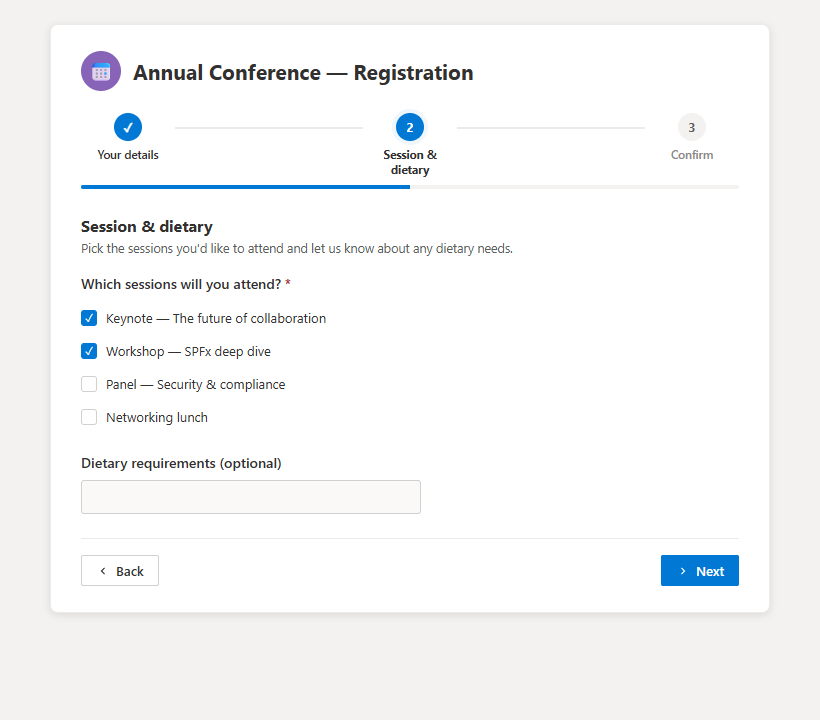
Inspections are done standing up, on a phone, often one-handed. A thirty-question single page is a scroll and a source of missed questions. Switching Smart Forms to multi-step gives each inspection area its own screen with a progress indicator, which is both faster in practice and much easier to resume if someone is interrupted.
Branch on failure, not on everything
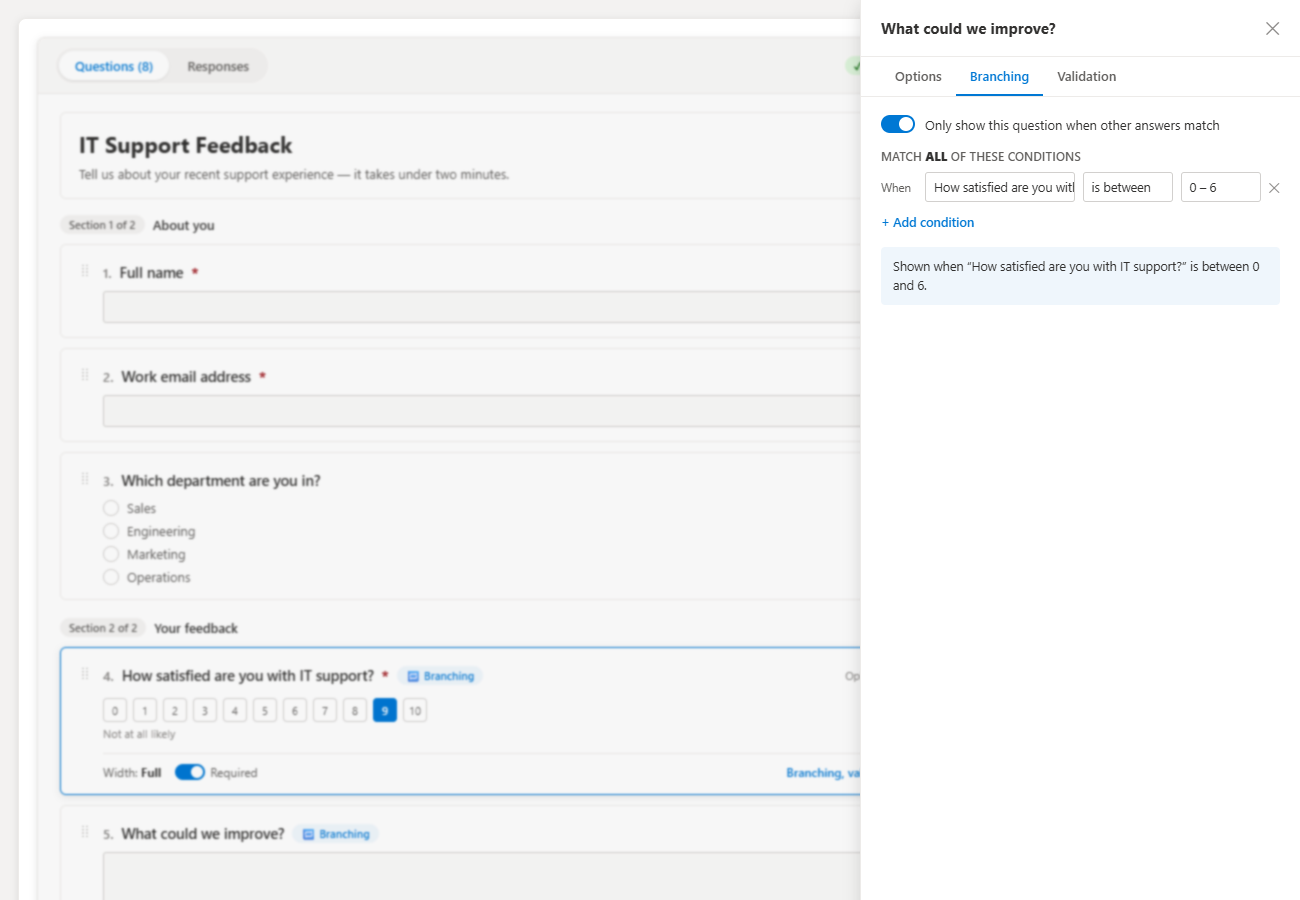
The efficient inspection form asks almost nothing when everything passes. Make each check a choice question, then branch: a Fail reveals severity, a comment box, and a photo question; a Pass moves straight on. An inspector who can clear a compliant area in eight taps will actually do the inspections.
Photographs belong on the same item
The most common failure in home-built inspection processes is evidence drift: photos emailed to a mailbox, saved in a folder named by date, or left on the phone. Attach them to the submission and the image, the finding, the asset and the inspector are one row in one list — permanently associated, and searchable with the rest of the record. On a mobile browser the attachment question opens the camera directly, so it is a photo, not a file-picker expedition.
The signature and the declaration
End with the declaration text and a signature question. Two things are being recorded and they are not the same: the drawn signature, which is what a human recognizes, and the identity of the signed-in user plus the submission timestamp, which is what actually stands up. Because the form runs inside SharePoint as the signed-in account, the second one comes for free — and it is the reason an anonymous form service is the wrong tool for evidential records.
Be realistic about connectivity
The web part runs in the browser against SharePoint, so submission needs a connection. Plant rooms, basements and remote sites do not have one. The honest patterns are: complete the record in the van when signal returns, or capture photos on the device during the walk and attach them at submission. Anything that promises seamless offline capture in a browser form is promising more than the platform delivers — plan the process around the gap instead of discovering it on day one.
Close the loop on failures
An inspection that records a failure and stops is half a process. On the same list, add a Status column and a view filtered to items with any failed check and Status not Closed. Remediation then lives beside the finding rather than in a spreadsheet, and the same status-and-view approval pattern handles sign-off on the fix.

Retention, because this is a record
Inspection records usually have a retention period attached to them by policy or by law. Because each submission is an ordinary SharePoint list item, you apply a Microsoft Purview retention label to the list and it behaves like any other retained content — no special handling, no export routine, no separate archive. That single fact is generally the strongest argument for keeping inspections in SharePoint rather than a standalone forms service.
Related
Get your first result in about 10 minutes
Visual permissions audit + Excel export. No PowerShell. Free, MIT licensed, no sign-up.
- Download the .sppkg package from the latest release.
- Upload it to your tenant App Catalog.
- Add the web part to a SharePoint page.
Email me when a new release ships
No marketing spam. One short email when a new release ships. You can unsubscribe anytime.
Frequently asked questions
Can a SharePoint form capture a signature?
Yes. A signature question captures a drawn signature and stores it with the submission on the SharePoint list item, alongside the identity of the signed-in user and the submission timestamp.
Where do photos taken during an inspection go?
Into the same SharePoint list item as attachments, so the evidence and the finding never get separated. On a phone the attachment question opens the camera directly.
Does the form work offline?
Not reliably. The web part runs in SharePoint as the signed-in user, so it needs connectivity to submit. For a site with no signal, capture notes and photos on the device and complete the record when back in coverage.
How do I stop one inspection being logged as another?
Use a lookup against an asset or site list rather than a text box, and prefill it from the URL when you generate per-location links.
Can the record be retained as evidence?
Yes. Each inspection is an ordinary SharePoint list item, so Microsoft Purview retention labels, permissions and version history apply to it exactly as they do to any other list content.
The SharePoint forms guides
Pick the right form approach, build it against a SharePoint list, then compare it with the paid tools.
Understand
Every way to collect data into a SharePoint list, and what each approach costs you.
Microsoft Forms, list forms, Power Apps and SPFx compared by job.
Where responses land, who can edit them, and why that decides the choice.
Build
Free SPFx form that writes straight to a SharePoint list — no Power Automate, no premium license.
Skip the connector chain: submit directly into the list item.
Show and hide questions based on earlier answers.
Required fields, formats and ranges enforced before submit.
Attach photos and documents to the created list item.
Was this page helpful?
One click. No form, no email address.
Missing something in SharePoint Smart Permissions? Feature requests and bug reports go straight to the developer on GitHub — no account needed to read, free account to post.
Request a featureRelated tool
SharePoint Smart Permissions
Visual permissions audit + Excel export. No PowerShell. Free, MIT licensed, no sign-up.
Keep reading
Routing SharePoint form responses to Teams and email
One flow, triggered on the list rather than the form, routes every submission to the right channel or mailbox — and keeps working if you rebuild the form.
SharePoint form validation rules that actually hold
Most SharePoint forms validate in one place and leak in three. Here is which layer catches which mistake, and the rules worth setting on every form you build.
Build a multi-page SharePoint form (wizard) for free
Thirty fields on one page is a completion-rate problem. Splitting the same thirty fields into five short steps is not.
Prefer a hands-off move?
Let our team move and rebuild your forms and flows
Our team plans the move, remaps your Power Automate flows and Microsoft Forms, recreates connections in the new tenant, and tests every flow before you switch over.
About the author
Sean Regan
SharePoint & Microsoft 365 consultant with 20+ years of hands-on experience building SPFx web parts, migration tooling and tenant-grade automation. Maintainer of the open-source SharePoint Smart Solutions suite.