
How to manage a project end-to-end with Smart Gantt Chart in SharePoint
Microsoft's project management story inside SharePoint is fragmented — Planner for lightweight, Project for the Web for scheduling, Project Online for anything real, plus an ever-growing list of Loop components. None of them live natively on the SharePoint site your team actually opens every morning.
Smart Gantt Chart is a free SPFx web part that stays where the team already is. It creates its own task list per project on the site, and that same data drives a Gantt view, a Kanban board, a task list, and a PowerPoint export — no extra licenses, no extra tenant.
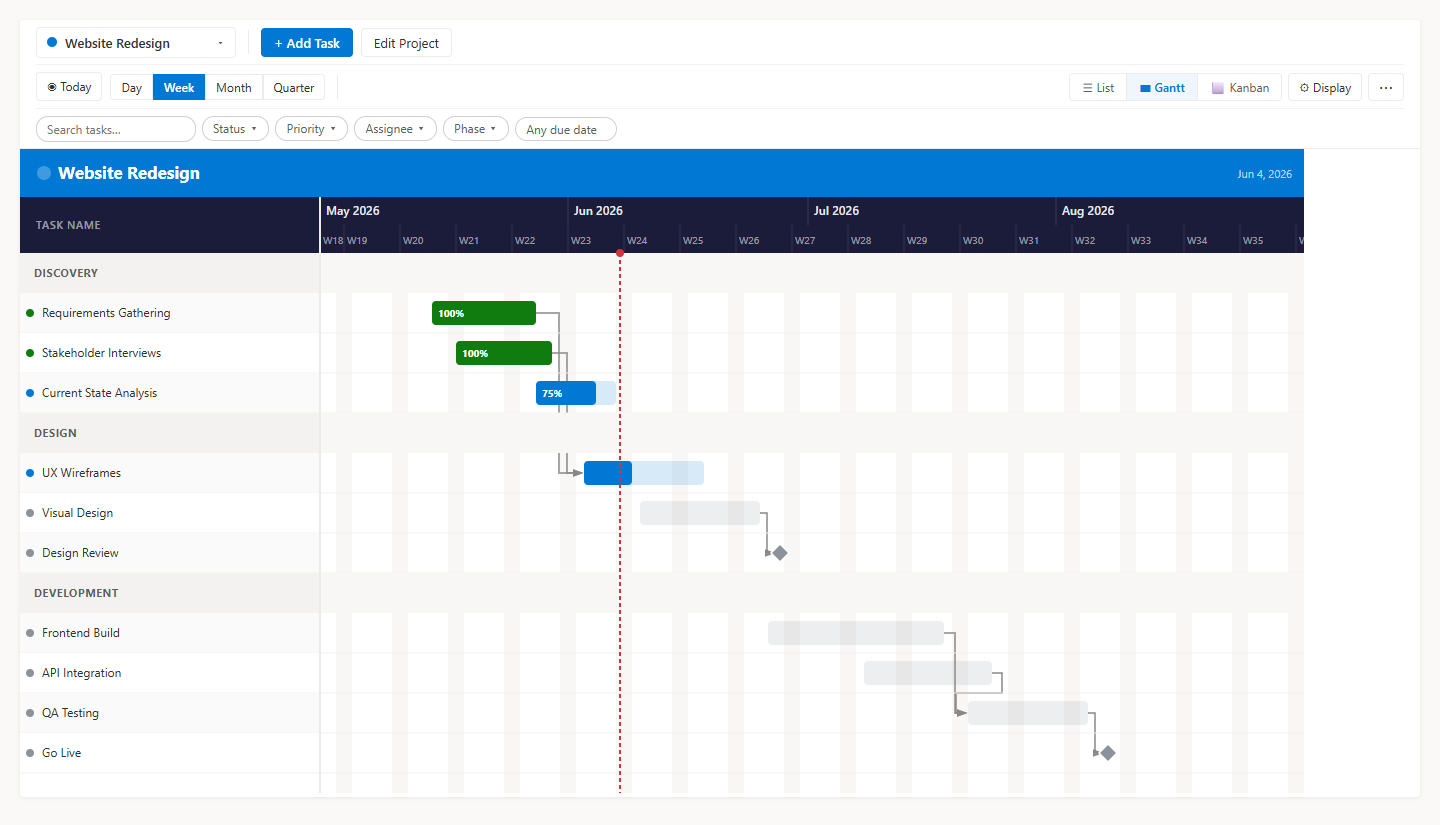
Step 1 — Create the project
Add the Smart Gantt Chart web part to a page on the project site and create a project. The web part provisions its own SharePoint task list for that project — no columns to design, no template to pick. A Site Owner does the first-time setup; after that any Site Member can add and edit tasks.
Already tracking the work in a SharePoint list or spreadsheet? Export it to Excel or CSV and run it through the import wizard — matched columns get an Auto badge and you map the rest. Microsoft Planner plans import directly too.
Step 2 — Break the work down (Gantt view)
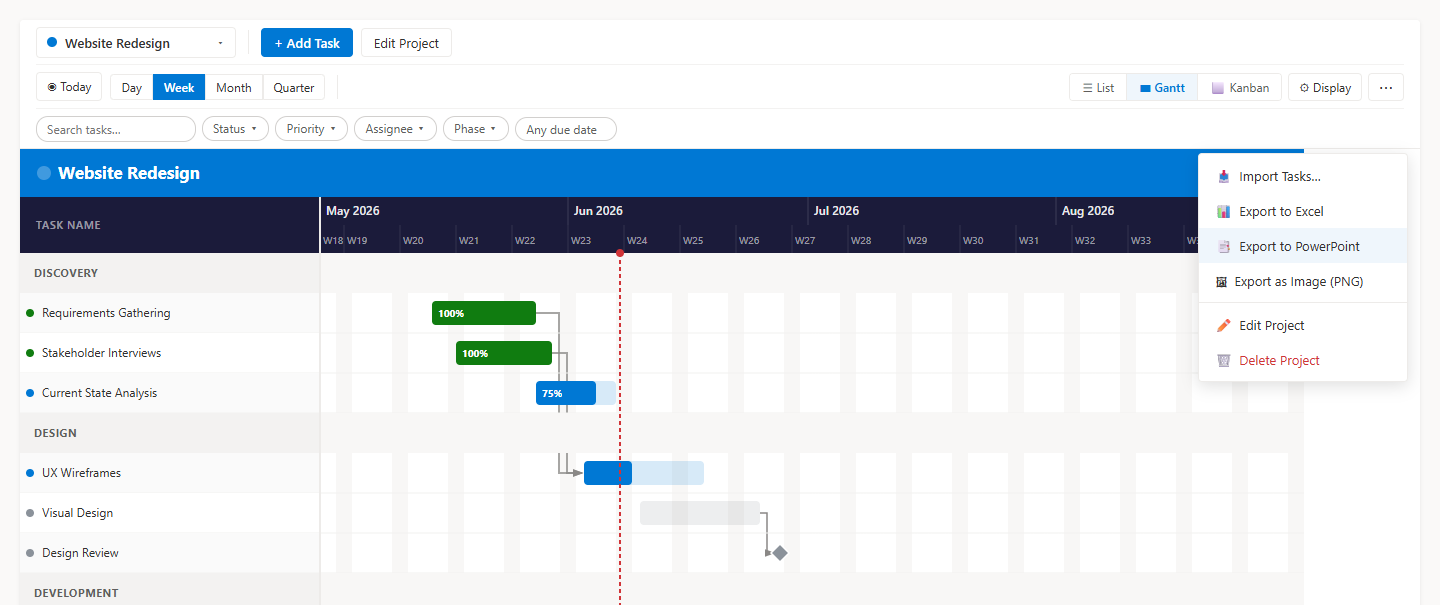
In the Gantt view, add tasks and group them: assign a Phase to collect tasks under a collapsible section header, set a Parent Task to create sub-tasks, and toggle any task into a milestone to render it as a diamond at its date. Drag bars to reschedule, drag the edges to resize.
Step 3 — Wire dependencies in the task panel
Click any task on the Gantt bar and the task panel slides in from the right. The Links tab is where dependencies go — pick the predecessor, choose FS, SS, FF, or SF, and add working-day lead or lag when needed. The chart draws a right-angle connector, and moving a predecessor shifts dependent tasks automatically to keep the links satisfied; Undo restores the prior dates.
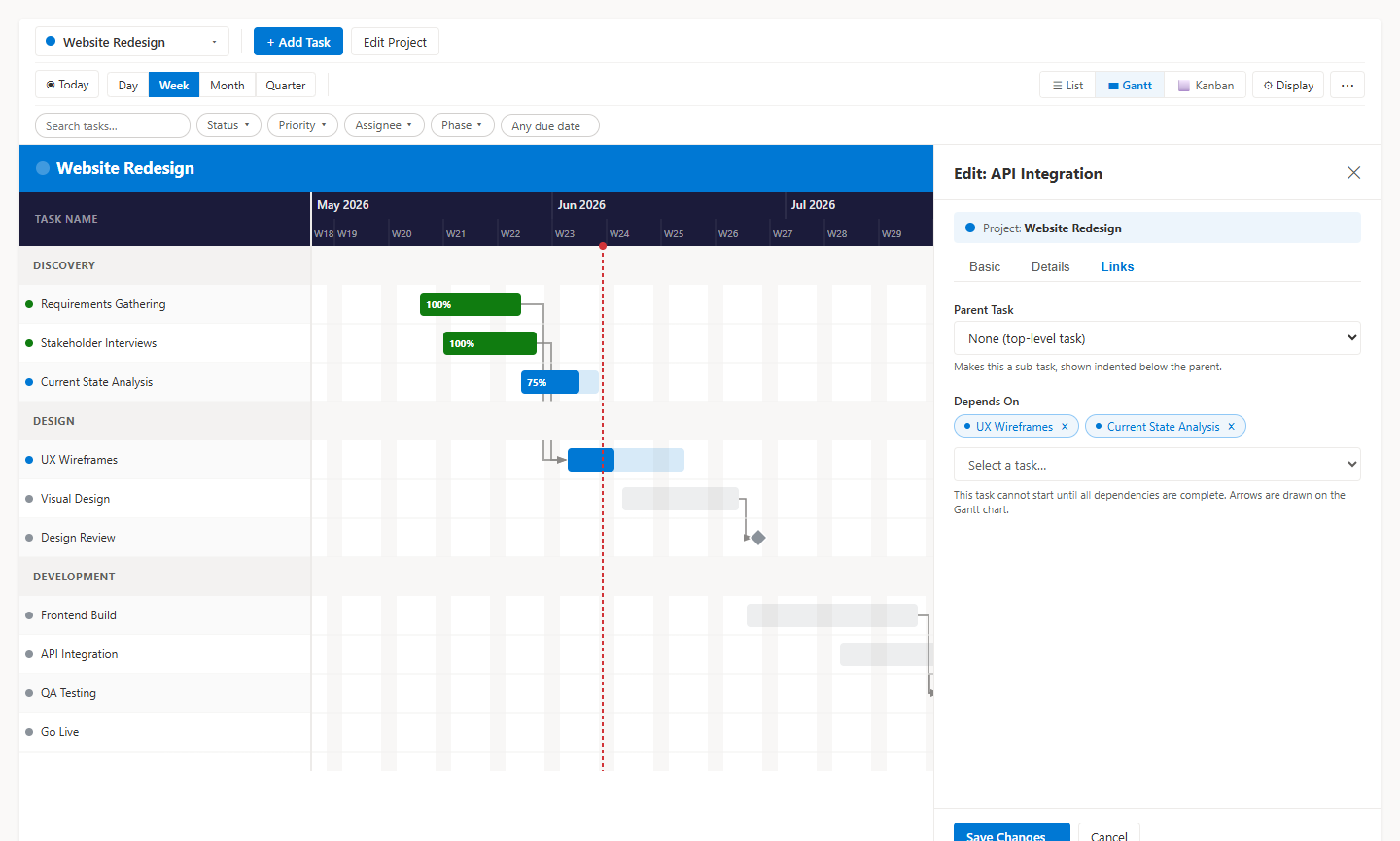
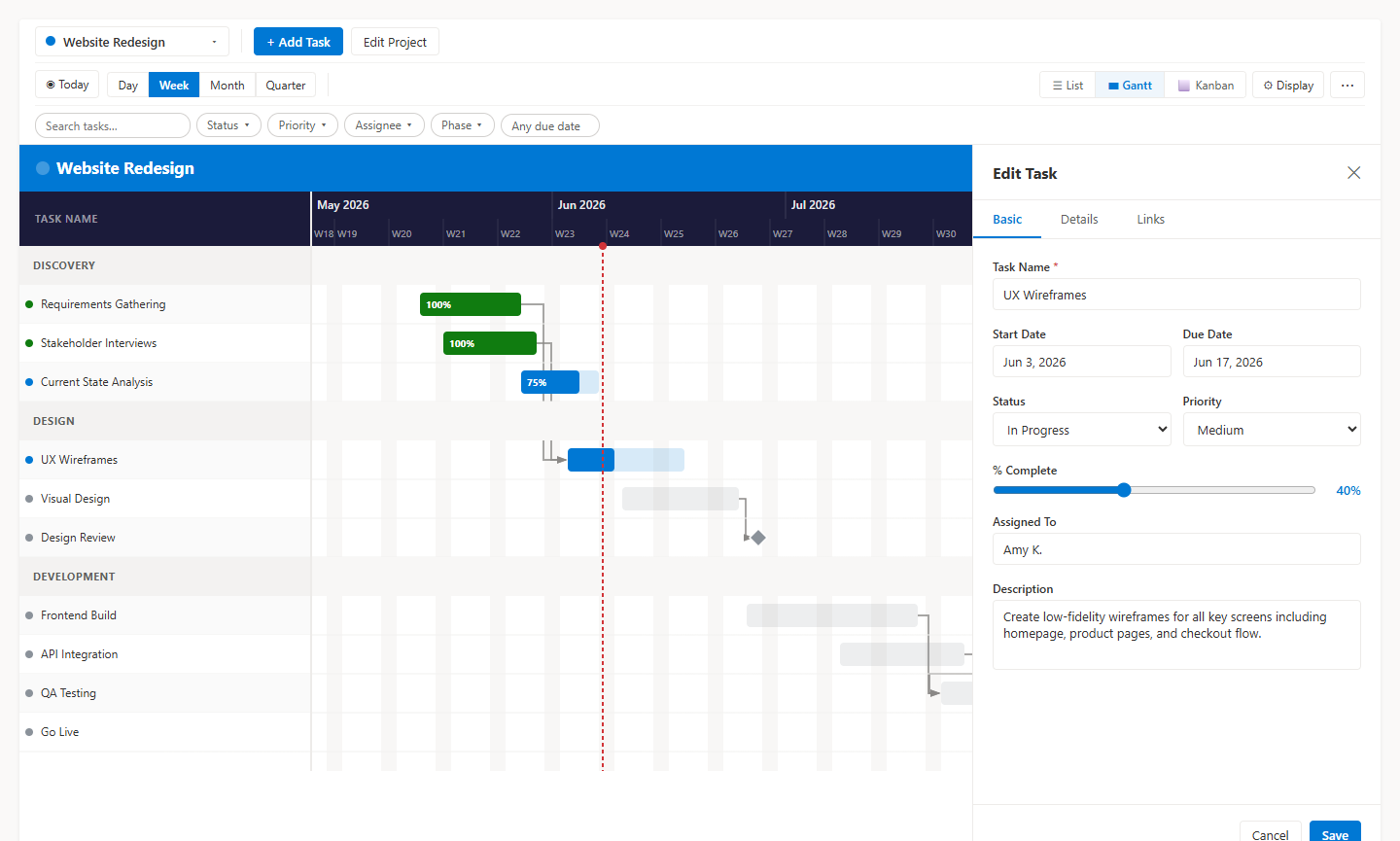
Step 4 — Assign owners and track effort (task panel)
The task panel's Details tab is where you set the assignee, % complete, and any notes for the standup. Because it writes straight back to the SharePoint list, anything you put in here shows up in your existing list views, Power Automate flows, and column-based reports.
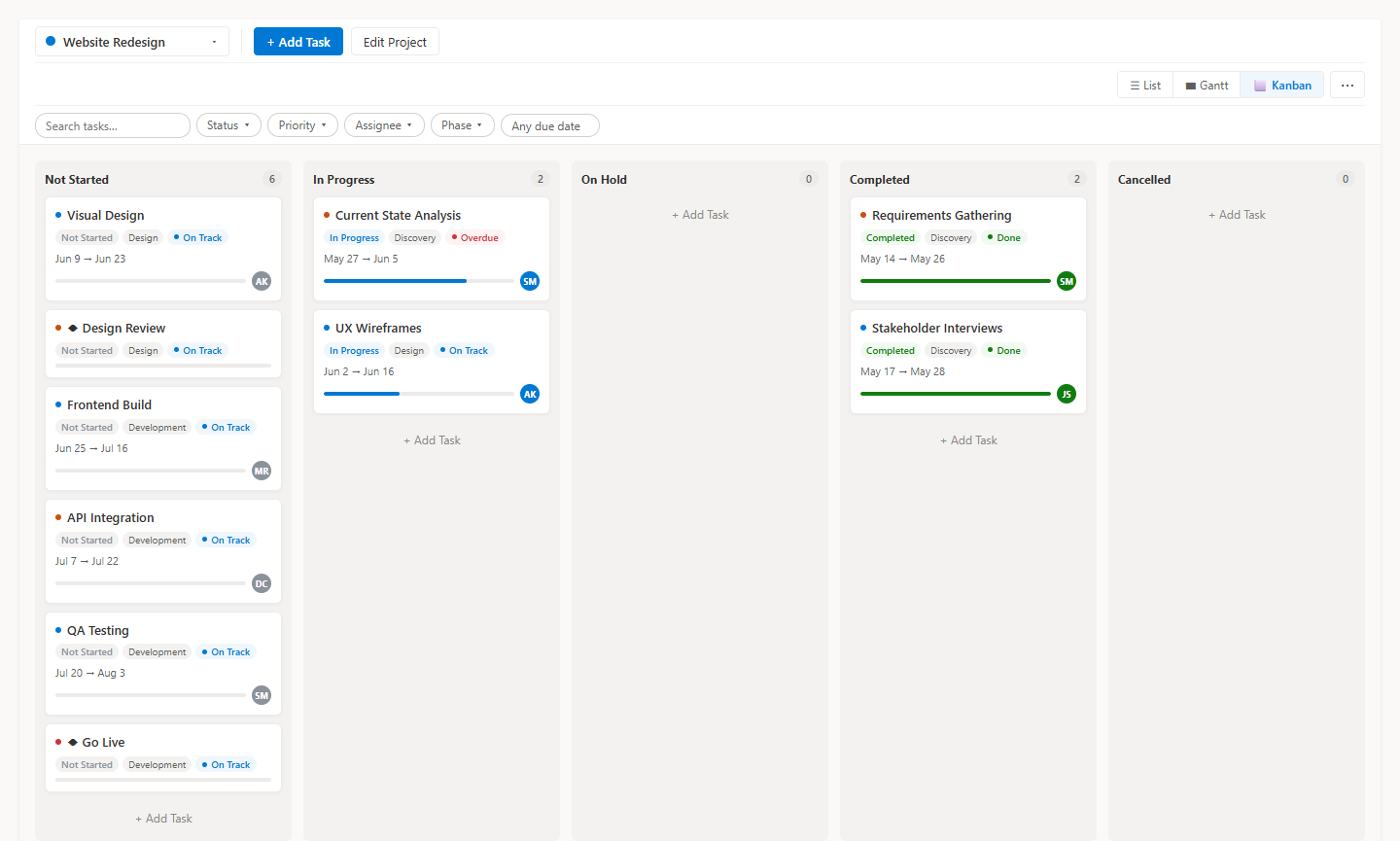
Step 5 — Run the daily standup on the Kanban view
Switch to the Kanban view. The Status column becomes the swimlanes (Not Started, In Progress, Blocked, Done). Drag cards across during standup — the change writes back to the list, and the Gantt view reflects it immediately.
Step 6 — Cross-check with the List view
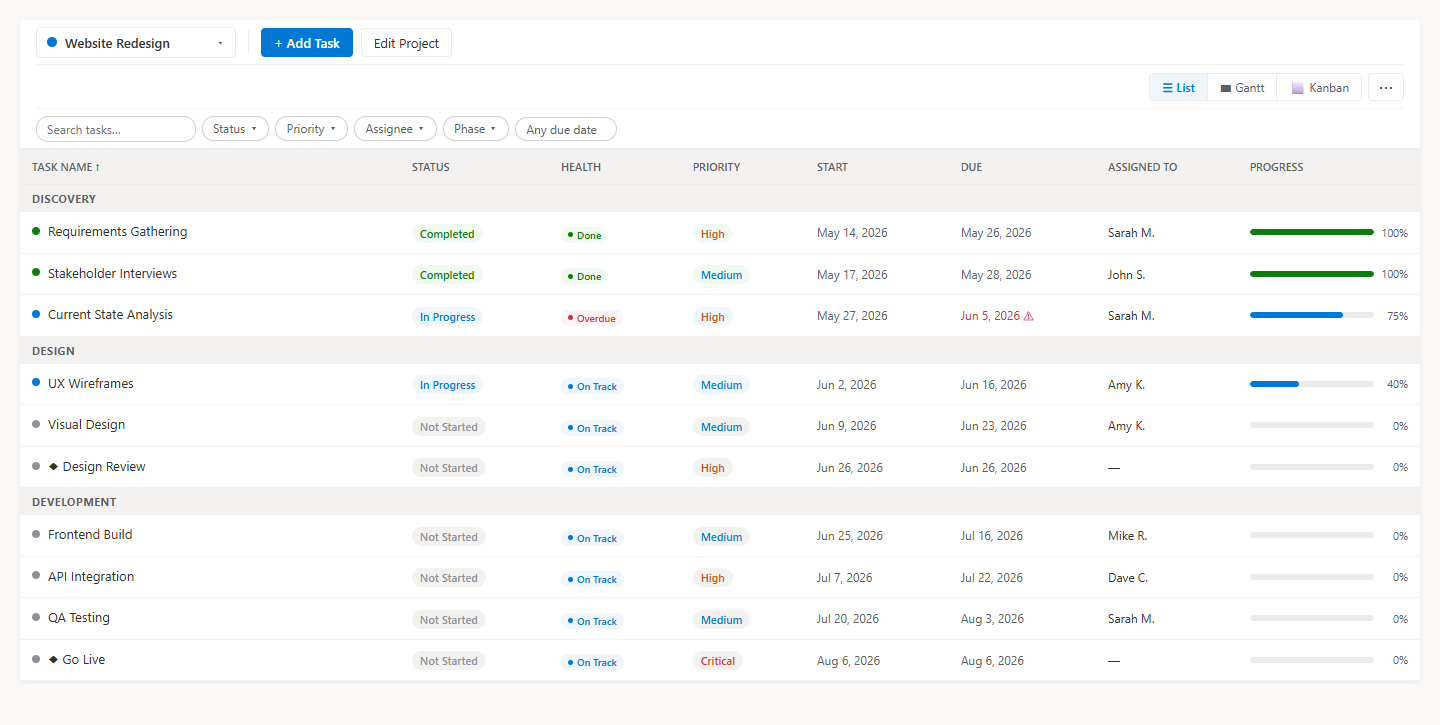
The List view is a dense grid for bulk edits — reassigning ten tasks after someone leaves the team, or nudging a batch of due dates by a sprint. Faster than editing them one-by-one on the Gantt.
Step 7 — Weekly stakeholder update — PowerPoint export
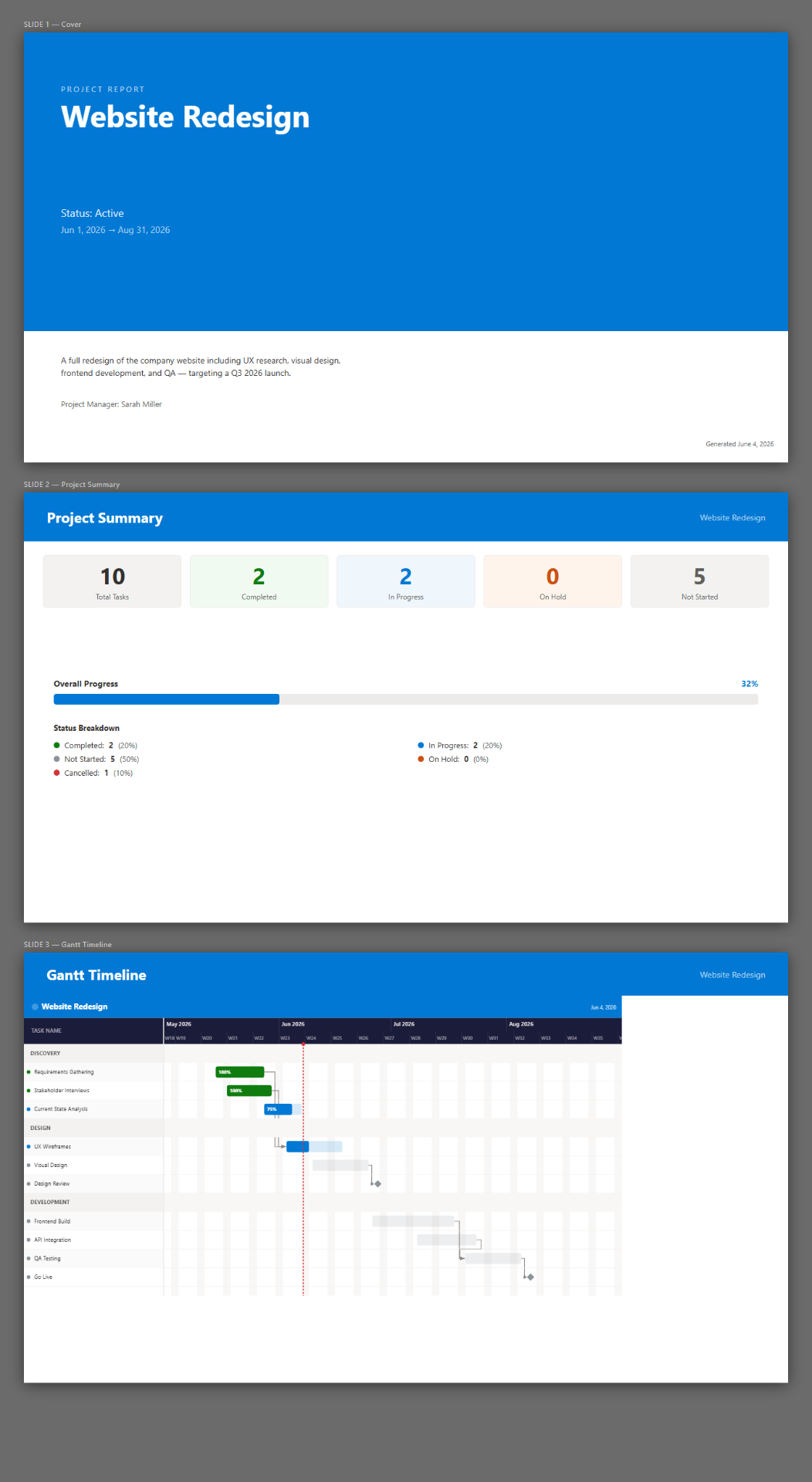
This is the one feature that saves the most time every week. From the Export menu, pick PowerPoint. Smart Gantt Chart renders the current Gantt view as a clean, presentation-grade slide — no screenshot-and-crop, no manual Visio rebuild. Drop it into your steering committee deck.
What this replaces
- Project for the Web licenses you were about to buy for the whole team.
- Screenshot-and-crop of a third-party Gantt tool into your weekly deck.
- Planner boards that couldn't handle dependencies or a real timeline.
- A parallel Smartsheet instance that was drifting out of sync with the SharePoint site.
Related
Get your first result in about 10 minutes
Gantt + Kanban + list view, backed by a SharePoint list. Free, MIT licensed, no sign-up.
- Download the .sppkg package from the latest release.
- Upload it to your tenant App Catalog.
- Add the web part to a SharePoint page.
Email me when a new release ships
No marketing spam. One short email when a new release ships. You can unsubscribe anytime.
The SharePoint project management guides
Build the plan, run it week to week, then share it with the people who only ever see the summary.
Build the plan
Start a project, add tasks with dates, and get a timeline on a SharePoint page.
Bring a task list, Excel sheet or Microsoft Planner board in through the import wizard.
Group work into phases and mark the dates that people actually care about.
The SharePoint lists the web part creates, who needs which permission, and what that means for governance.
Export a proven plan to Excel, reset the dates, and start every similar project from it.
Two ways to give a long task list structure, and the roll-up behavior to plan around.
Run the project
A 20-minute routine straight from the SharePoint page, ending with a one-click deck.
On Track, At Risk, Overdue or Done, derived from dates and progress instead of typed in.
Assign tasks, filter by assignee, and find the person carrying too much of the plan.
Cut a 400-task timeline down to the slice you need for a single conversation.
Retire completed work without losing the record, and recover a project deleted by mistake.
The Portfolio view: a status card per project with automatic health and a mini timeline.
Save the agreed dates, then see each task's finish variance in working days.
How simultaneous edits are protected, and the quick edits that save instantly.
Share and compare
What clients and contractors can do in the plan, and the two things an internal owner handles.
Turn the live plan into a steering-committee deck, plus Excel and PNG output.
Where Calendar and Board views stop, and when dependencies and baselines make a Gantt worth it.
Smart Gantt Chart against Microsoft Project, Planner, Smartsheet, Monday and the rest.
The full picture of running projects from SharePoint, in one page.
The free, open-source Gantt web part that runs inside your own tenant.
Was this page helpful?
One click. No form, no email address.
Missing something in SharePoint Smart Gantt Chart? Feature requests and bug reports go straight to the developer on GitHub — no account needed to read, free account to post.
Request a featureRelated tool
SharePoint Smart Gantt Chart
Gantt + Kanban + list view, backed by a SharePoint list. Free, MIT licensed, no sign-up.
Keep reading
Microsoft Lists Gantt Chart View: Built-in Limits vs Real Dependencies
Microsoft Lists has no real Gantt view. Here's what the built-in views can do, where they stop, and how to get real dependencies inside SharePoint for free.
Run a Weekly Project Status Meeting From SharePoint
Most status meetings are spent rebuilding the status. If the plan lives in SharePoint, the meeting can start with the answers already on screen.
Reuse a SharePoint Project Plan as a Template
Every onboarding, every migration, every site rollout runs the same twenty tasks. Here is how to stop retyping them in SharePoint.
Rolling this out to more teams?
Let our team set up project tracking in SharePoint
We design your project sites, lists, and Power Automate workflows, then train your team so project tracking actually sticks.
About the author
Sean Regan
SharePoint & Microsoft 365 consultant with 20+ years of hands-on experience building SPFx web parts, migration tooling and tenant-grade automation. Maintainer of the open-source SharePoint Smart Solutions suite.